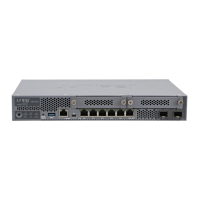
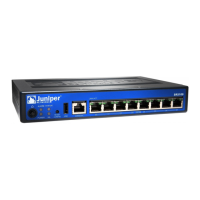
Connecting an SRX100 Services Gateway to the CLI Locally
If you plan to use the CLI to configure the SRX100 Services Gateway, you must connect
through the console port, as shown in Figure 16 on page 75.
Figure 16: Connecting to the Console Port on an SRX100 Services Gateway
NOTE: Figure 16 on page 75 shows a connection to a local management
device. A remote connection to the services gateway through a modem
requires the cable and connector shown (provided in the services gateway
accessory box), plus a DB-9 male to DB-25 male (or similar) adapter for your
modem, which you must purchase separately.
To connect to the CLI using a local management device through the console port on the
services gateway:
1. Turn off power to the services gateway.
2. Turn off power to the management device, such as a PC or laptop computer, that you
are using to access the CLI.
3. Plug one end of the Ethernet cable supplied with your services gateway into the RJ-45
to DB-9 serial port adapter supplied with your services gateway (see
Figure 16 on page 75).
4. Plug the RJ-45 to DB-9 serial port adapter into the serial port on the management
device (see Figure 16 on page 75).
5. Connect the other end of the Ethernet cable to the console port on the services
gateway (see Figure 16 on page 75).
6. Turn on the power to the management device.
75Copyright © 2015, Juniper Networks, Inc.
Chapter 14: Performing Initial Configuration


 To Next Page