Related
Documentation
Connecting the Modem to the Console Port on the SRX100 Services Gateway on
page 63
•
• Connecting to the CLI at the User End for the SRX100 Services Gateway on page 63
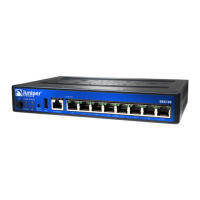
Connecting the Modem to the Console Port on the SRX100 Services Gateway
To connect the dial-up modem to the console port on the services gateway:
1. Turn off power to the services gateway.
2. Turn off power to the modem.
3. Plug one end of the Ethernet cable supplied with your services gateway into the
console port on the services gateway.
4. Plug the other end of the CAT-5e cable (Ethernet cable) into the RJ-45 to DB-9 serial
port adapter supplied with your services gateway.
5. Connect the serial port adapter to a separately purchased DB-9 female to DB-25
male adapter or other adapter appropriate for your modem.
6. Plug the modem adapter into the DB-25 connector on the modem.
7. Connect the modem to your telephone network.
8. Turn on the power to the modem.
9. Power on the services gateway by pressing the Power button on the front panel. Verify
that the Power LED on the front panel turns green.
NOTE: Most modems have an RS-232 DB-25 connector. You must
separately purchase an adapter to connect your modem to the RJ-45 to
DB-9 adapter and the Ethernet cable supplied with the services gateway.
Related
Documentation
Connecting the Modem at the SRX100 Services Gateway End on page 62•
• Connecting to the CLI at the User End for the SRX100 Services Gateway on page 63
Connecting to the CLI at the User End for the SRX100 Services Gateway
To remotely connect to the CLI through a dial-up modem connected to the console port
on the services gateway:
1. Connect a modem at your remote location to a management device such as a PC or
laptop computer.
2. Start your asynchronous terminal emulation application (such as Microsoft Windows
HyperTerminal) on the PC or laptop computer.
3. Select the COM port to which the modem is connected (for example, COM1).
63Copyright © 2015, Juniper Networks, Inc.
Chapter 12: Connecting the SRX100 Services Gateway to External Devices


 To Next Page