• Installing the SRX100 Services Gateway in a Rack on page 51
• Installing the SRX100 Services Gateway on a Wall on page 54
Installing the SRX100 Services Gateway on a Wall
You can install the SRX100 Services Gateway on a wall. The device is shipped with the
rubber feet attached. The rubber feet help stabilize the device on the wall and enhance
airflow.
NOTE: The wall-mounting kit is not shipped with the device and must be
ordered separately.
To install the device on a wall:
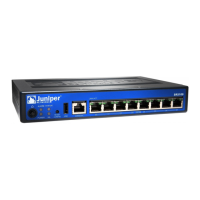
1. Place the device on a flat and level surface with the Juniper Networks logo embossed
on the top cover facing up.
2. Position a mounting bracket on each side of the chassis as shown in
Figure 11 on page 54.
Figure 11: Installing the SRX100 Services Gateway on a Wall
3. Use a number–1 Phillips screwdriver to install the screws that secure the mounting
brackets to the chassis.
4. If you are using wall anchors to support the chassis, install two pairs of anchors on
the wall with mounting brackets attached.
5. Have one person grasp the sides of the device, lift it, and position it on the wall.
6. Have a second person install two pairs of mounting screws through the bracket holes
on either side of the device to secure it to the wall.
7. Verify that the mounting screws on one side are aligned with the mounting screws on
the opposite side and that the device is level (see Figure 12 on page 55).
Copyright © 2015, Juniper Networks, Inc.54
SRX100 Services Gateway Hardware Guide for B and H Model Numbers


 To Next Page