June 2018
Legrand PDU User Guide 239
Bulk Configuration
The Bulk Configuration feature lets you save generic settings of a configured Legrand PDU device to your
computer. You can use this configuration file to copy common settings to other Legrand PDUs of the same
model and firmware version. See Bulk Configuration Restrictions (on page 240).
A source d
evice is the L
egrand PDU device where the configuration file is downloaded/saved. A target
device is the Legrand PDU device that loads the configuration file.
By default the configuration file downloaded from the source device contains settings based on the built-in
bulk profile. The built-in bulk profile defines that all settings should be saved except for device-specific
settings.
You can decide which settings are downloaded and which are not by creating your own bulk configuration
profile.
Note that "device-specific" settings, such as the device's IP address or environmental sensor settings, will
never be included into any profile you will create so they will never be downloaded from any source device.
See Device-Specific Settings (on page 490).
Whe
n the dat
e and time settings are included in the bulk configuration file, exercise caution when distributing
that file to target devices located in a different time zone than the source device.
Tip: To back up or restore "all" settings, including device-specific ones, use the Backup/Restore feature
instead. See Backup and Restore of Device Settings (on page 243).
Main bulk configuration procedure:
1. If you prefer customizing the bulk configuration file, create your own bulk configuration profile(s) first.
See Customizing Bulk Configuration Profiles (on page 240).
2. Perform the bu
lk configuration operation, which includes the following steps. For details, see Performing
Bulk Configuration (on page 241).
a. Make sure th
e desired bulk configuration profile has been selected on the source device.
b. Save a bulk configuration file from the source device.
c. Perform bulk configuration on one or multiple target devices.
Note: On startup, Legrand PDU performs all of its functions, including event rules and logs, based on the
new configuration you have copied instead of the previous configuration prior to the device reset. For
example, the "Bulk configuration copied" event is logged only when the new configuration file contains the
"Bulk configuration copied" event rule.
The last configuration-copying record:
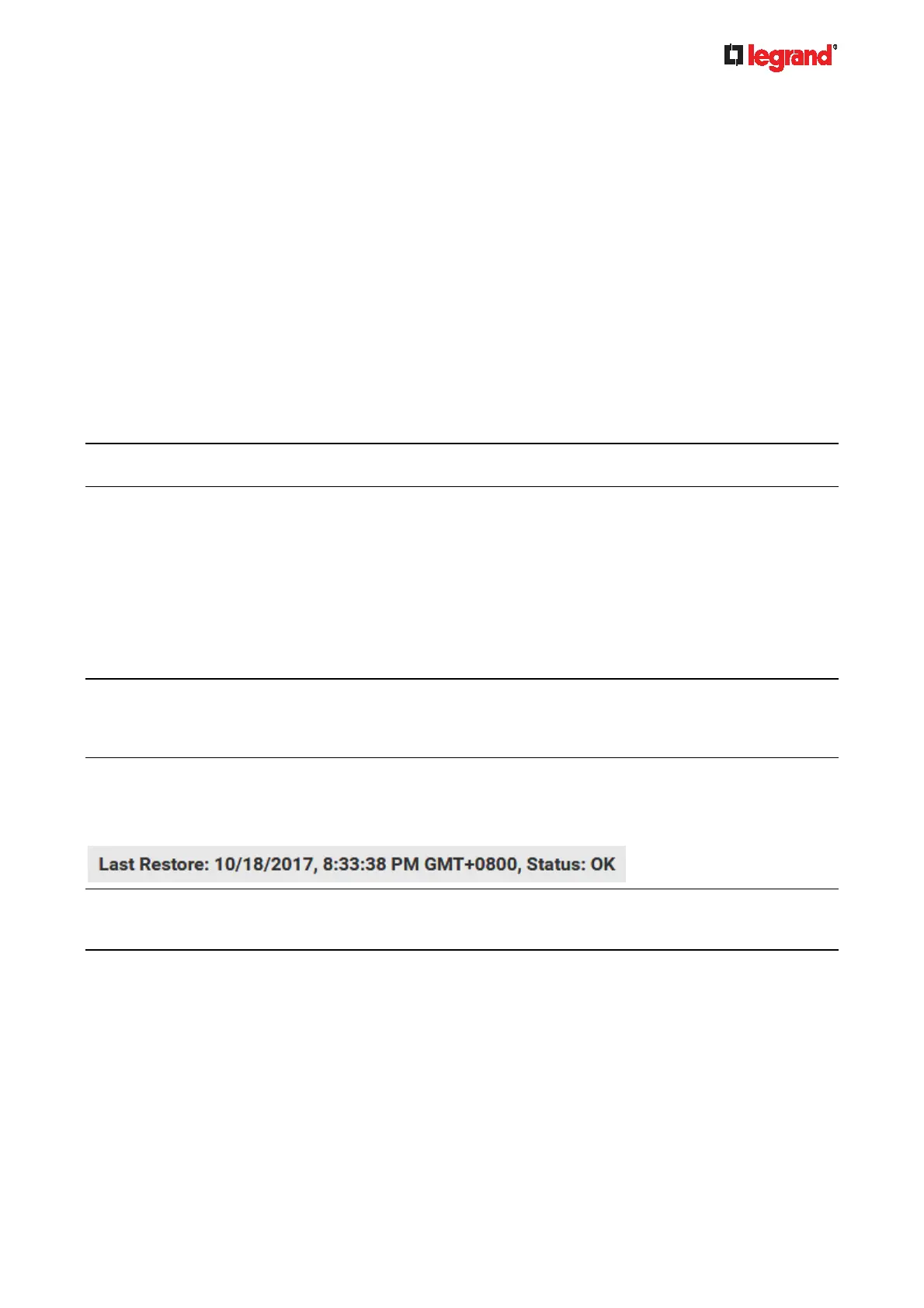
If you once copied any bulk configuration or device backup file to the Legrand PDU, the last record similar to
the following is displayed at the bottom of both the Bulk Configuration and Backup/Restore pages.
Tip: The date and time shown on the Legrand PDU web interface are automatically converted to your
computer's time zone. To avoid any time confusion, you can apply the same time zone settings as those of
Legrand PDU to your computer.
Alternatives:
To use a different bulk configuration method, refer to:
Bulk Configuration via SCP (on page 393)
Bulk Configuration or Fi
rmware Upgrade via DHCP/TFTP (on page 411)
Configura
tion or Firmware Upgrade with a USB Drive (on page 402)


 To Next Page