June 2018
Legrand PDU User Guide 57
Port Used for...
USB-A
This is a "host" port, which is powered, per USB 2.0 specifications.
Connecting to an iOS mobile device for viewing or configuring the
Legrand PDU. See Connecting a Mobile Device to Legrand PDU (on
page 26).
Con
nec
ting a USB device, such as a Logitech
®
webcam or wireless
LAN adapter.
Cascading Legrand PDUs for sharing a network connection.
CONSOLE
(RJ-45)
Establishing a serial connection between the Legrand PDU and a computer
for accessing the command line interface..
You need a third-party RJ-45 to DB9 adapter/cable for the connection. See
RJ45-to-DB9 Cable Requirements for Computer Connections (on page
31).
SENSOR
(RJ-45)
Connection to one of the following devices:
Raritan's environmental sensor package(s).
Raritan's sensor hub, which expands the number of a sensor port to
four ports.
ETH 10/100,
ETH
10/100
Legrand PDU has two Ethernet ports, supporting up to 100 Mbps.
Connecting the Legrand PDU to your company's network via a standard
network patch cable (Cat5e/6). This connection is necessary to administer
or access the Legrand PDU remotely.
There are two small LEDs adjacent to the port:
Green indicates a physical link and activity.
Yellow indicates communications at 10/100 BaseT speeds.
You can use either Ethernet port for network connection or cascading. See
Extended Cascading with Legrand PDUs (on page 35).
Note: Connection to this po
rt is not required if wireless connection is
preferred, or if the Legrand PDU is a slave device in the cascading
configuration. See Cascading Multiple Legrand PDUs for Sharing
Ethernet Connectivity (on page 32).
Front Panel Display
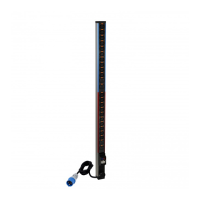
The following diagram shows the dot-matrix LCD display panel on Zero U models.


 To Next Page