June 2018
Legrand PDU User Guide 245
2. Click Run. The Trace Route results are then displayed.
List TCP Connections:
1. Click the List TCP Connections title bar to show the list.
Downloading Diagnostic Information
Important: This function is for use by Legrand Field Engineers or when you are directed by Legrand Technical
Support.
You can download the diagnostic file from the Legrand PDU to a client machine. The file is compressed into
a .tgz file and should be sent to Legrand Technical Support for interpretation.
This feature is accessible only by users with Administrative Privileges or Unrestricted View Privileges.
To retrieve a diagnostic file:
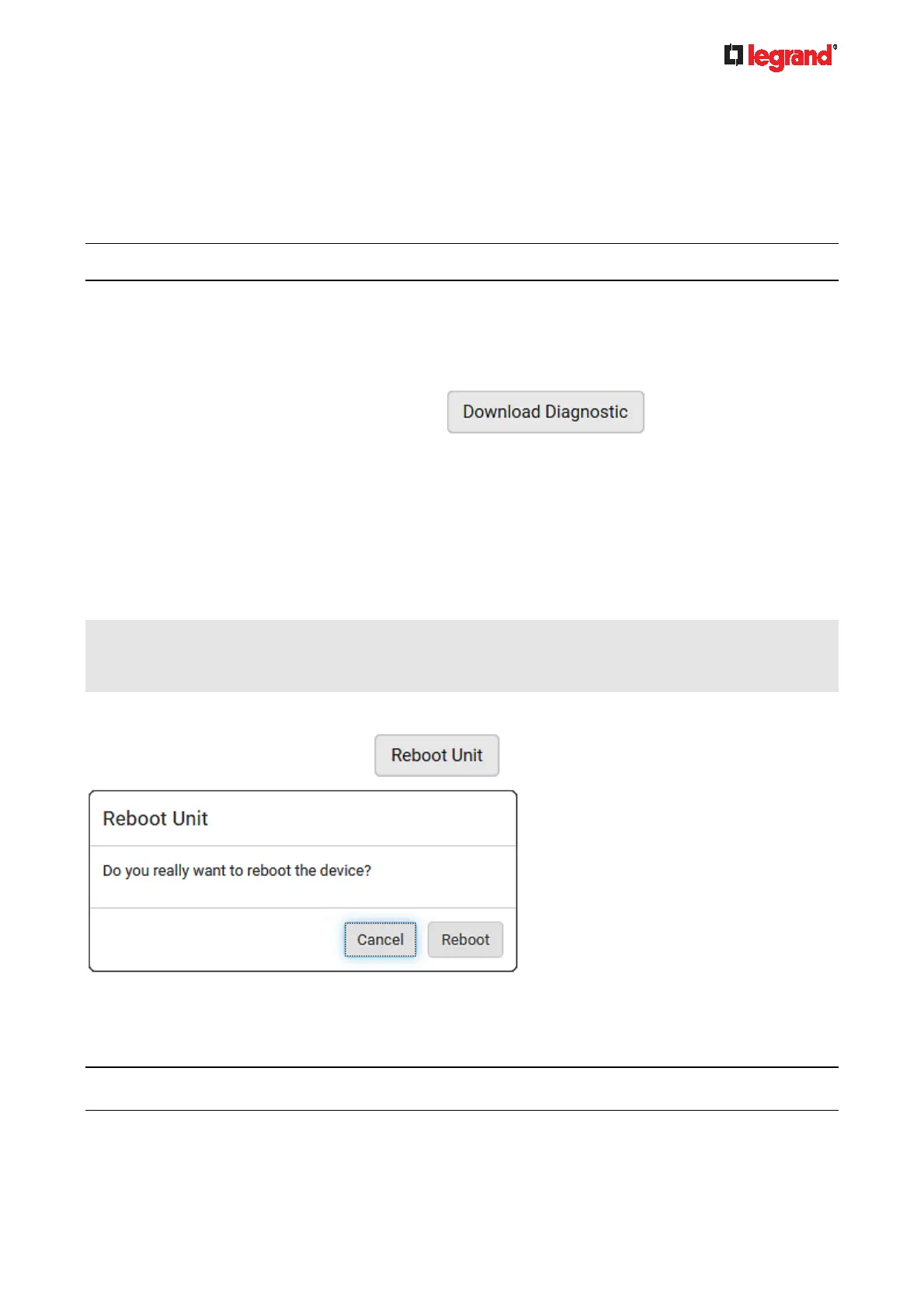
1. Choose Maintenance > Download Diagnostic >
.
2. The system prompts you to save or open the file. Save the file then.
3. E-mail this file as instructed by Legrand Technical Support.
Rebooting the Legrand PDU
You can remotely reboot the Legrand PDU via the web interface.
Resetting the Legrand PDU does not interrupt the operation of connected servers because there is no loss of
power to outlets. During and after the reboot, outlets that have been powered on prior to the reboot remain
powered on, and outlets that have been powered off remain powered off.
Warning: Rebooting the Legrand PDU deletes all webcam snapshots that are saved onto the Legrand
PDU locally. If needed, download important snapshots before rebooting the device. See Viewing and
Managing Locally-Saved Snapshots (on page 253).
To reboot the device:
1. Choose Maintenance > Unit Reset >
.
2. Click Reboot to restart the Legrand PDU.
3. A message appears, with a countdown timer showing the remaining time of the operation. It takes about
one minute to complete.
4. When the restart is complete, the login page opens.
Note: If you are not redirected to the login page after the restart is complete, click the text "this link" in the
countdown message.


 To Next Page