June 2018
248 Legrand PDU User Guide
With a Logitech
®
webcam connected to the Legrand PDU, you can visually monitor the environment around
the Legrand PDU via snapshots or videos captured by the webcam.
Permissions required:
To do... Permission(s) required
View snapshots and
videos
Either permission below:
Change Webcam Configuration
View Webcam Snapshots and
Configuration
Configure webcam
settings
Change Webcam Configuration
Additional webcam-related actions you can take:
Action Refer to
Manually store snapshots taken from
the webcam onto the Legrand PDU or
a remote server
Configuring Webcams
and Viewing Live
Images (on page 248)
Chan
ging Storage
Settings
(on page 254)
Send a snapshot or video session's
link to other people via email or instant
message
Sending Links to
Snapshots or Videos (on
page 251)
Create event rules to trigger emails
containing snapshots from a webcam
Available Actions (on
page 196)
For more information on your Logitech webcam, refer to the user documentation accompanying it.
Configuring Webcams and Viewing Live Images
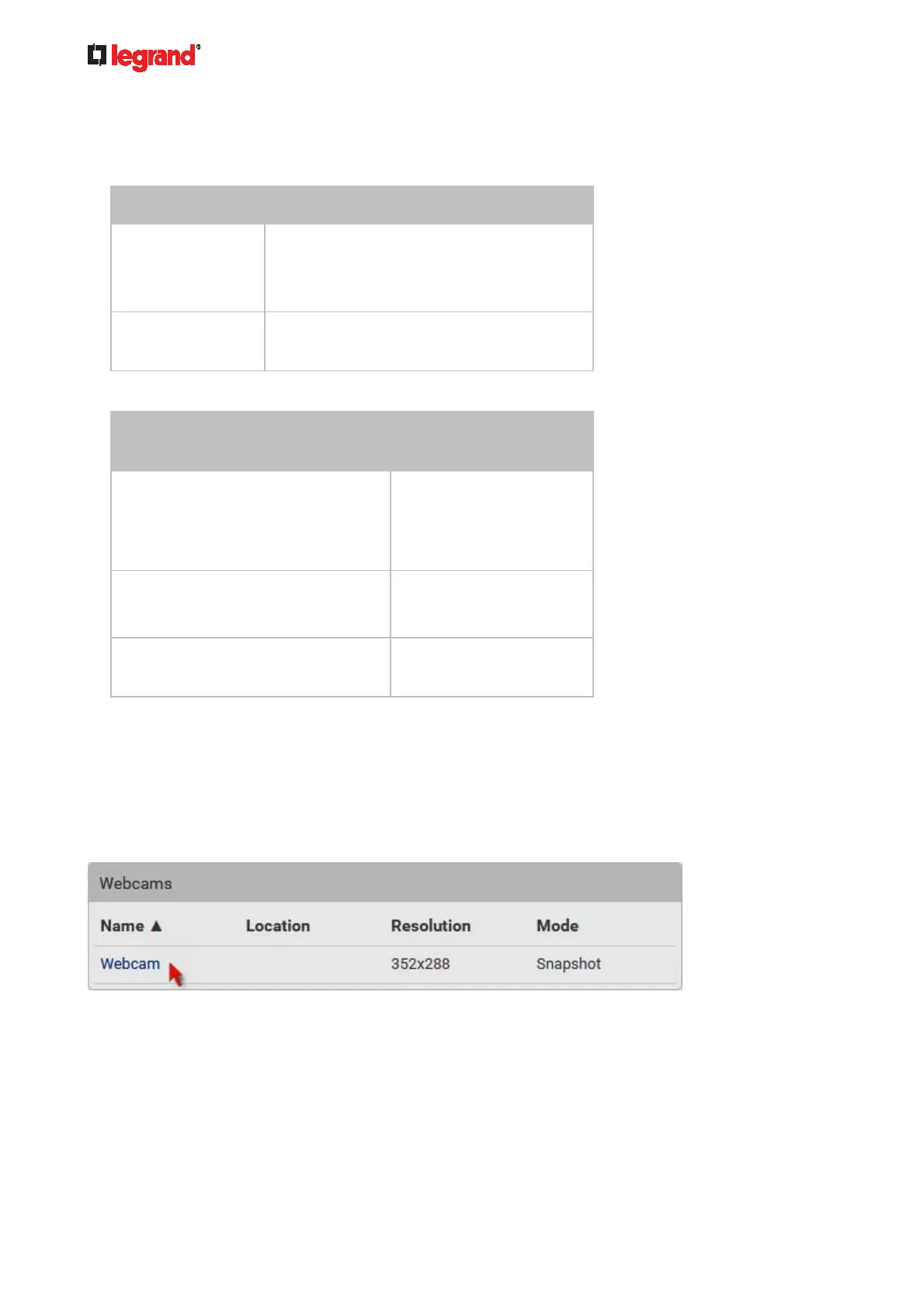
To configure a webcam or view live snapshot/video sessions, choose Webcams in the Menu (on page 84).
Then click the desired webcam to open that webcam's page.
Note that default webcam names are determined by the detection order. The one that is detected first is
named Webcam, and the other that is detected later is named Webcam 2.
The Webcam page consists of three sections -- Live Preview, Image Controls and Settings.
Live Preview:
1. By default the Live Preview section is opened, displaying the live snapshot/video session captured by
the webcam.


 To Next Page