June 2018
254 Legrand PDU User Guide
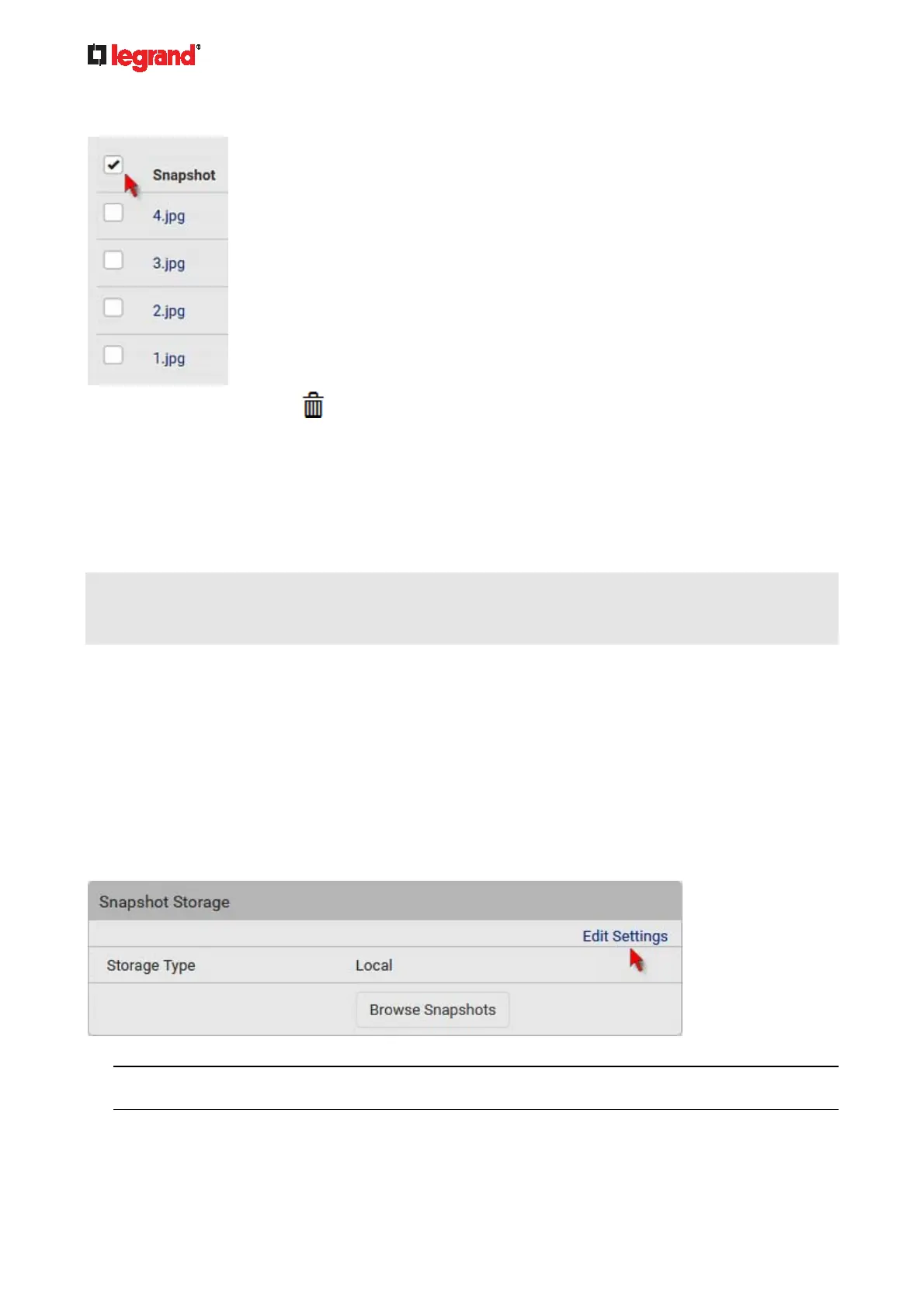
To select all images, select the topmost checkbox in the header row.
3. On the top of the list, click
.
4. Click Delete on the confirmation message.
To download any image onto the computer:
To download an image onto your computer, move your mouse to that image, right click on it, and choose
Save Image As.
Changing Storage Settings
Important: The Legrand PDU web interface only lists the snapshots stored locally on the Legrand PDU
device, but does NOT list those saved onto remote servers. You must launch appropriate third-party
applications, such as an FTP client, to access and manage the snapshots stored on remote servers.
The default is to store snapshots onto the Legrand PDU device, which has a limitation of 10 snapshots. Note
that any operation involving device reboot will remove the snapshots saved on the Legrand PDU, such as
firmware upgrade.
If you have either or both needs below, you must save snapshots onto a remote server like FTP or
CIFS/Samba, instead of the Legrand PDU.
Total number of saved snapshots will exceed 10.
Saved snapshots must be stored permanently, or at least should not be removed by the Legrand PDU
device's reboot.
To configure the storage settings:
1. Choose Webcams > Edit Settings.
2. Click the Storage Type field to select the desired storage location and configure as needed.
Note: When entering user credentials for remote servers, make sure the user credentials you enter have
the write permission, or NO snapshots can be successfully saved onto remote servers.


 To Next Page