L-DALI User Manual 84 LOYTEC
Version 5.2 LOYTEC electronics GmbH
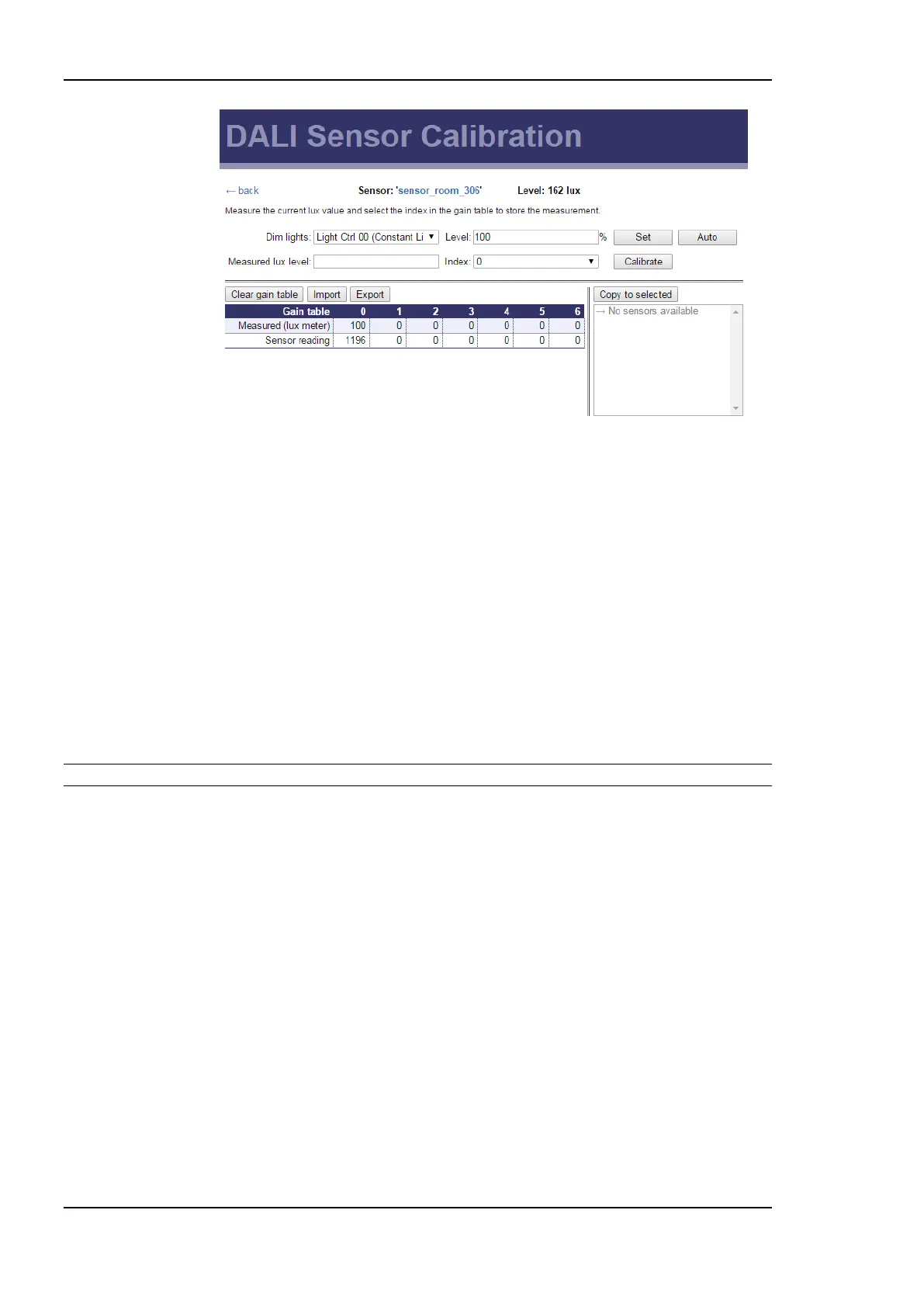
Figure 81: Sensor Calibration
To calibrate the sensor perform the following steps:
1. Measure the current lux level at the reference area (e.g. desk) using a luxmeter.
2. Optionally, the rooms light level can be adjusted. Select the appropriate DALI group or
Constant Light Controller instance located in the vicinity of the sensor in the Dim
lights drop down box. Then enter a desired dim level in the Level input field and press
the Set button. To resume normal operation press the Auto button.
3. Enter the measured lux level in the input field and select an unused index.
4. Press the Calibrate button.
5. To get the more accurate sensor reading, perform steps 1. – 3. With different light
conditions.
Note: It is recommended to calibrate the sensor at least near the desired lux setpoint!
If the sensor installation scenario is similar for multiple sensors, the calibration information
can be applied to other sensor instances by selecting them in the box below the button Copy
to selected and clicking the button. Similar the calibration information can be exported and
imported by using the buttons Import and Export to transfer the data to other L-DALI
devices.
To reset the calibration table press the Clear Gain Table button.
5.3.4.7 Button Configuration
If supported by the DALI button the function to be performed, when a button is pressed can
be configured. On the DALI Installation page click on the Configure button next to the
button device that is to be configured. The dialog shown in Figure 82 appears.
For DALI push-button coupler devices the Mode drop down box allows to select whether a
switch or a push button is connected to the button input. The Function drop down box
allows selecting the function to be performed when the button is pressed. See Table 11 for a
list of available function. If the function is used to control light, the Destination column
allows selecting the DALI group or channel to be controlled. If the function requires
additional arguments (e.g. dim values or scene numbers) they are configured in the columns
Argument 1 and Argument 2.


 To Next Page