Using your Edger...Usual procedure
3-48
LTO
3.2.6.2.2 SHAPE ENTRY
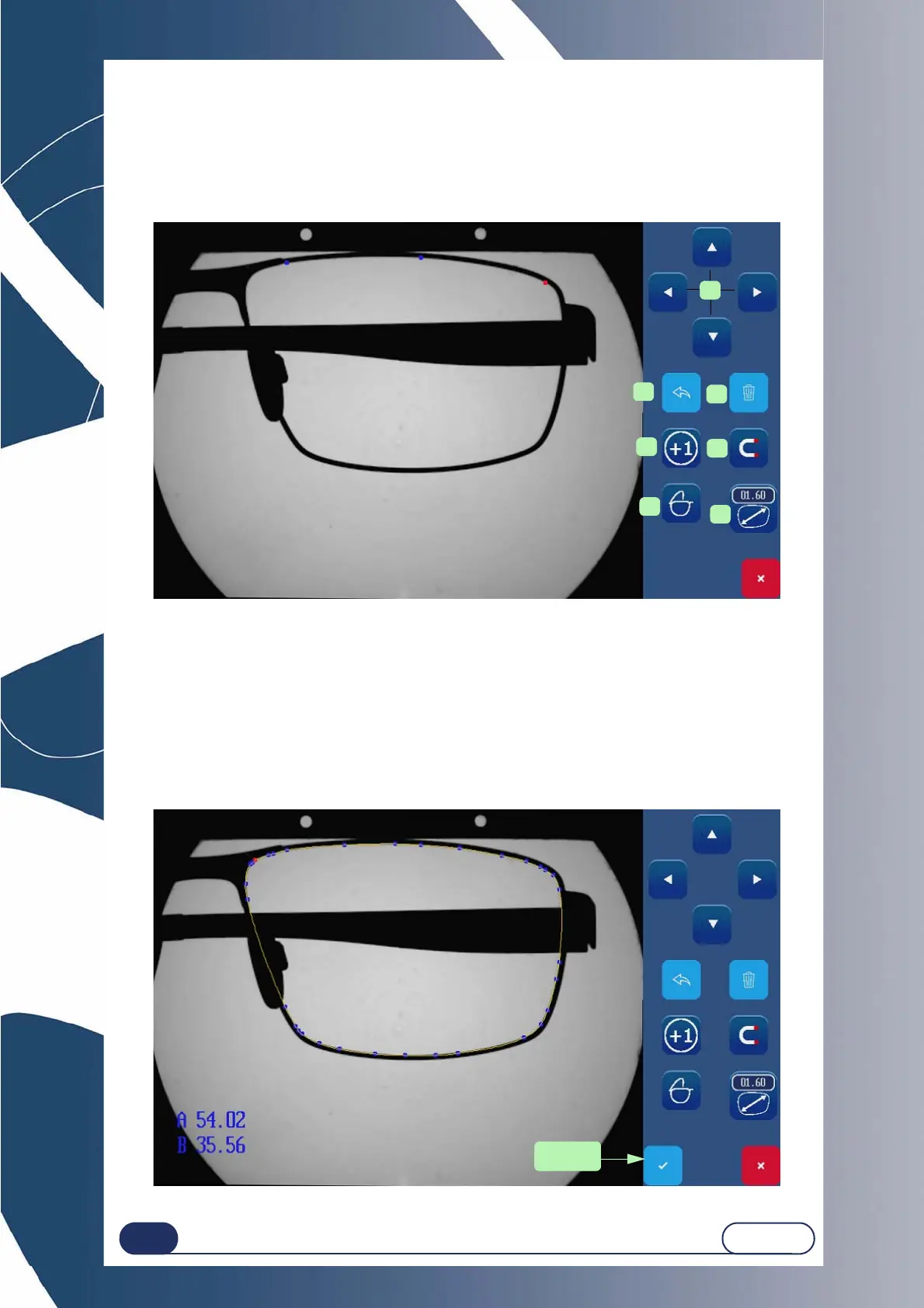
Place points by clicking on the screen. Please click inside the frame shape.
As you position the points, the shape will appear on the screen and you will adjust the visual.
NOTA : The point being positioned appears in red on the screen.
Screen 3-23 : Point-by-point entry screen.
To insert and position a point, press button (1), you may then define the position of the latter
using browsing arrows (2).
It is possible to select your frame (3) and to apply an oversize depending on the frame type (4),
to activate /deactivate the magnetism (5).
The button (6) makes the elimination of a point possible; you may also return to the previous step (7).
Since the shape is completed, you only need to validate the entered shape or not.
Screen 3-24 : Example of an end-of-creation screen



 To Next Page