20.7 Working with LUTs 259
20.7.1.3 Setting the Host based LUTs via LUTOperations
Host based LUTs are also available via "Setting -> Base -> ImageProcessing -> LUTOperations"). Here, the
changes will affect the 8 bit image data and the processing needs the CPU of the host system.
Three "LUTMode"s are available:
• "Gamma"
You can use "Gamma" to lift darker image areas and to flatten the brighter ones. This compensates the con-
trast of the object. The calculation is described here. It makes sense to set the "Gamma←-
StartThreshold" higher than 0 to avoid a too extreme lift or noise in the darker areas.
• "Interpolated"
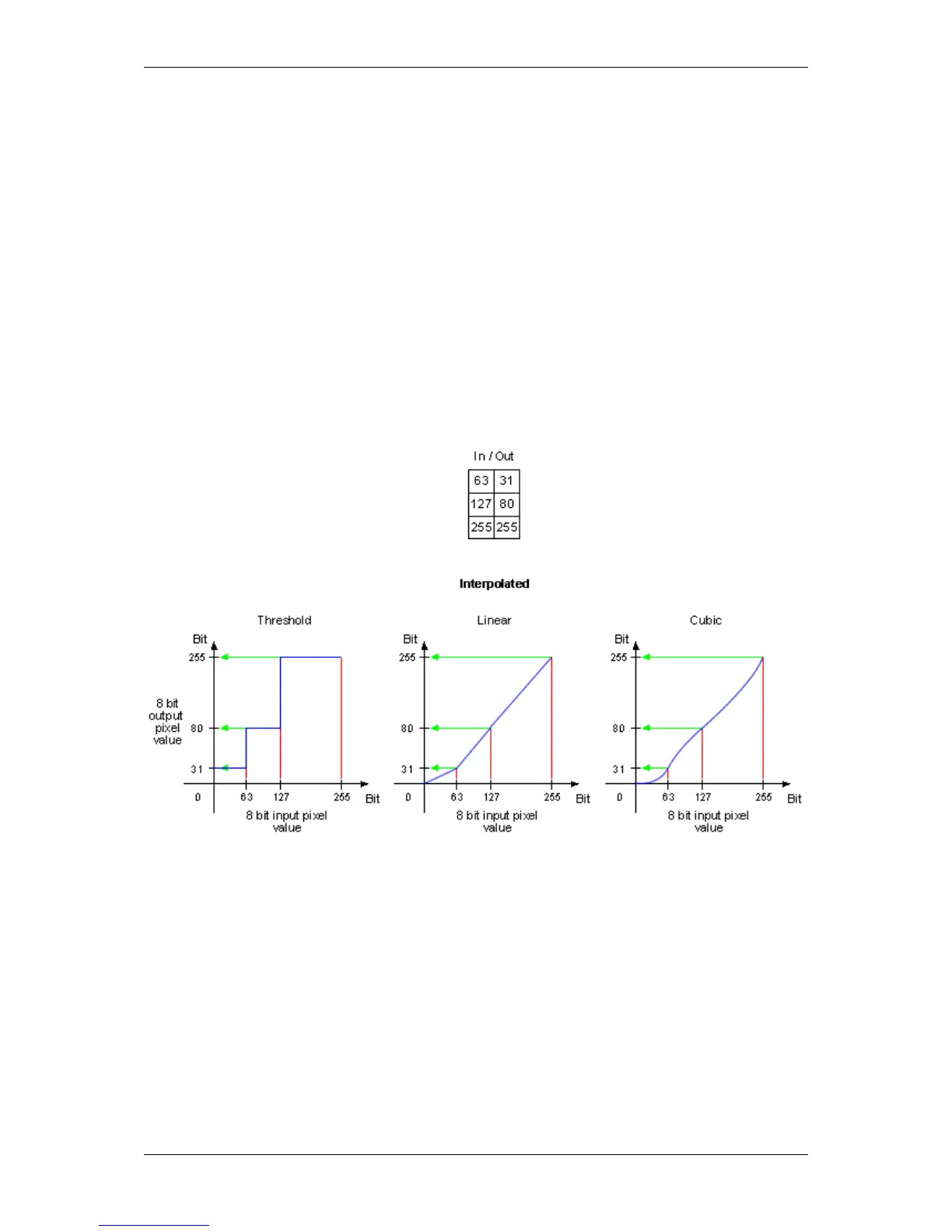
With "Interpolated" you can set the key points of a characteristic line. You can defined the number of key
points. The following figure shows the behavior of all 3 LUTInterpolationModes with 3 key points:
Figure 4: LUTMode "Interpolated" -> LUTInterpolationMode
• "Direct"
With "Direct" you can set the LUT values directly.
20.7.1.3.1 Example 1: Inverting an Image
To get an inverted 8 bit mono image like shown in Figure 1, you can set the LUT using wxPropView (p. 74). After
starting wxPropView (p. 74) and using the device,
1. Set "LUTEnable" to "On" in "Setting -> Base -> ImageProcessing -> LUTOperations".
2. Afterwards, set "LUTMode" to "Direct".
MATRIX VISION GmbH


 To Next Page