84 CONTENTS
mvIMPACT Acquire
Version
Loading a XML settings
file created with mvI←-
MPACT Acquire version
< 2.9.0
Loading a XML settings
file created with mvI←-
MPACT Acquire version
2.9.0 - 2.10.1
Loading a XML settings
file created with mvI←-
MPACT Acquire version
2.11.0 or later
< 2.9.0 YES NO NO
2.9.0 - 2.10.1 YES YES NO
>= 2.11.0 YES YES YES
Note
For devices operated in the GenICam interface layout further restriction apply: Settings created with a certain
product type can only be used with other devices belonging to the exact same type as defined by the property
Product inside the device list (the one device specific property list that is accessible without initializing the
device before). Even if a setting can be used with various firmware versions it is recommended to use one
setting for multiple devices all updated to the very same firmware version to avoid compatibility problems.
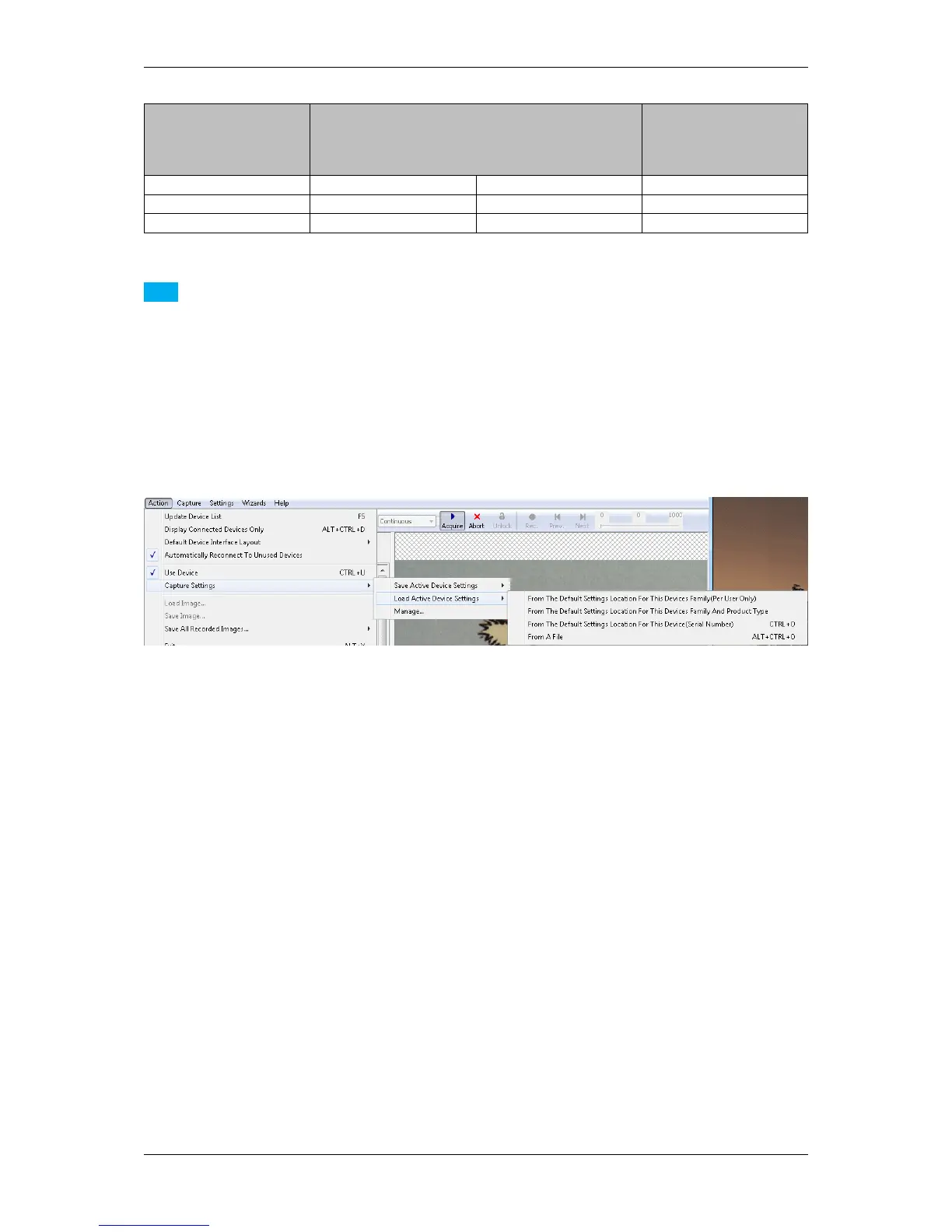
With "Action -> Capture Settings -> Manage..." you can delete the settings which were saved on the system.
Figure 7:wxPropView - Restoring settings
12.1.1.5 Properties
All properties and functions can be displayed in the list control on the lower left side of the dialog. To modify the
value of a property select the edit control right of the properties name. Property values, which refer to the default
value of the device, are displayed in green. A property value once modified by the user will be displayed in black
(even if the value itself has not changed). To restore its default value of a single property
• right click on the name of the property and
• select "Restore Default".
To restore the default value for a complete list (which might include sub-lists)
• right click on the name of a list and
• select "Restore Default".
In this case a popup window will be opened and you have to confirm again.
MATRIX VISION GmbH


 To Next Page