© Microhard Systems Inc. 17
2.0 Quick Start
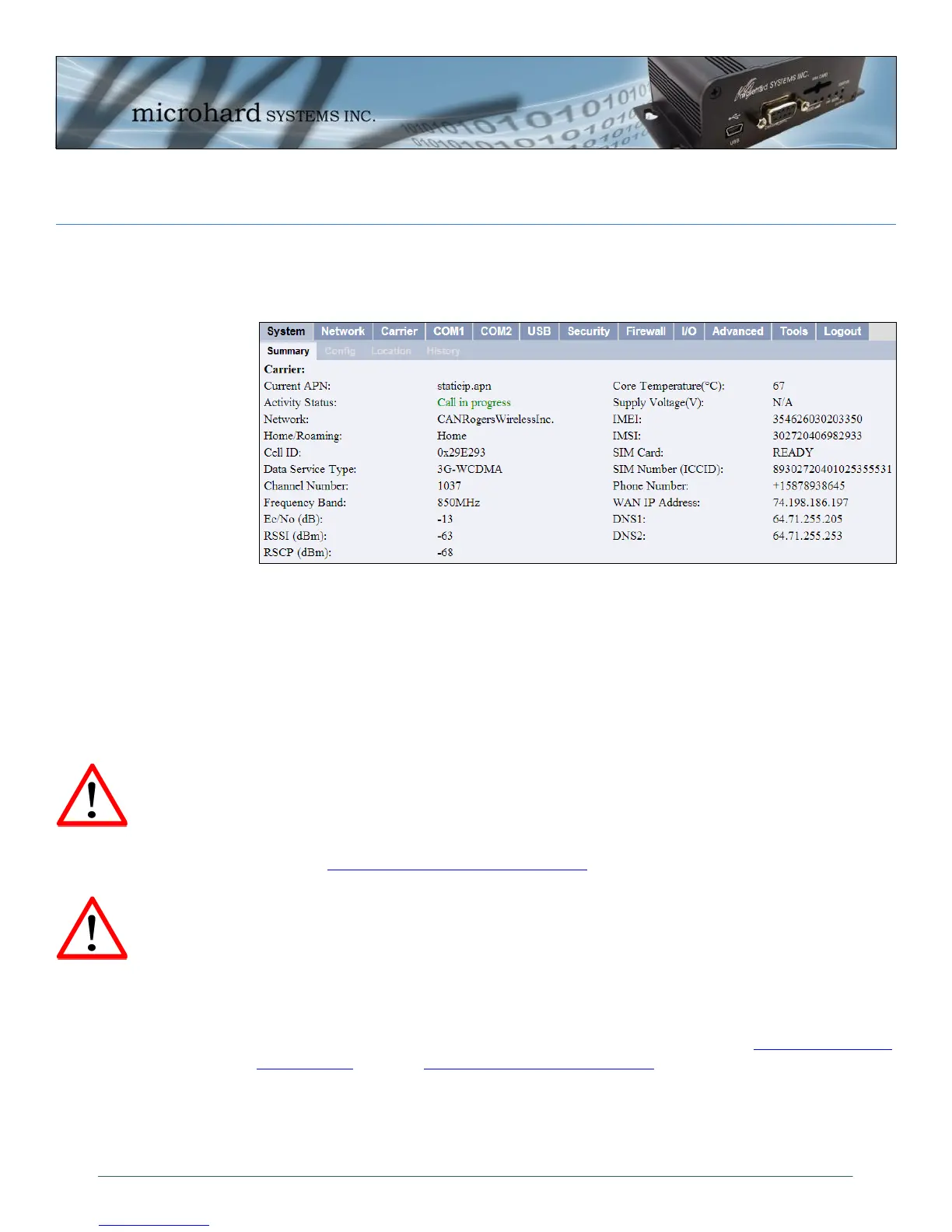
Verify connectivity with your Wireless Carrier by selecting Carrier > Statistics
or System > Summary. Your carriers name should appear next to the Network
entry and the Activity Status should read as: Call in progress
If you do not see “Call in Progress” you are not connected to or communicating
with your wireless carrier.
Check that the SIM card is installed correctly.
Verify that the proper antennas are installed correctly
Verify the APN assigned by the carrier.
Re-Enter the login details, if required by the carrier, to ensure any typing
errors.
You see “Call in Progress”, but no Internet Access. Check the WAN IP Address in
the Carrier > Statistics or System > Summary screens. If an IP Address is
not shown, check the APN and login details for errors.
Refer to Section 4.0 WebUI Configuration to configure serial ports, USB, or any
security or firewall features required on the IPn3G.
Ensure that all default passwords are changed to limit access to the modem.
For best practices and to limit data charges it is critical to properly set up the
firewall. (Especially important for Public Static IP addresses.)
To access devices attached to the IPn3G remotely, see Appendix C: IP-
Passthrough, and/or Appendix D: Port Forwarding for working examples of how
to configure your devices and the IPn3G to provide remote connectivity.
Ensure the default
passwords are changed.
Set up appropriate firewall
rules to block unwanted
incoming data.


 To Next Page