© Microhard Systems Inc. 192
Appendix F: Firewall Example
By completing the Quick Start process, a user should have been able to log in and set up the IPn3G to
work with their cellular carrier. By completing this, the modem is ready to be used to access the internet
and provide mobile connectivity. However, one of the main applications of the IPn3G is to access
connected devices remotely. Security plays an important role in M2M deployments as in most cases the
modem is publically available on the internet. Limiting access to the IPn3G is paramount for a secure
deployment. The firewall features of the IPn3G allow a user to limit access to the IPn3G and the devices
connected to it by the following means
- Customizable Rules
- MAC and/or IP List
- ACL (Access Control List) or Blacklist using the above tools.
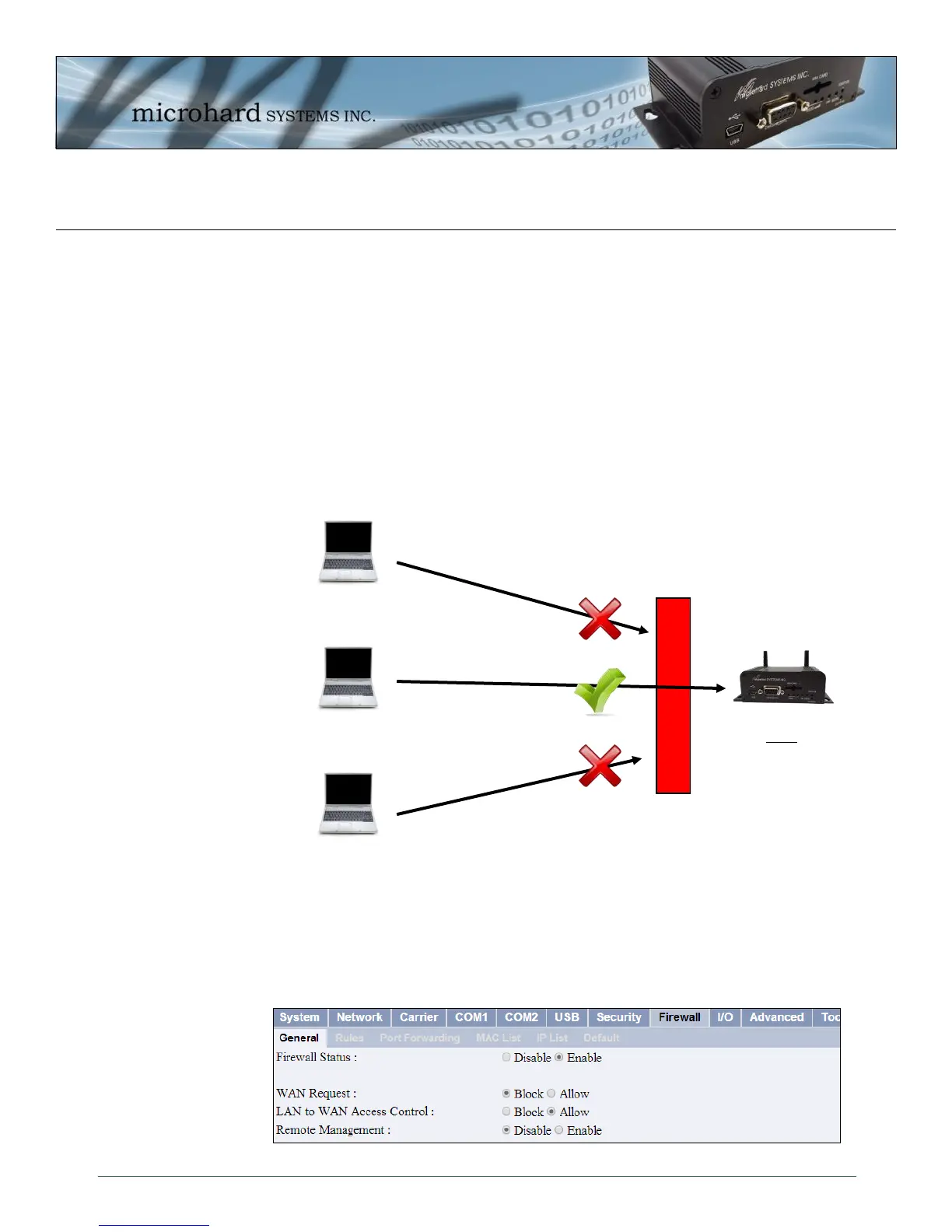
Consider the following example. An IPn3G is deployed at a remote site to collect data from an end device
such as a PLC or RTU connected to the serial DATA port (Port 20001 on the WAN. It is required that only
a specific host (Host A) have access to the deployed IPn3G and attached device, including the remote
management features.
Step 1
Log into the IPn3G (Refer to Quick Start). Navigate to the Firewall tab as shown below and ensure that the Firewall is
turned on by enabling the Firewall Status. Next block all WAN traffic by setting the WAN Request to Block, and disable
Remote Management. Be sure to Apply the settings. At this point it should be impossible to access the IPn3G from the
WAN.
IPn3G
WAN IP: 74.198.186.193
Local Device on TCP
Port 20001
Host A:
184.71.46.126
Host B:
84.53.23.12
Host C:
186.41.57.101
Firewall


 To Next Page