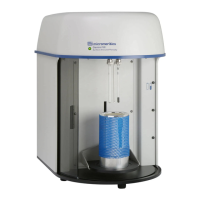
TriStar II 3020 Generating Graph Overlays
302-42828-01 - Dec 2012 3-39
3. On the Report Options tab, click the Overlays button.
4. Click Browse to the right of the Sample [n] field. Select the file containing the graph to overlay
and click Open. After selecting up to eight files, click OK to return to the Report Options tab.
5. Click Save to save the selections to a new file name.
6. Select Reports > Start Report. The Start Report window displays with the name of the edited
and saved file in the File name text box. To select more than one file, hold down the Ctrl key on
the keyboard while selecting the files.
7. Click Open.
8. Select the report destination in the Report Settings window and click OK. Refer to Printing
Files in chapter 3.
9. If only one file was selected, the Selected Reports window displays. Verify the reports to
generate and click OK. If multiple files were selected, the following window will not display.
Be advised when working with an existing file that a copy of the file be used rather than
the original. Modifying an existing file could possibly render it incompatible with its
original application.


 To Next Page
 Loading...