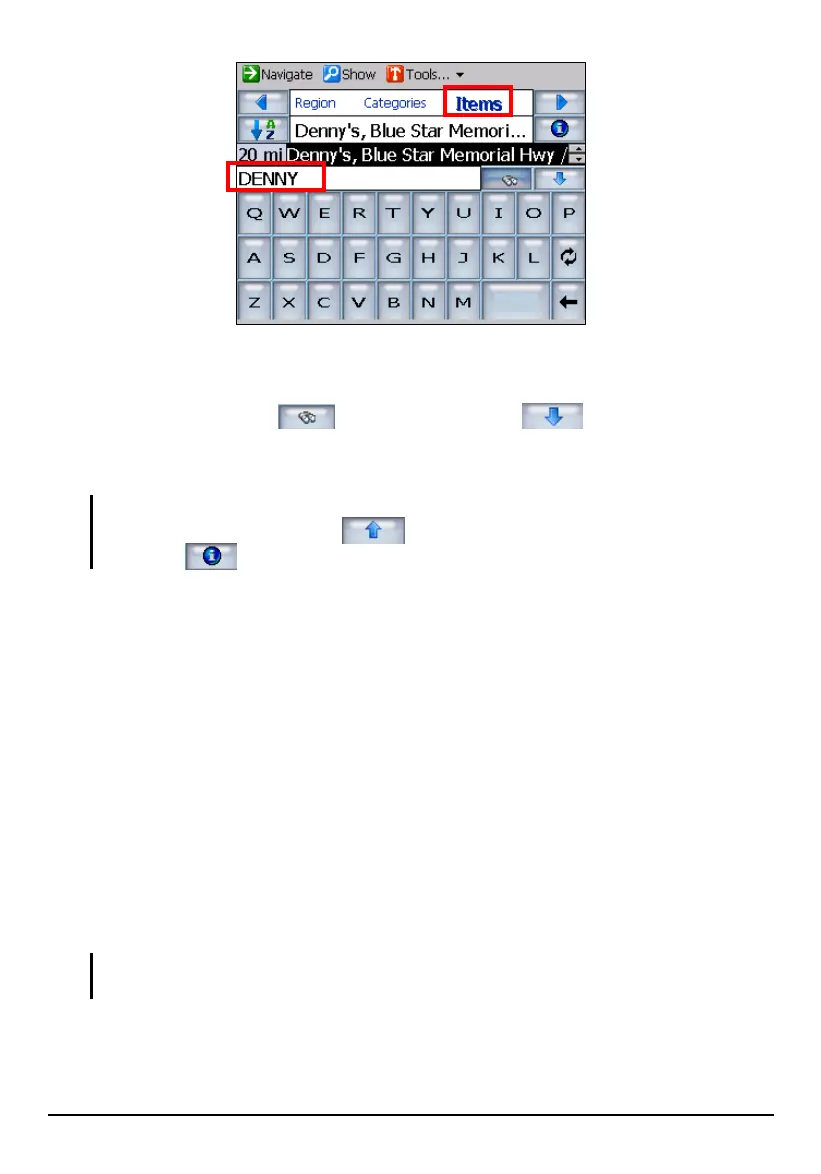
Use the key letter search.
If you don’t know the entire name of a POI, you can type in part of the
name and tap the
button. Then tap the
button to expand the
scroll list that displays all names containing your typed sequence and tap
(highlight) the desired city.
NOTE:
To close the scroll list, tap the button.
Tapping provides more information on the selected location.
4. You can preview your destination by tapping Show (top toolbar).
5. To calculate the route, tap
Navigate (top toolbar). The route is shown as a
highlighted blue line starting from your origin to your destination. (See section
5.3 for more information.)
POI Settings
By default, Mio Map displays POIs in a 50-mile search radius with your current
origin as the center. You can change the radius and center by using
Tools (top
toolbar) Settings.
The Search Radius options are Whole Map, 100 mi, 50mi, 25mi, 12mi, 6mi, and
3mi. The Search Center options are Current Location, Address, Favorites, and
History.
NOTE: POI settings will always return to the default values when you next use the POI
function.
44


 To Next Page