NoniusSoft, Software e Consultoria para
Telecomunicações, S.A.
Rua Actor Ferreira da Silva, 100
4200-298 Porto • Portugal
Secondary MS-WINS: Internal clients network MS-WINS secondary server
User Management:
Username: Set the username for the VPN user.
Password: Set the user‟s password
Users: This box lists the users and the passwords (example: user | password)
4.7.4. Dynamic DNS Submenu
Remote access is essential for any required action, saving time with unnecessary technical
displacement of technicians. Through a dynamic DNS address it is possible to have remote access
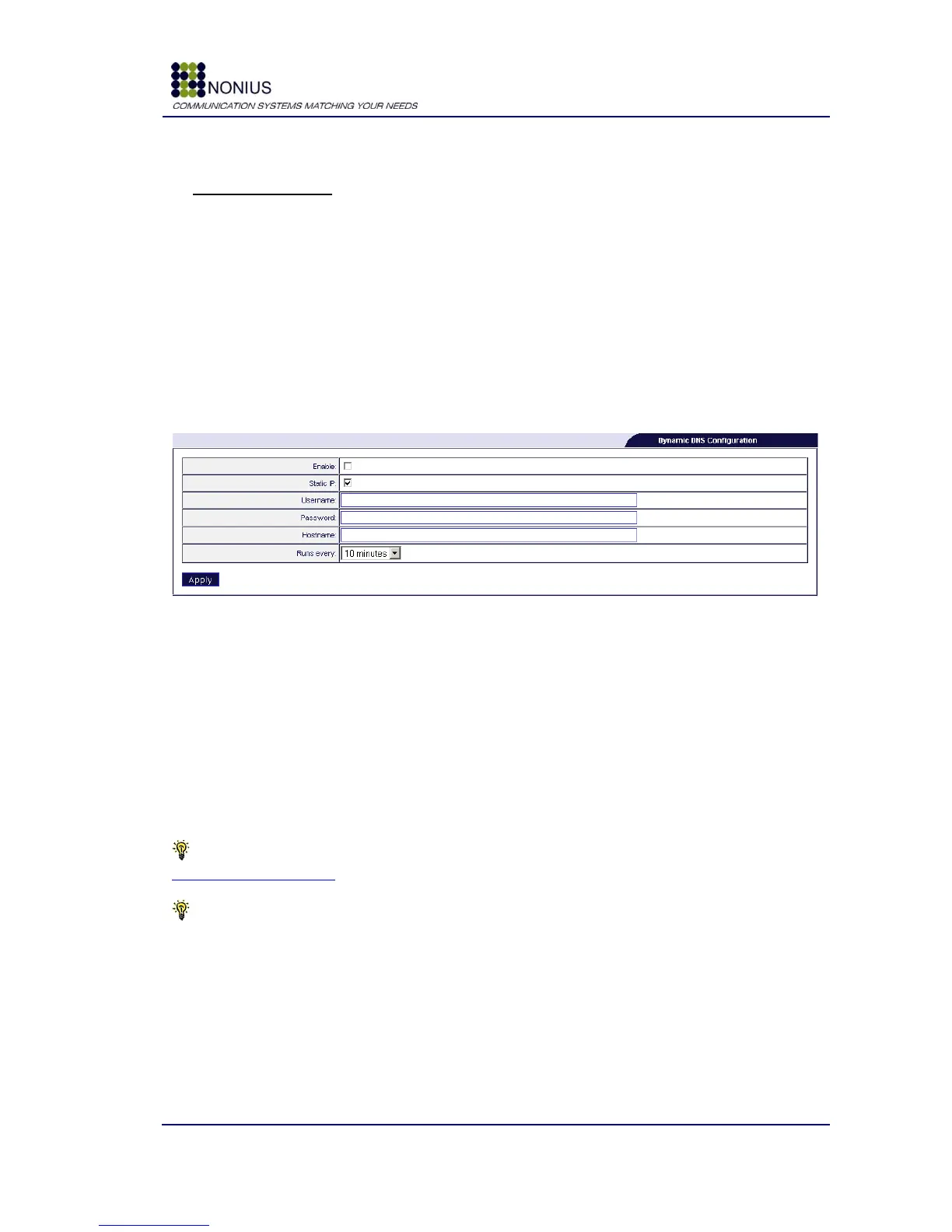
to WGS5000 at any time. In this submenu will be necessary to fill in the following fields:
Figure 39: Services Menu – Dynamic DNS
Enable: Enable/disable dynamic DNS.
Static IP: Enable if the public IP address is static.
Username: Username used in dynamic DNS account.
Password: Password used in dynamic DNS account.
Hostname: Example:
entity_name.dyndns.org
Runs Every: Choose the update interval of the IP address in the DynDNS databases. The options
are: 10 minutes, 30 minutes, 1 hour and 1 day.
Tip #1: To create a dynamic DNS address you will have to create a user account at
http://www.dyndns.com/ (or at any other Dynamic DNS Entity) and submit the URL (for example,
entity_name.dyndns.org).
Tip #2: For being able to access the WGS5000 via the DynDNS URL, you will need to configure
port forwarding of the 443 port in the router that‟s connected to the WGS5000‟s WAN interface.


 To Next Page