NoniusSoft, Software e Consultoria para
Telecomunicações, S.A.
Rua Actor Ferreira da Silva, 100
4200-298 Porto • Portugal
PDA Hotspot Login Logo: The same as above.
Voucher Logo: The same as above.
Tip: The currently loaded images are displayed below the respective box.
VLAN Frame Website:
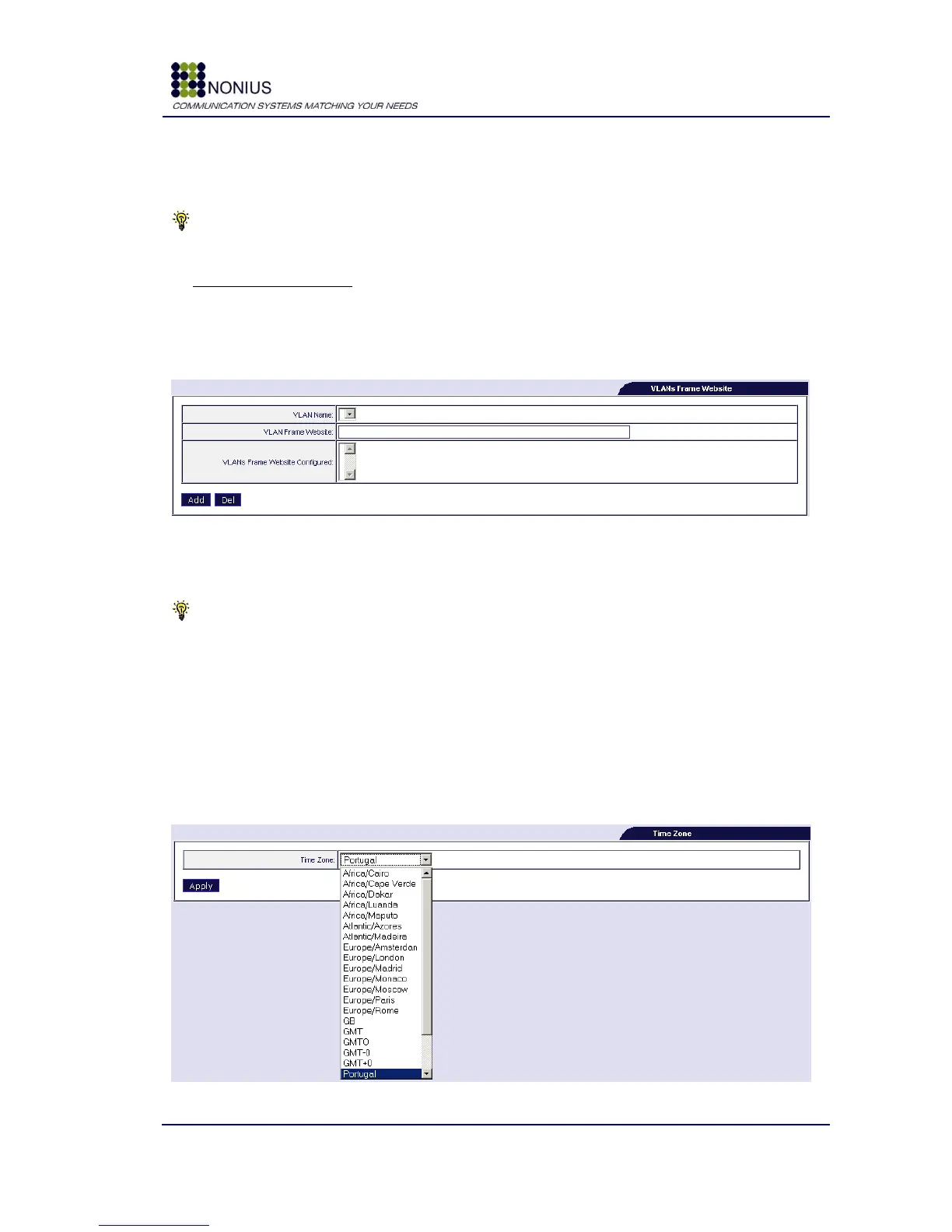
The WGS5000 can also present to users a different web page, depending on the VLAN that the user
is connected to (assuming that more than one VLAN is connected to the Captive Portal). The
following form lets you configure the right frame page to be displayed
per
VLAN.
Figure 50: VLANs Frame Website
VLAN Name: select the desired VLAN;
Tip: First, you need to define a Trunk Port in the Physical Interfaces submenu [4.4.1]. Then you
need to create the desired VLANs in the VLAN/Bridge submenu [4.5.4].
VLAN Frame Website: insert the website that users connected to this VLAN will be shown;
VLANs Frame Website Configured: list of configured websites
per
VLAN.
4.8.3. Submenu – Time Zone
Time zone can be configured in this submenu:
Figure 51: Customization Menu – Time Zone


 To Next Page