OPERATING MANUAL
5-6
21833-3.4
NORMARC 7013
INSTRUMENT LANDING SYSTEM
Remote Maintenance and Monitoring ©1999 Navia Aviation AS
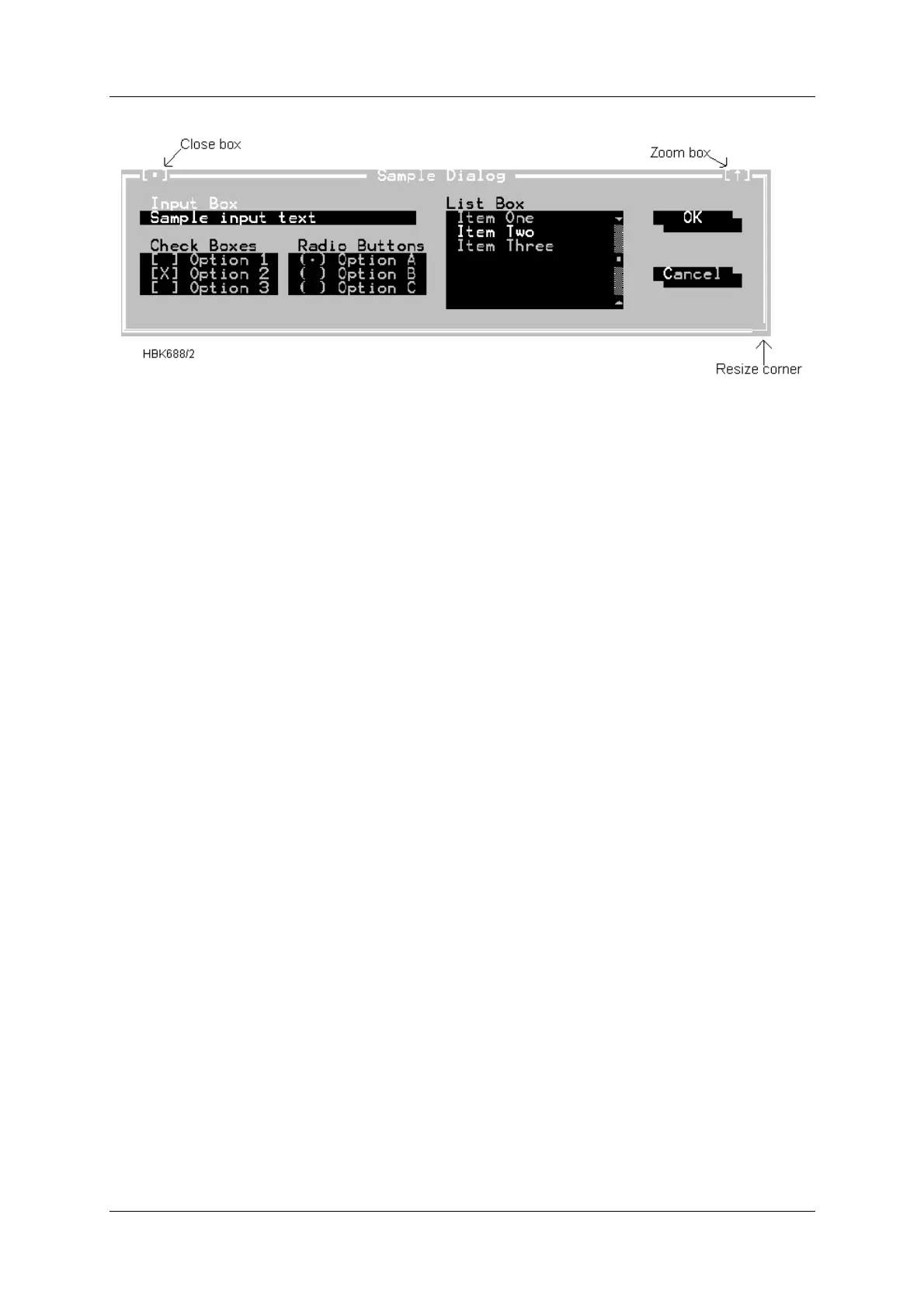
Figure 5-1 A sample dialog box.
5.3.3.1 Action buttons
This dialog box has two standard buttons: OK and Cancel. If you choose OK, the choices in
the dialog box are accepted; if you choose Cancel, nothing changes and no action takes
place, and the dialog box is put away. You can press F1 to open a Help window for this dialog
box. Esc is always a keyboard shortcut for Cancel (even if no Cancel button appears).
If you are using a mouse, click the dialog box button you want. When you are using the key-
board, press Alt and the highlighted letter of an item to activate it. For example, ALT+O selects
OK because the O in OK is highlighted. Press Tab or Shift+Tab to move forward or back from
one item to another in a dialog box. Each element is highlighted when it becomes active.
In this dialog box, OK is the default button, which means you need only press Enter to choose
that button. (On monochrome systems, arrows indicate the default; on color monitors, default
buttons are highlighted.) Be aware that tabbing to a button makes that button the default. You
can then press Space to choose that button.
5.3.3.2 Radio buttons and check boxes
Radio buttons are like car radio buttons. They come in groups, and only one radio button in
the group can be on at any one time. To choose a radio button, click it or its text. From the key-
board, select Alt and press the highlighted letter (if any), or press Tab until the group is high-
lighted and then use the arrow keys to choose a particular radio button. Press Tab or
Shift+Tab again to leave the group with the new radio button chosen.
Check boxes differ from radio buttons in that you can have any number of check boxes
checked at any time. When you select a check box, an x appears in it to show you it's on. An
empty box indicates it's off. To change the status of a check box, click it or its text, press Tab
until the check box is highlighted and then press Spacebar, or select Alt and the highlighted
letter (if any).
If several check boxes apply to a topic, they appear as a group. In that case, tabbing moves to
the group. Once the group is selected, use the arrow keys to select the item you want, and
then press Spacebar to check or uncheck it. On monochrome monitors, the active check box
or group of check boxes will have a chevron symbol (>>) to the left and right. When you press
Tab, the chevrons move to the next group of check boxes or radio buttons.



 To Next Page