©1999 Navia Aviation AS 21833-3.4 Remote Maintenance and Monitoring
OPERATING MANUALNORMARC 7013
INSTRUMENT LANDING SYSTEM
5-3
2. Use the arrow keys to select the menu you want to display. Then press Enter.
As a shortcut for this step, you can just press the highlighted letter of the menu title. For
example, when the menu bar is active, press F to move to and display the File menu. At
any time, press Alt and the highlighted letter (such as Alt+F) to display the menu you want.
3. Use the arrow keys again to select a command from the menu you have opened. Then
press Enter.
At this point, the ILS Data Sampler either carries out the command, displays a dialog box,
or displays another menu.
There are two ways to choose commands with a mouse:
• Click the desired menu title to display the menu and click the desired command.
• Or, drag straight from the menu title down to the menu command. Release the mouse but-
ton on the command you want. (If you change your mind, just drag off the menu; no com-
mand will be chosen.)
Note that some menu commands are unavailable when it would make no sense to choose
them. However, you can always get on-line Help about currently unavailable commands.
5.3 Shortcuts
The software offers a number of quick ways to choose menu commands. The click-drag
method for mouse users is an example. From the keyboard, you can use a number of key-
board shortcuts (or hot keys) to access the menu bar, choose commands, or work within dia-
log boxes. You need to hold down Alt while pressing the highlighted letter when moving from
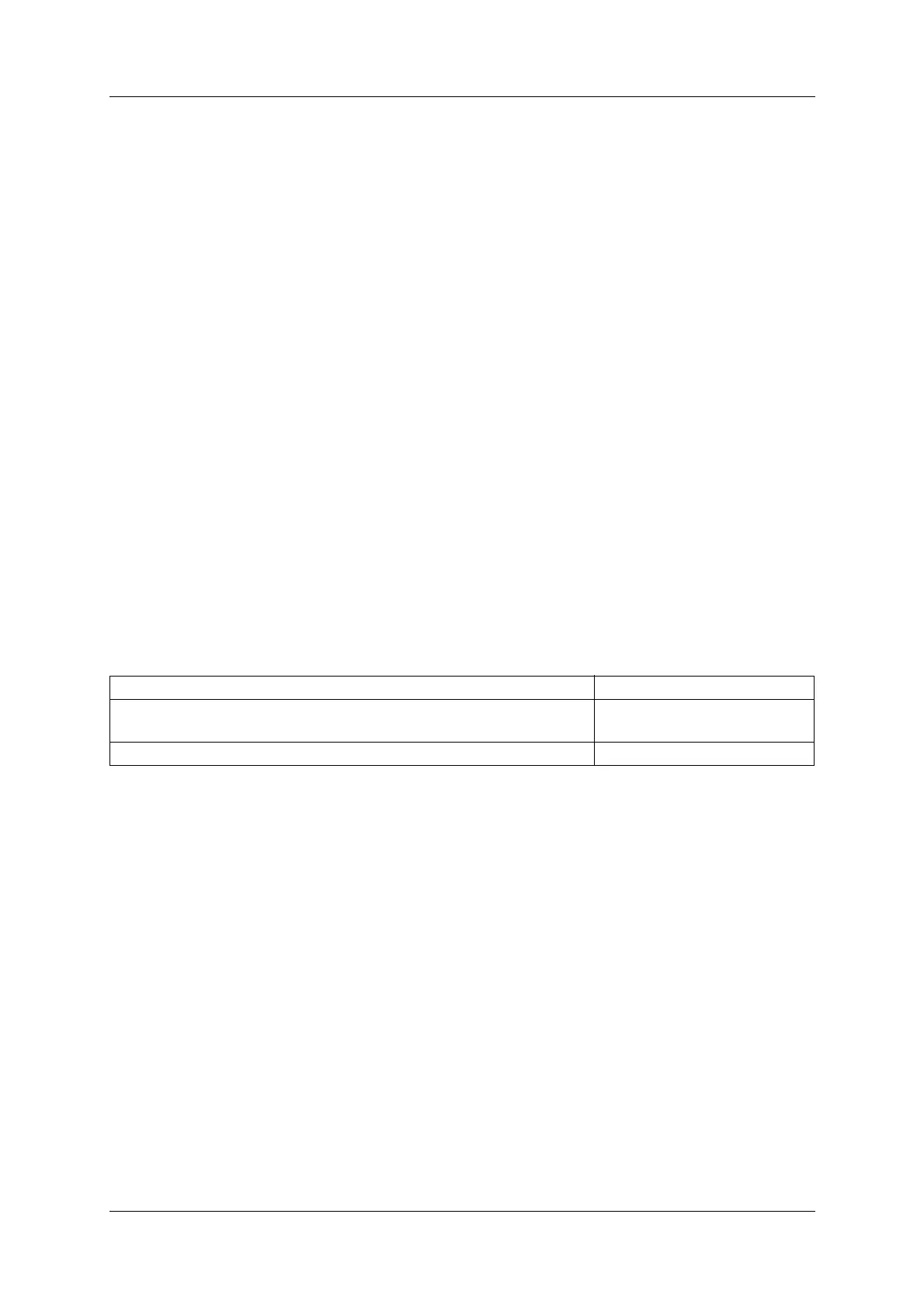
an input box to a group of buttons or boxes. Here is a list of the shortcuts available:
Table 5-1 Shortcut commands.
For example, to display a previously saved log, press Alt+F D (for File |Display log) or you can
just press F3, the shortcut displayed next to it.
5.3.1 The desktop area
Most of what you see and do in the ILS Data Sampler environment happens in a window. A
window is a screen area that you can open, move, resize, zoom, tile, and overlap. Every win-
dow is positioned on the desktop, the area between the menu bar and the status line.
You can have many windows open at the same time, but only one window can be active at
any time. Any command you choose or text you type generally applies only to the active win-
dow.
You can spot the active window easily: It is the one with the double-lined border around it. The
active window usually has a close box, a zoom box, and scroll bars. If your windows are
overlapping, the active window is always the one on top of all the others.
There are several types of windows, and they may have all or some of the following character-
Do this To accomplish this...
Press Alt plus the highlighted letter of the command (just press
the highlighted letter in a dialog box).
Display the menu or carry
out the command.
Type the keystrokes next to a menu command. Carry out the command.



 To Next Page