©1999 Navia Aviation AS 21833-3.4 Remote Maintenance and Monitoring
OPERATING MANUALNORMARC 7013
INSTRUMENT LANDING SYSTEM
5-43
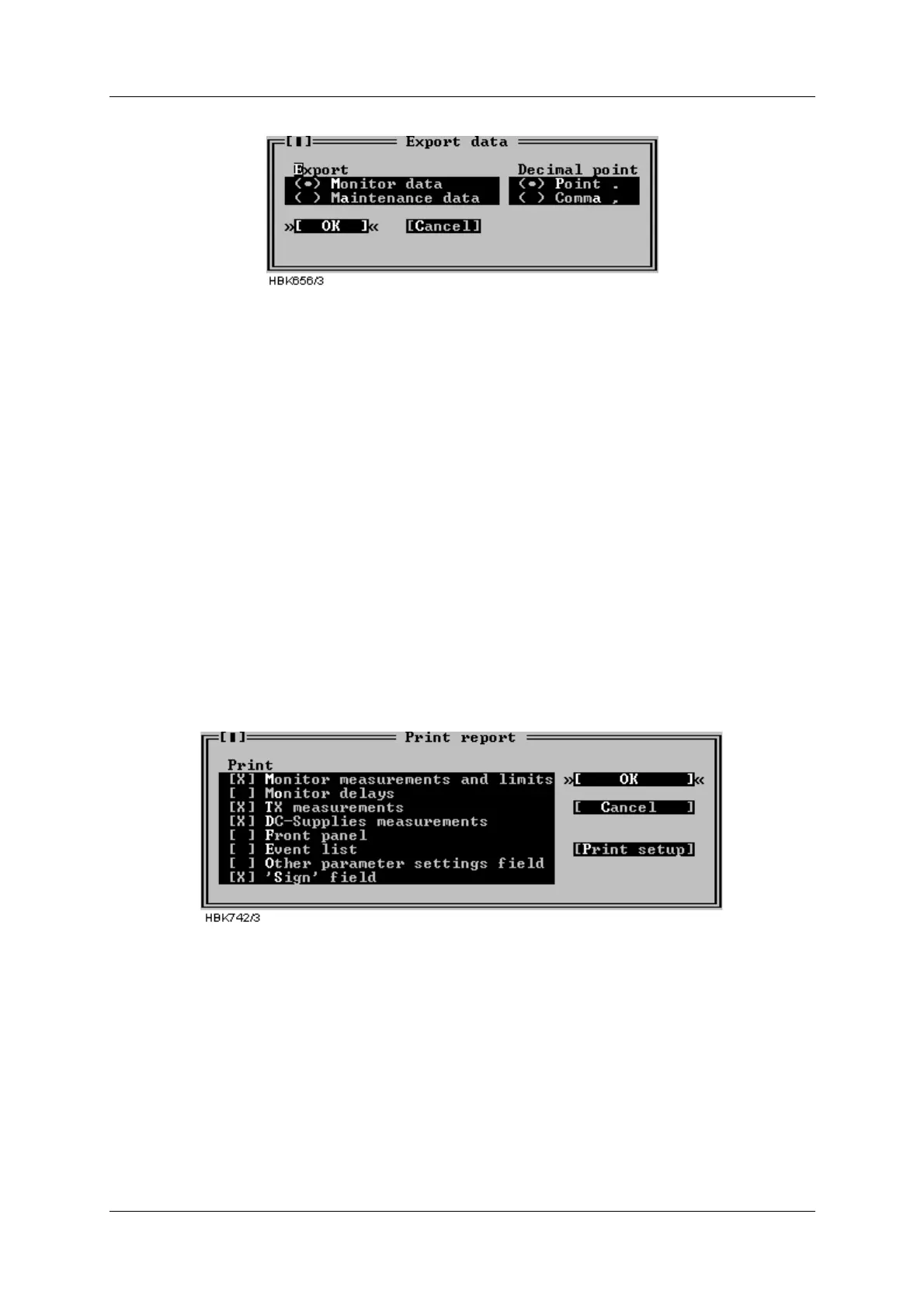
Figure 5-58 Export data dialog
Each field in the export file are separated by a TAB character. Each line contains all measure-
ments in a sample. The line begins with the time stamp of sample (resolution 1 second). The
next field is 1/10 seconds of the time stamp. The rest of the line is the measurements/parame-
ters of the sample.
The type of decimal point used for analog measurements is defined by Decimal point setting
in the Preferences dialog (see chapter 5.4.4).
Digital parameters (OK/ERROR) are exported as numbers, 0 and 1. 1 equals OK, and 0 indi-
cates ERROR.
5.26 Printing reports
When you are logged in on an ILS you can make printouts of several measurements and con-
figurations.
The Print Report function is located on the file menu. To use it you must first connect and log
in on a ILS rack (access level 1). Figure 5-59 shows the Print Report dialog which is opened
when you select the File|Print report menu item.
Figure 5-59 Print Report dialog
The system will print the data you select in the ‘Print’ section of the dialog. The Print setup
button is a shortcut to the Options|Print setup dialog, described in chapter 5.4.3.
5.27 Print screen
To print the screen contents in the Windows 95/NT version, select the File|Print screen menu
option. This will send the current screen contents to the printer port selected in the Print setup
window.
To print the screen under DOS use the "Print Screen" key on the PC keyboard. This will print
the screen on LPT1 (independent of the port selected in the Print setup window).



 To Next Page