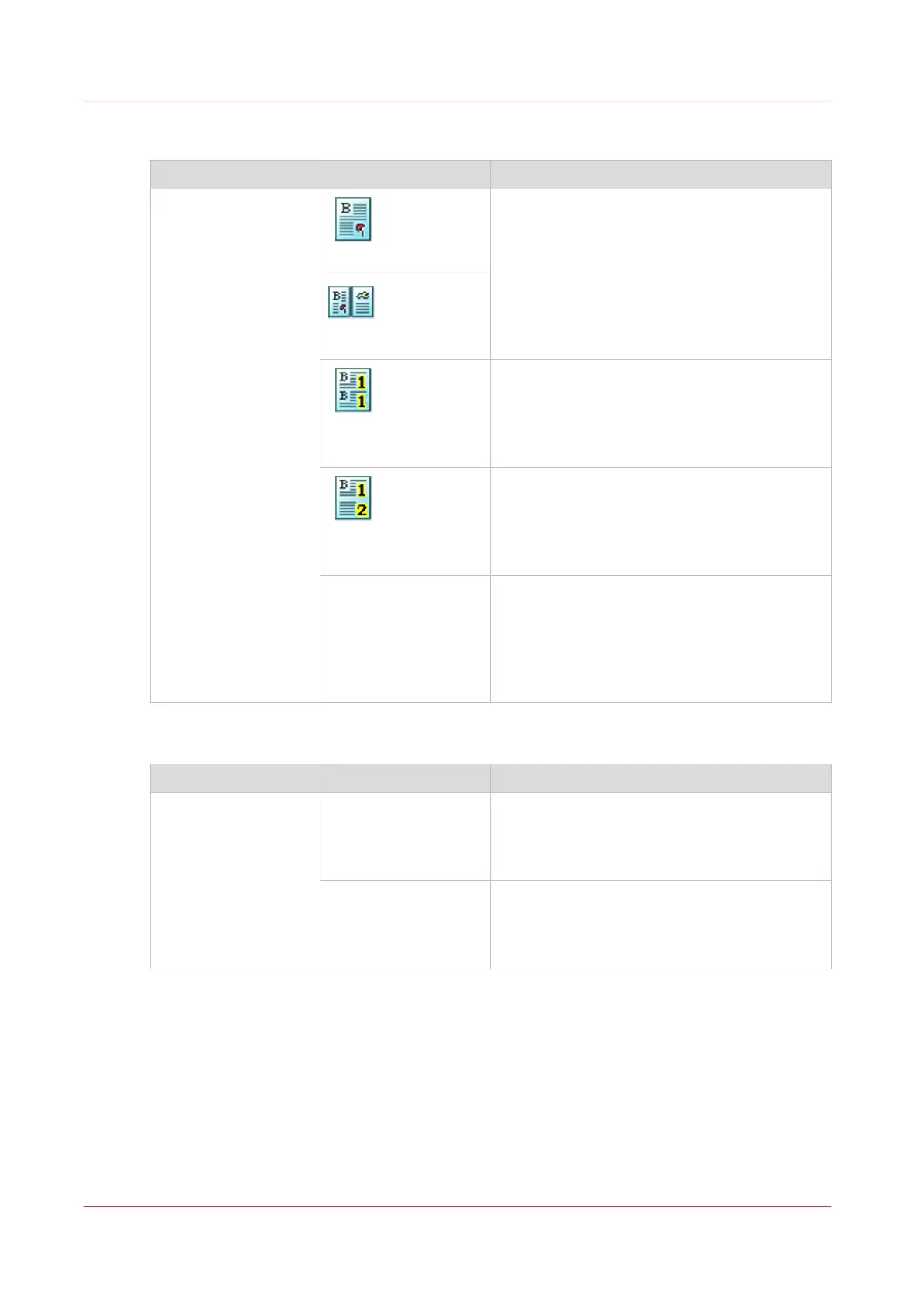
[Layout]
Name of the setting Available options Description
[Layout]
[Normal]
The printer prints the pages with no special
layout settings.
[Booklet]
The printer prints the pages in booklet order.
The pages 1 and 4 are printed on the front side
of a sheet. The pages 2 and 3 are printed on
the back side of a sheet.
[Same up]
The printer prints the same image 2, 4, 6, 9 or
16 times on 1 side of a sheet. By default, the
system keeps the size of the originals. If neces-
sary, use the Zoom function to reduce or en-
large the size of the images.
[Multiple up]
The machine prints 2, 4, 6, 9 or 16 consecutive
images on 1 side of a sheet. By default, the
system keeps the size of the originals. If neces-
sary, use the Zoom function to reduce or en-
large the size of the images.
[Same-up flipped] The printer prints the same image on 1 side of
a sheet. The images are rotated compared to
each other. By default, the system keeps the
size of the originals. If necessary, use the
Zoom function to reduce or enlarge the size of
the images.
[Zoom]
Name of the setting Available options Description
[Zoom] [Fit to page] When [Fit to page] is [On], the image is resized
so it fits onto the page.
When [Fit to page] is [Off], the original size of
the image is maintained.
[Percent] Use the + and - buttons to reduce or enlarge
the size of the image (from 25% to 400%). The
preview pane immediately shows the results
of your action.
Description of the print job settings that you can change on the control panel
134
Chapter 9 - Carry out print jobs
Océ VarioPrint 6000 line













 To Next Page