range Pi User Manual Copyright reserved by Shenzhen Xunlong Software Co., Ltd
128
command can be interrupted through the shortcut key Ctrl+C
orangepi@orangepi:~$ ping www.orangepi.org -I wlan0
PING www.orangepi.org (182.92.236.130) from 192.168.1.49 wlan0: 56(84) bytes of
data.
64 bytes from 182.92.236.130 (182.92.236.130): icmp_seq=1 ttl=52 time=43.5 ms
64 bytes from 182.92.236.130 (182.92.236.130): icmp_seq=2 ttl=52 time=41.3 ms
64 bytes from 182.92.236.130 (182.92.236.130): icmp_seq=3 ttl=52 time=44.9 ms
64 bytes from 182.92.236.130 (182.92.236.130): icmp_seq=4 ttl=52 time=45.6 ms
64 bytes from 182.92.236.130 (182.92.236.130): icmp_seq=5 ttl=52 time=48.8 ms
^C
--- www.orangepi.org ping statistics ---
5 packets transmitted, 5 received, 0% packet loss, time 4006ms
rtt min/avg/max/mdev = 41.321/44.864/48.834/2.484 ms
3.6.2.2. The server image connects to WIFI in a graphical way
1) First log in to the Linux system, there are the following three ways
a. If the development board is connected with a network cable, you can remotely
log in to the Linux system through ssh
b. If the development board is connected to the debugging serial port, you can use
the serial port terminal to log in to the Linux system (please use MobaXterm for
the serial port software, and the minicom cannot display the graphical interface)
c. If the development board is connected to the HDMI display, you can log in to the
Linux system through the HDMI display terminal
2) Then enter the nmtui command in the command line to open the wifi connection
interface
orangepi@orangepi:~$ nmtui
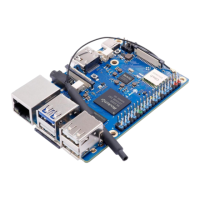
3) Enter the nmtui command to open the interface as shown below


 To Next Page