range Pi User Manual Copyright reserved by Shenzhen Xunlong Software Co., Ltd
29
Orangepi3b_1.0.0_debian_bullseye_desktop_xfce_Linux5.10.160.7z
Orangepi3b_1.0.0_debian_bullseye_desktop_xfce_Linux5.10.160.sha #checksum file
Orangepi3b_1.0.0_debian_bullseye_desktop_xfce_Linux5.10.160.img #mirror file
7) After decompressing the image, you can first use the sha256sum -c *.sha command
to calculate whether the checksum is correct. If the prompt is successful, it means that the
downloaded image is correct, and you can safely burn it to the TF card. If it prompts that
the checksum does not match, it means There is a problem with the downloaded image,
please try to download again
test@test:~$ sha256sum -c *.sha
Orangepi3b_1.0.0_debian_bullseye_desktop_xfce_Linux5.10.160.img: OK
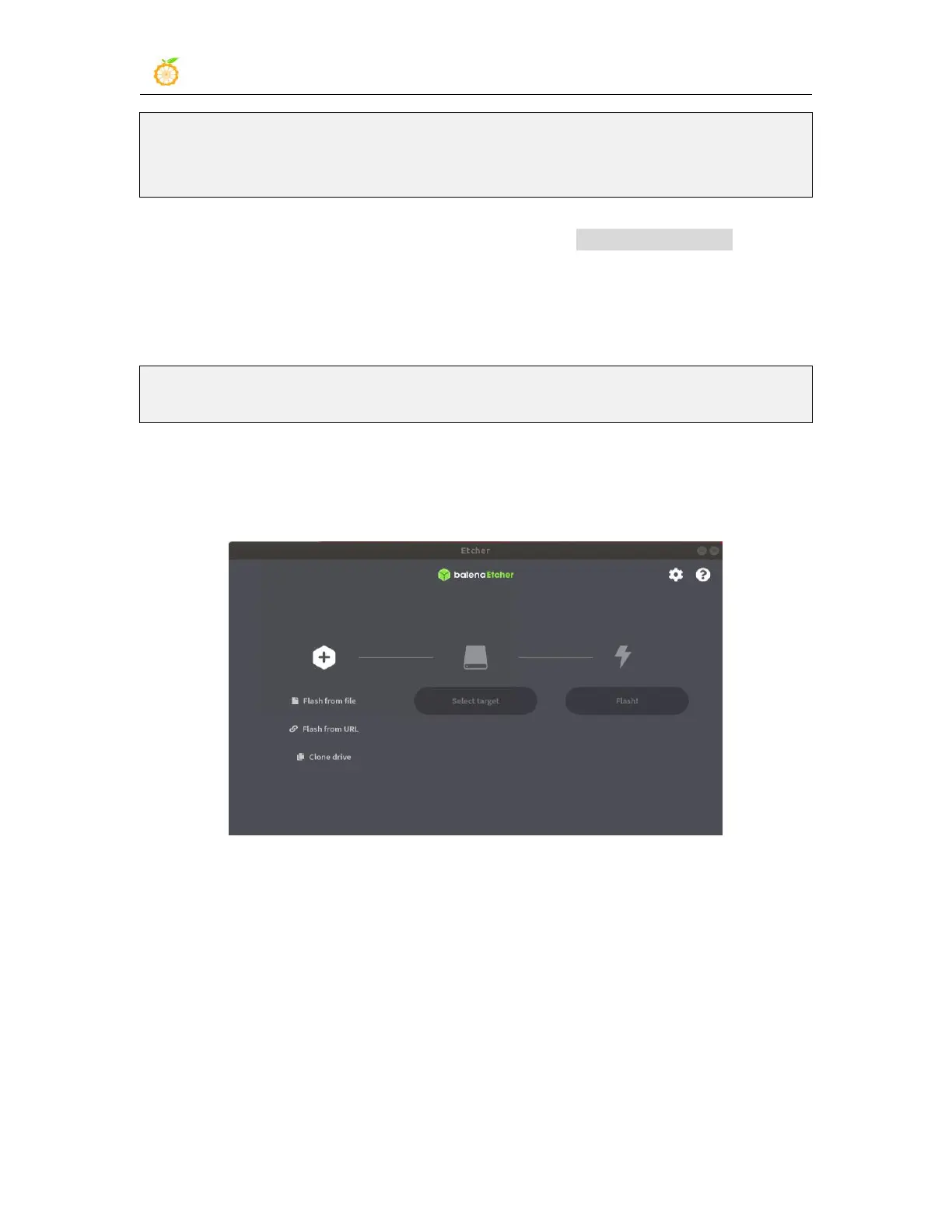
8) Then double-click balenaEtcher-1.5.109-x64.AppImage on the graphical interface of
Ubuntu PC to open balenaEtcher (no installation required), and the interface after
balenaEtcher is opened is shown in the figure below
9) The specific steps of using balenaEtcher to burn the Linux image are as follows
a. First select the path of the Linux image file to be burned
b. Then select the drive letter of the TF card
c. Finally, click Flash to start burning the Linux image to the TF card


 To Next Page