User’s Manual
16
How to use the software keyboard:
1. The edit window displays current information. Move to the edit window using up/down-
arrow buttons on the front panel.
2. Press left/right-arrow buttons to move the cursor one space left or one space right, and press
(Back Space) or (Delete) to delete the character in front of or under the cursor.
3. Move to the character you want to enter using arrow buttons, and then press
ENTER.
Selected character will be inserted under the cursor. Pressing (shift) shifts to
another display mode including capital letters and symbols. Return to the previous mode
by pressing
again.
4. Move to the edit window or the Close button and then press
ENTER or MENU to finish
composing characters and close the software keyboard dialog box.
Set up Hard Disk Drive Configuration
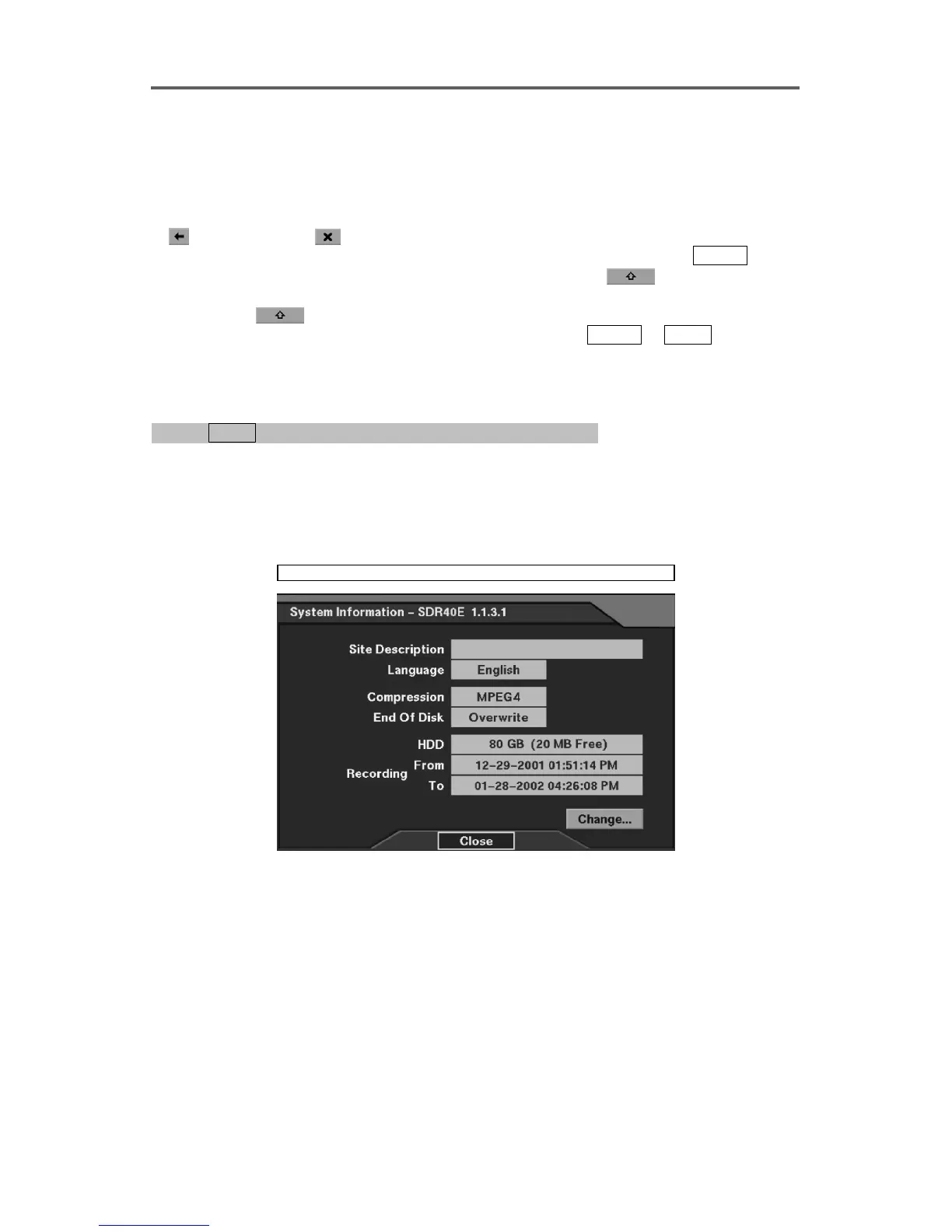
0PATH: MENU ▶ System ▶ System Information ▶ Change0
1. Press Change to change the setting.
2. In the End of Disk field, select either Overwrite or Stop.
• Overwrite: Continue recording by overwriting the oldest recorded images.
• Stop: Stop recording when HDD is full.
System ► System Information ► Change
Figure 8 System Information Dialog
Set up the system information.
• Site Description: Enter a title of the location where the DVR is installed.
• Language: Select the language to use (from English, French, German, Italian, and
Spanish).
• Compression: Displays the compression engine.







 To Next Page