User’s Manual
18
Set up Camera Description (Title)
0PATH: MENU ▶ Devices ▶ Camera0
1. Move to the Title field of the selected camera.
2. Press
ENTER to display the software keyboard, and enter a description or title for the
camera (such as LOBBY) using the software keyboard. A total of 16 characters may be
entered.
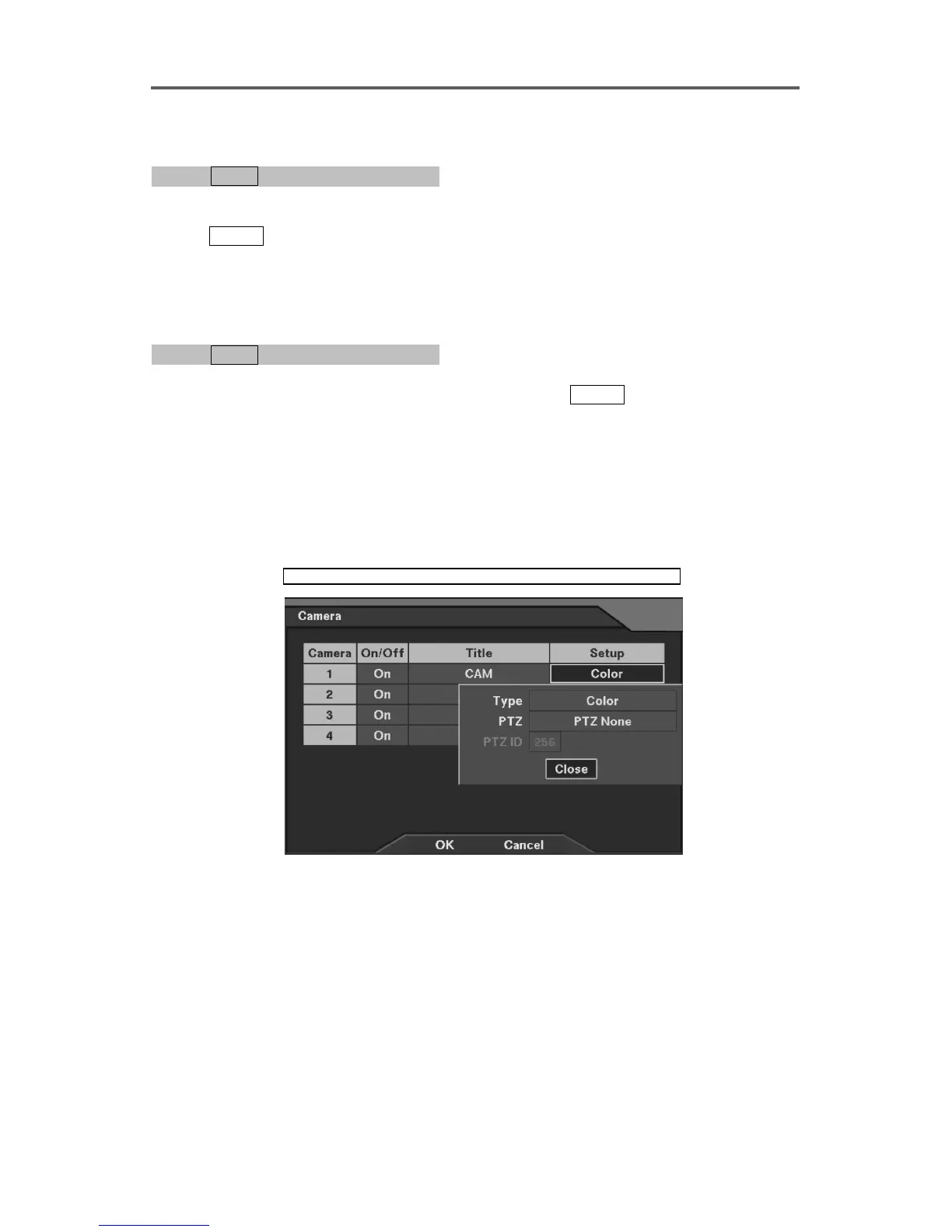
Select Camera Type
0PATH: MENU ▶ Devices ▶ Camera0
1. Move to the Setup field of the selected camera, and press
ENTER .
2. Move to the Type field, and select the camera type either Color or B&W.
NOTE: When using a B&W camera, change the setting to B&W to reduce noise in the
recording and improve image quality.
NOTE: If the selected camera is a PTZ camera, set up PTZ type and PTZ ID. Refer to
the following Set up PTZ Camera and Set up PTZ Port section for the details of PTZ
camera setup.
Devices ► Camera
Figure 10 Camera Setup Dialog







 To Next Page