Four-Channel Digital Video Recorder
39
Devices ► Alarm-Out ► Alarm-Out Schedule
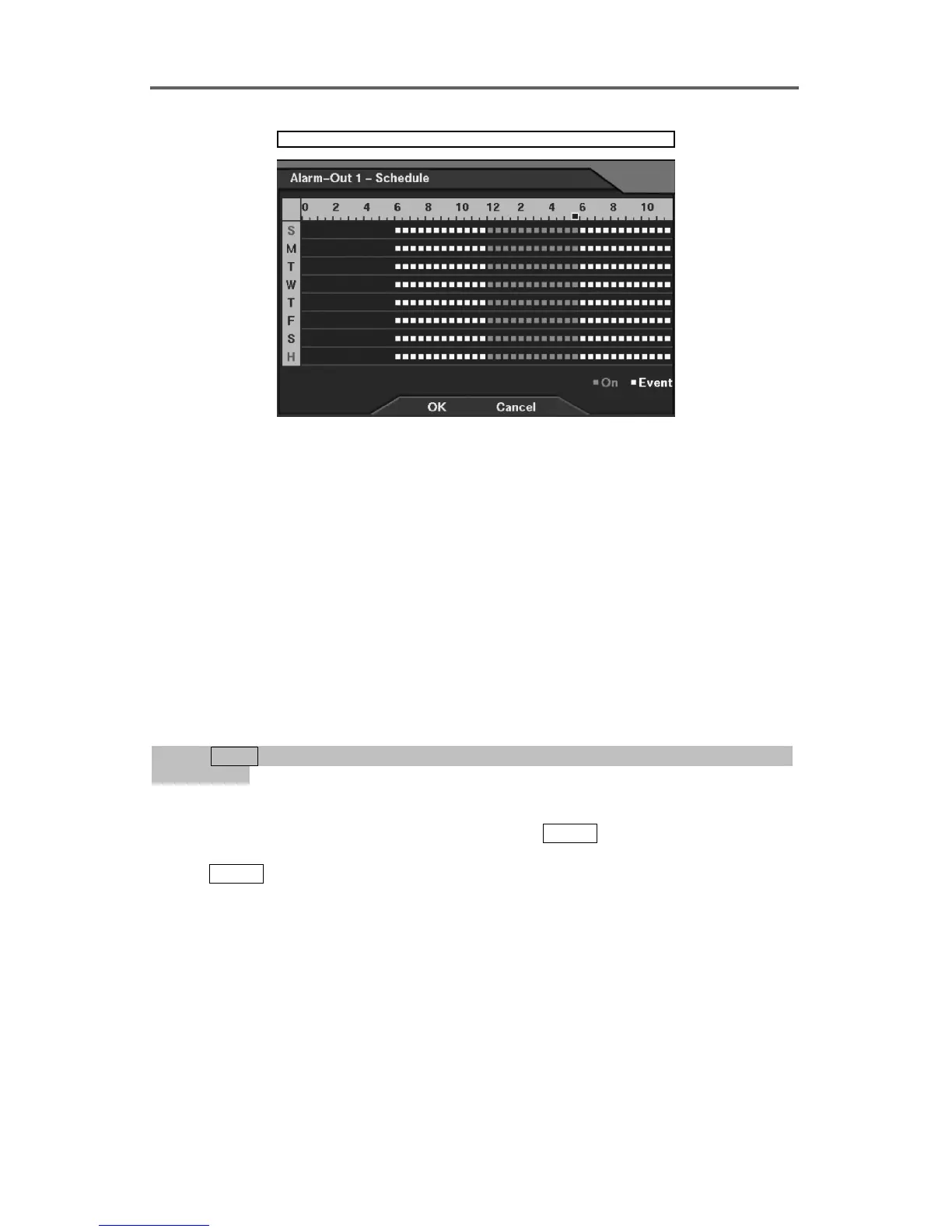
Figure 30 Alarm-Out Schedule Setup Dialog
Set up the operating status of the alarm-out device by time.
• On: The alarm output is always active during the target hours.
• Event: The alarm output is active according to preset event settings during the target hours
when any event is detected.
• Empty space: No alarm output during the target hours.
Set up Alarm-Out when Event (Alarm-In, Motion, Text-In, or Video Loss) Driven
NOTE: Set up event-triggered devices (alarm-in, motion detector, text-in, or video
loss) in advance before setting up this Alarm-Out feature. Refer to 3.5 Configuring for
Recording ─ Set up Devices for Event-driven Recording section for details of setting up
each device.
0PATH: MENU ▶ Event Action ▶ Alarm-In Action, Motion Action, Text-In Action, or Video
0Loss Action0
1. Select the alarm-out action from alarm-in, motion detector, text-in, or video loss option.
2. Select Alarm-Out in the Action Type field, and press
ENTER to select the target alarm-out
channel in the Alarm-Out field.
3. Press
ENTER in the Dwell field, and set alarm-out dwell time from one second to 300
seconds. (5 minutes).
NOTE: Changing Alarm-Out and Dwell on the title bar applies the change to the all
channels of the target event action.
NOTE: The settings can be made only for the event action(s) enabled in the Devices
menu.







 To Next Page