Four-Channel Digital Video Recorder
27
Set up the text-in information.
• Port: Select either Text-In or PTZ as the port use.
• On/Off: Enable or disable the text-in device.
• Title: Enter a description of the text-in device
• Setup: Set up the text-in device (Refer to Figure 28 Text-In Setup Dialog.).
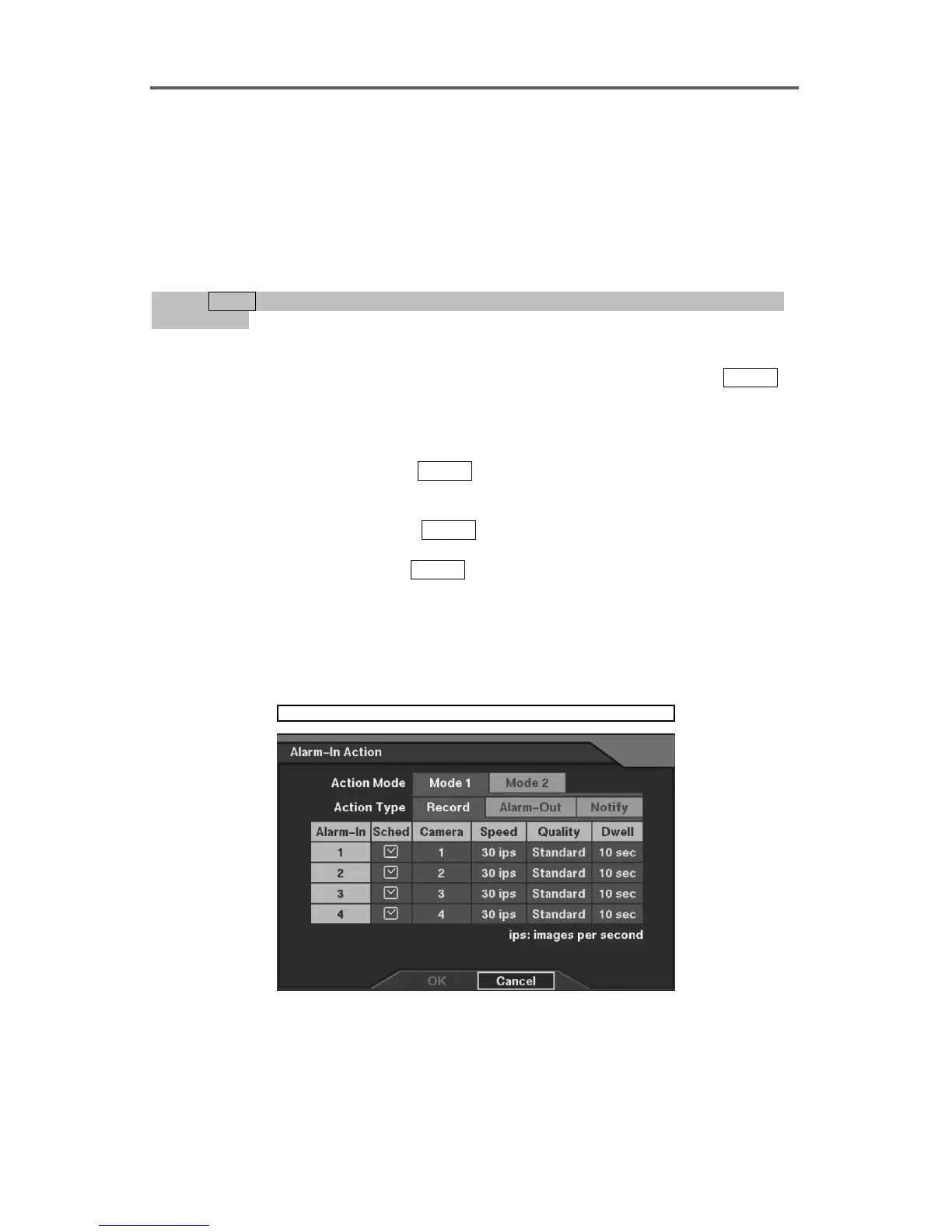
Set up Event-driven Recording
0PATH: MENU ▶ Event Action ▶ Alarm-In Action, Motion Action, Text-In Action, or Video
0Loss Action0
1. Select the Event Action to record (alarm-in, motion detector, text-in, or video loss).
2. Move to the Camera field in the dialog box of the target event action, and press
ENTER to
select the camera to be associated with the event.
NOTE: Multiple cameras can be selected.
3. Move to the Speed field, and press ENTER to set the recording speed. The recording
speed may be selected from one image per 30 seconds (Time-Lapse) to 30 images per
second (Real-Time).
4. Move to the Quality field, and press
ENTER to set the recording image quality (Very High,
High, Standard and Low).
5. Move to the Dwell field, and press
ENTER to set the recording dwell-time from one second
to 300 seconds (5 minutes).
NOTE: Changing Camera, Speed, Quality and Dwell on the title bar applies the change
to all event actions.
NOTE: The settings are applicable to enabled devices in Event Action.
Event Action ► Alarm-In Action
Figure 20 Alarm-In Action ─ Record Setup Dialog







 To Next Page