User’s Manual
60
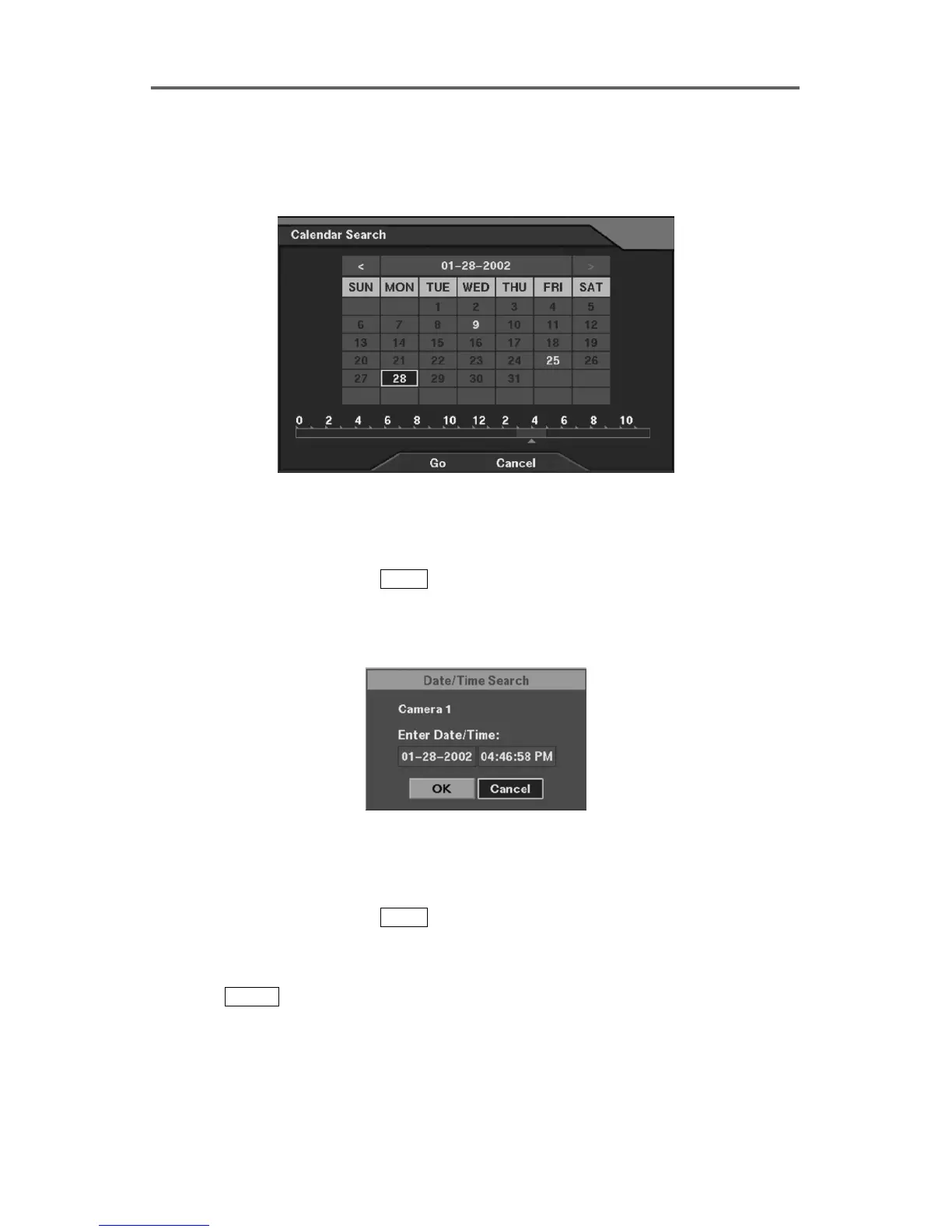
NOTE: The time bar having recorded data does NOT always mean that there are
recorded data throughout the hour within the selected time range, BUT means there are
some recorded data during the hour, since the recording information shows in hour
basis in the timetable.
Figure 50 Calendar Search Dialog
4.3.3 Date/Time Search
In the playback stop mode, press
MENU and then select Date/Time Search to display the
dialog box asking the Go-To date and time. Enter the date and time desired and then select
OK, the recorded still image at that specific date and time will be displayed. If there is no
video at that time, the screen for that camera is black.
Figure 51 Date/Time Search Setup Dialog
4.3.4 Query Event Log
In the playback stop mode, press
MENU and then select Event Search. As the result, the
DVR shows all event logs in order from the latest. The user may extract and search only
results they want by pressing Query button on the screen and setting specific search
conditions. To display the first image of the target event, select the target event item and
then press
ENTER.







 To Next Page