User’s Manual
22
3.5 Configuring for Recording
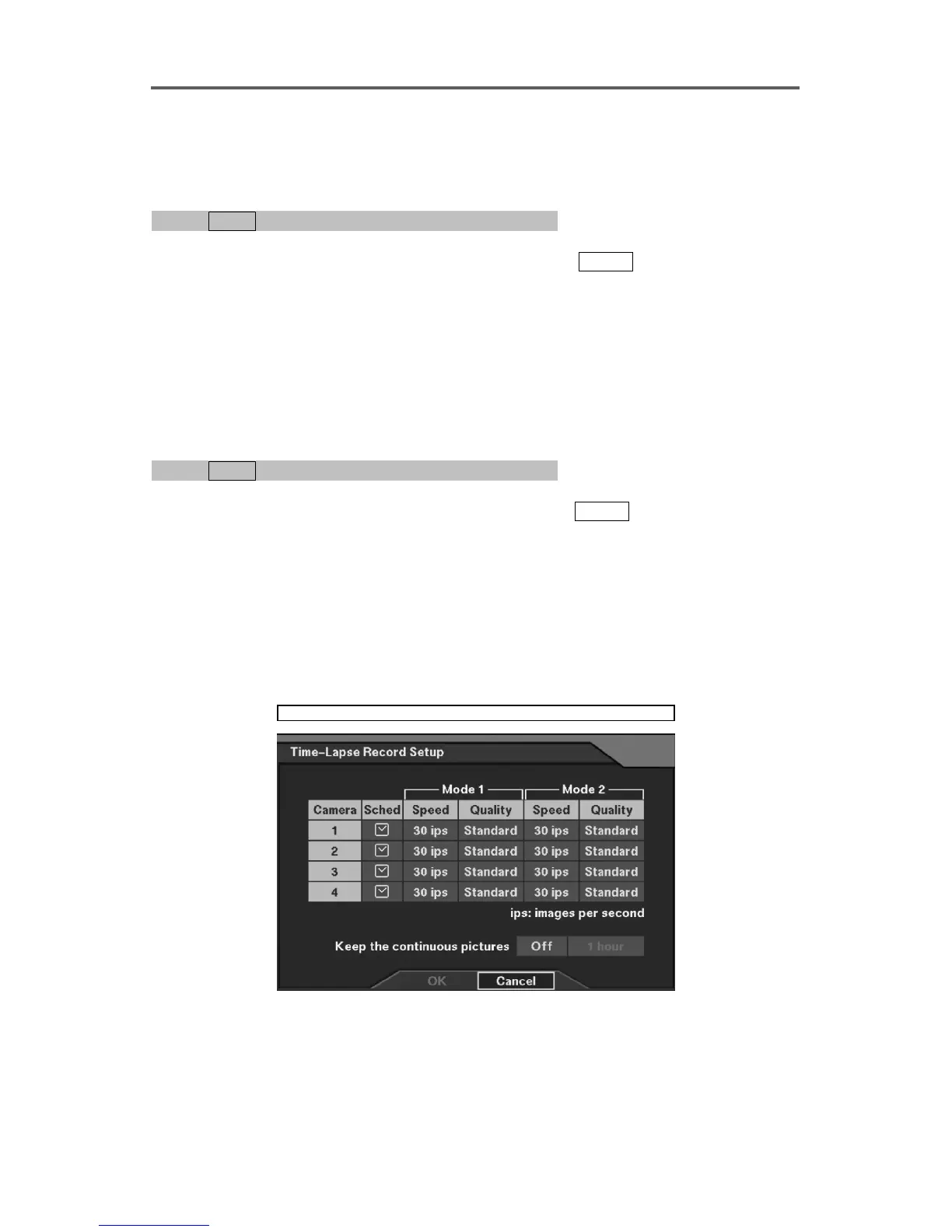
Set up Recording Image Quality
0PATH: MENU ▶ Record ▶ Time-Lapse Record Setup0
1. Move to the Quality field of the selected camera, and press
ENTER.
2. Set the recording image quality from the four options.
NOTE: Changing Quality on the title bar applies the change to all cameras.
CAUTION: Higher quality images require more recording (HDD storage) space.
Everything else being equal, Very High quality will require 70% (typical) as much
storage as Standard quality, High require 25% much, and Low require 30% less.
Set up Time-Lapse Recording Speed
0PATH: MENU ▶ Record ▶ Time-Lapse Record Setup0
1. Move to the Speed field of the selected camera, and press
ENTER.
2. Set the recording speed in images per second (ips). The recording speed may be selected
from one image per 30 seconds (Time-Lapse) to 30 images per second (Real-Time).
NOTE: Changing Speed on the title bar applies the change to all cameras.
NOTE: The DVR has a maximum recording speed of 30 images per second (ips) that
will be applied globally depending on the number of cameras recorded (1 camera =
30ips maximum, 2 cameras = 15ips maximum, 3 cameras = 10ips maximum, 4 cameras
= 7.5ips maximum).
Record ► Time-Lapse Record Setup
Figure 15 Time-Lapse Record Setup Dialog







 To Next Page