Four-Channel Digital Video Recorder
49
3.8 Configuring Other Parameters
Reset All System Settings to Default Settings
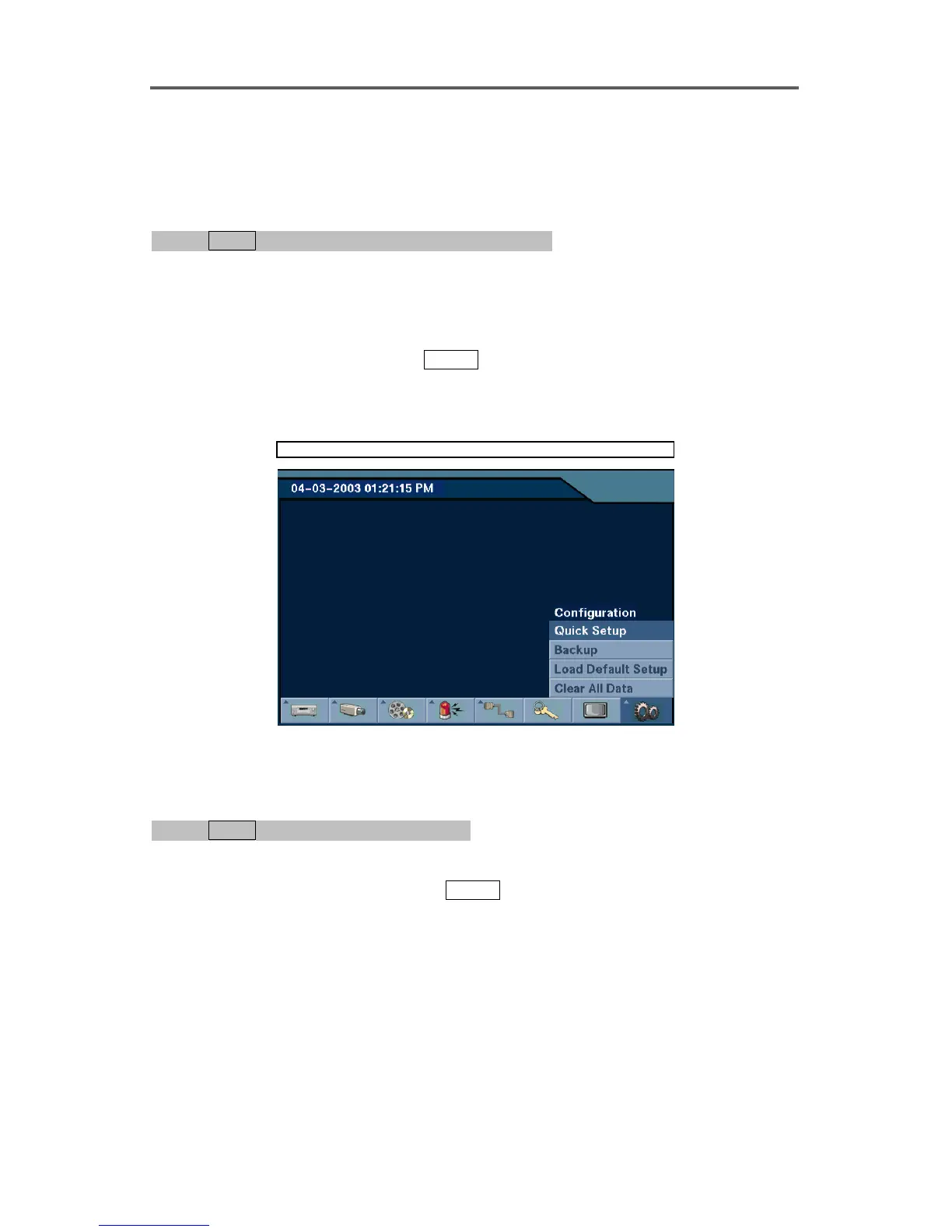
0PATH: MENU ▶ Configuration ▶ Load Default Setup0
1. Select the Load Default Setup from the Configuration menu.
2. The DVR will request an administrator password since only administrator can change this
setting.
3. If the password matches, a dialog box will appear confirming selection of default settings.
4. Select the Yes button and then press
ENTER to reset all system settings to default settings.
NOTE: The DVR will keep the current time zone, daylight saving time, and network
settings regardless of loading default settings.
Configuration ► Load Default Setup
Figure 44 Main Menu Dialog
Archive Video to an External USB Drives
0PATH: MENU ▶ Configuration ▶ Backup0
1. Select the Backup from the Configuration menu.
2. Move to the USB HDD field, and press
ENTER to select the USB drive type to use for
archiving between USB HDD and USB CD-RW.
3. Move to the From field, and set the backup start time and date. You can choose to archive
video from the first image by selecting the First.
4. Move to the To field, and set the backup end time and date. You can choose to archive
video to the last image by selecting the Last.
5. Move to the Camera field, and select the camera to archive.







 To Next Page