– 115 –
Chapter 6 Input/Output Signal Settings — Setting MultiView displays
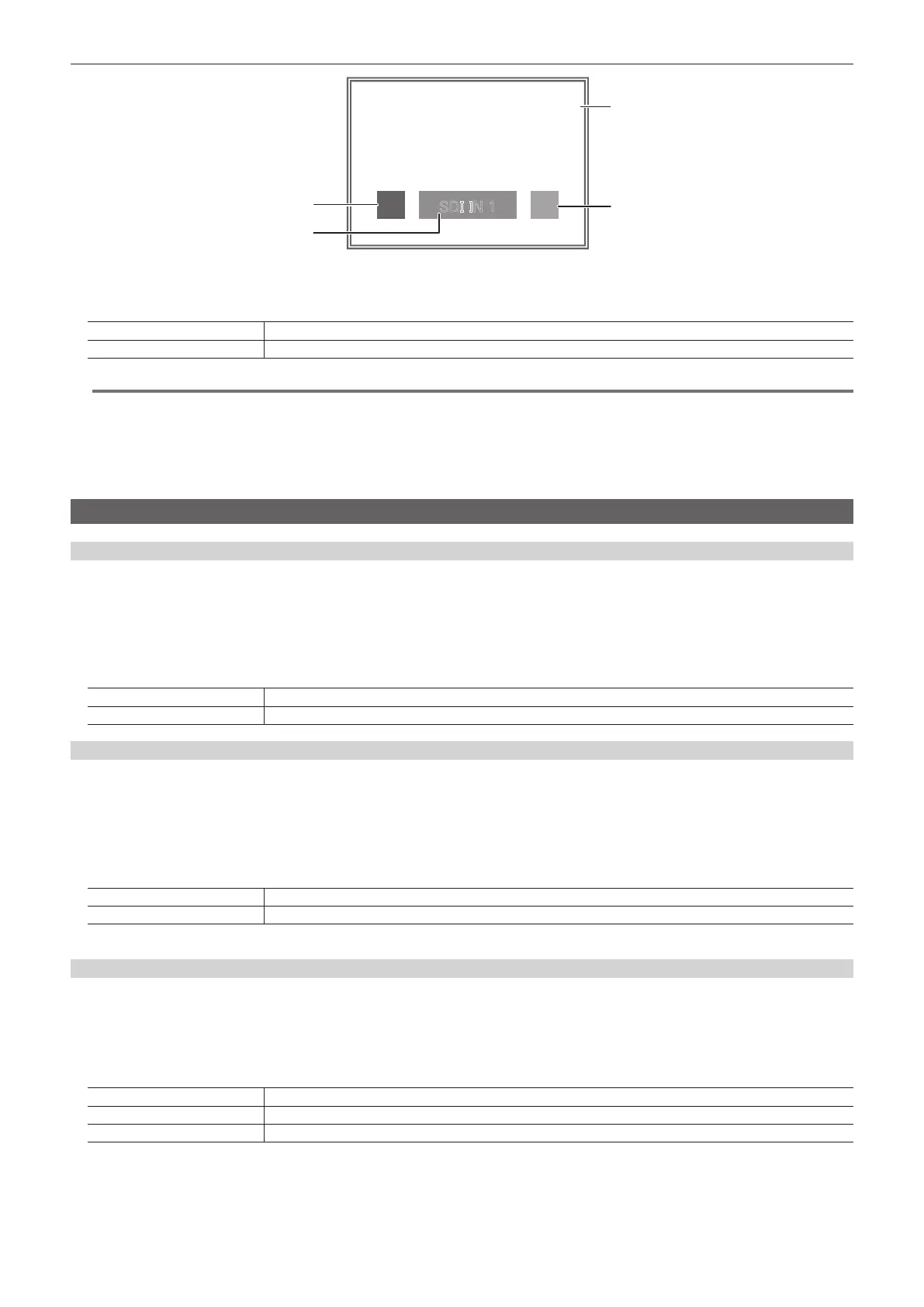
SDI IN 1
[Tally Box]
[Tally Label L]
[Tally Label R]
[Source Name]
1
Select the <MV> button → [MV1‑4] → [MV1] to [MV4] tabs.
2
Select an item in [Tally Group1] to [Tally Group4] in the [Tally Box]/[Tally Label L]/[Tally Label R] column.
[On] Shows the tally displays.
[Off] Does not show the tally displays.
@@
NOTE
t [Tally Label L] and [Tally Label R] will be available in V2.00.00 or higher.
t If conditions overlap, the following priority order is used:
[Tally Group1] > [Tally Group2] > [Tally Group3] > [Tally Group4]
t To set the tally color, select the <SYS> button on the top menu → [PERIPHERAL] → [Tally] tab → [Tally Group2-1] to [Tally Group4-1] columns →
[Color].
t For details on the tally group settings, refer to “Setting a tally” (page 136).
Other display settings
Setting the level meter
Level meters for the embedded audio signals transferred by the SDI input can be displayed on the split screens.
f Display on the left: Channel 1 of group 1
f Display on the right: Channel 2 of group 1
1
Select the <MV> button → [MV1‑4] → [MV1] to [MV4] tabs.
2
Select an item in [Level Meter] in the [Display] column.
[Off] Does not display the level meter.
[On] Displays the level meter.
Setting the input signal mark
The status of the input signals can be displayed in front of the source names displayed on the split screens.
f [F] mark: Indicates that the input signals are frozen.
f [!] mark: Indicates that there are no input signals or signals with different formats are input. If horizontal pixels are the same, false detection may occur.
1
Select the <MV> button → [MV1‑4] → [MV1] to [MV4] tabs.
2
Select an item in [Input Status] in the [Display] column.
[On] Displays the input signal status.
[Off] Does not display the input signal status.
f When the [F] mark is displayed, the [!] mark is not displayed.
Setting the marker
Safety markers can be displayed for PGM and PVW sources of the MultiView display.
1
Select the <MV> button → [MV1‑4] → [MV1] to [MV4] tabs.
2
Select an item in [Marker] in the [Display] column.
f Congure the marker display setting.
[Off] Does not display the markers.
[4:3] Displays the markers using the 4:3 aspect ratio.
[16:9] Displays the markers using the 16:9 aspect ratio.
3
Set [Marker Size] in the [Display] column.
f Set the marker size.





 To Next Page