– 42 –
Chapter 4 Preparations — Various settings
Various settings
Network settings
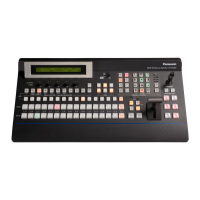
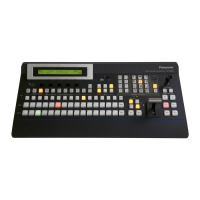
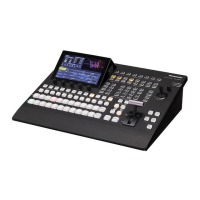
Congure the network for the Control Panel AV‑HS60C1/AV‑HS60C2 and the Main Frame AV‑HS60U1/AV‑HS60U2.
Conguring the network for the Control Panel AV‑HS60C1/AV‑HS60C2
The terminals connected to the Main Frame AV-HS60U1/AV-HS60U2 differ depending on the number of Control Panel AV-HS60C1/AV-HS60C2.
f When only one panel is connected
Connect the Control Panel AV-HS60C1/AV-HS60C2 to the <PANEL> terminal of the Main Frame AV-HS60U1/AV-HS60U2. If the settings of the Control
Panel AV-HS60C1/AV-HS60C2 have been changed from initial settings, network settings must be changed.
f When two or more panels are connected
(This function will be available in V2.00.00 or higher.)
Connect the rst Control Panel AV‑HS60C1/AV‑HS60C2 to the <PANEL> terminal of the Main Frame AV‑HS60U1/AV‑HS60U2.
Connect the second and further Control Panel AV-HS60C1/AV-HS60C2 to the <LAN> terminal of the Main Frame AV-HS60U1/AV-HS60U2, and
network settings must be changed.
Conguring the network for the Main Frame AV‑HS60U1/AV‑HS60U2
Connect to the same network as the Control Panel AV-HS60C1/AV-HS60C2.
f The default settings are IP address: 192.168.0.5; subnet mask: 255.255.255.0.
1
Select the <SYS> button → [SYSTEM] → [Network] tab.
2
Set [IP Address] and [Subnet Mask] in the [Network1] column.
[IP Address] Sets the IP address.
[Subnet Mask] Sets the subnet mask.
3
Set/check [Default Gateway] and [MAC Address] in the [Network2] column.
[Default Gateway] Sets the default gateway.
[MAC Address] Checks the MAC address.
@@
NOTE
t When using the host computer with settings matching the initial settings, it is not necessary to setup via the menu. To enable the settings, the system
must be rebooted. Set the power to <OFF>, and then set it back to <ON>.
Setting signal formats
Select the system format.
1
Select the <SYS> button → [SYSTEM] → [Video] tab.
2
Set [Video Format] in the [Video Format] column.
f Select from [1080/59.94i], [1080/50i], [1080/24PsF], [1080/23.98PsF], [720/59.94p], [720/50p], [480/59.94i], and [576/50i]. ([1080/24PsF],
[1080/23.98PsF], [720/59.94p], and [720/50p] will be available in V2.00.00 or higher.)
Setting sync signals
Set the external sync signals supplied to the <REF> terminal of the Main Frame AV-HS60U1/AV-HS60U2 and output phase.
1
Select the <SYS> button → [SYSTEM] → [Video] tab.
2
Set the output phase in the [Output Phase] column.
3
Select a sync signal in [Sync] in the [Reference] column.
f Selects from [BB], [BB Advanced], [Tri-level sync], and [Internal].
Setting input signals
Various input signal settings
Make various settings for SDI input signals and DVI input signals.
f For details, refer to “Setting input signals” (page 106).
1
Select the <IN OUT> button → [SDI IN] → [Frame Buffer]/[Status]/[Up Converter] tab, and make the following settings.
[Frame Buffer] tab Sets the mode, frame synchronizer, freeze effects, and frame delays.
[Status] tab Displays the information on the images for SDI input signals.
[Up Converter] tab Make the settings for built-in up-converters at the [SDI IN 27]/[SDI IN 28]/[SDI IN 31]/[SDI IN 32] column.
2
Select the <IN OUT> button → [DVI IN] → [Frame Buffer]/[Status] tab, and make the following settings.





 To Next Page