– 94 –
Chapter 5 Basic Operations — Video memory
f The [Store] screen is displayed.
3
Change the screen display as necessary.
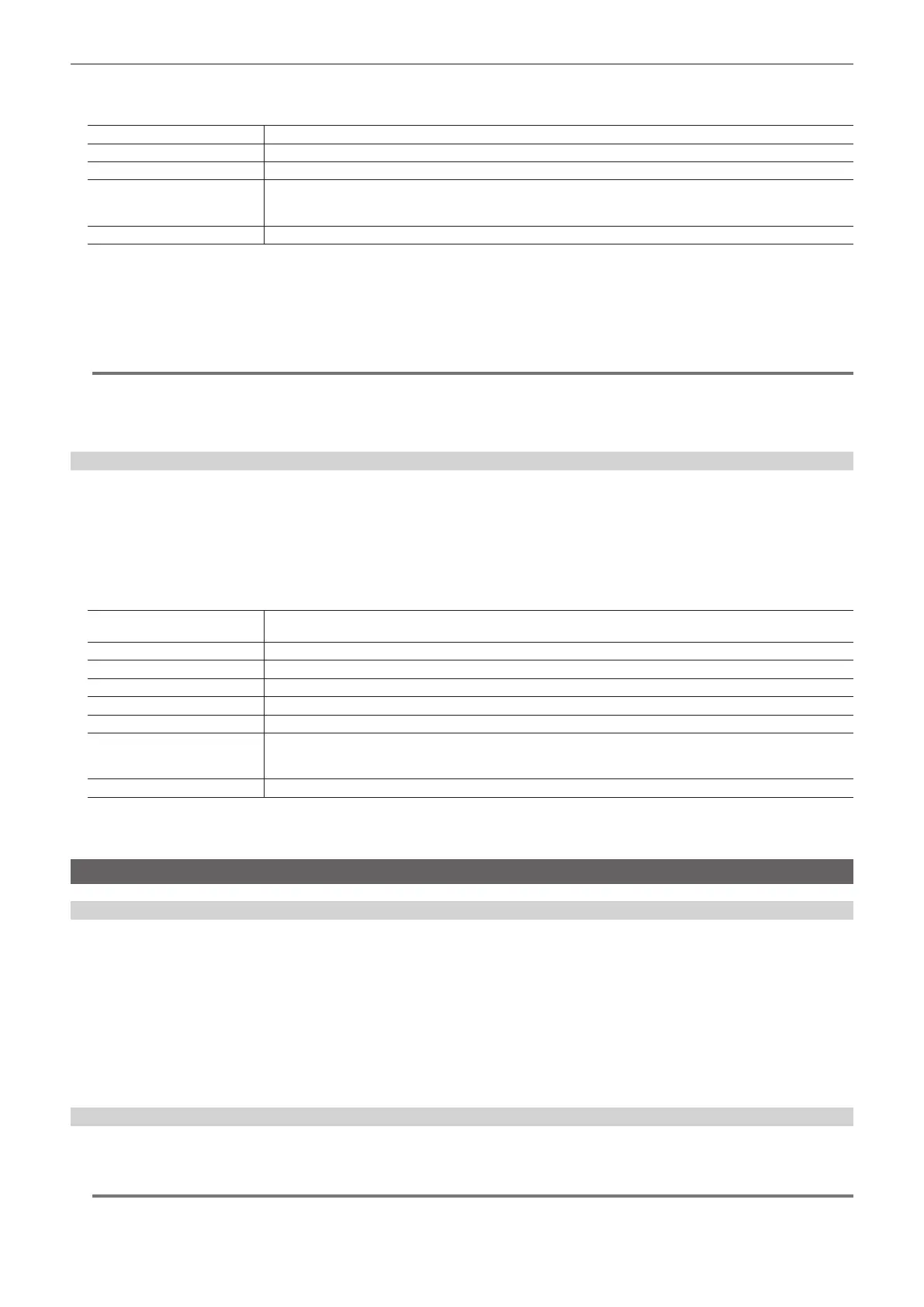
[Sort] Sorts the le icon view in ascending or descending order by le number, le name, or date.
[View] Fixed to icon display.
[Page]*
1
Switches pages.
[File Type]*
2
Select the extension to display.
For [STILL]: bmp, png, jpg (jpeg), tga, tiff (tif), gif
For [CLIP]: clp
[Cancel] Closes the screen.
*1 Displayed only on the [Store] screen in the [Register] column.
*2 Displayed only on the [Store] screen in the [SD] column.
4
Select [OK].
f The image data of the relevant channel is saved in a free register memory positioned after the selected le.
f A registered register memory cannot be overwritten. Delete the data on the [Misc] screen before registration.
@@
NOTE
t The le formats of bitmap (bmp), JPEG (jpg), TARGA (tga), TIFF (tif), and GIF (gif) will be available in V2.00.00 or higher.
t Select the <MEM> button on the top menu → [STILL], [CLIP] → [Register] tab → [Store] in the [Local] column to open the le operation screen on the
computer and save a le. The [Local] column is displayed only on the local computer connected to the <LAN> terminal of the Main Frame AV‑HS60U1/
AV-HS60U2.
Editing image les
Delete a register memory, or change le names.
1
Select the <MEM> button → [STILL], [CLIP] → [Register] tab.
2
Select [Misc] in the [Register]/[SD] column.
f The [Misc] screen is displayed.
3
Change the screen display as necessary.
[Protect]*
1
*
2
Select a le icon and set this item to [On] to protect the relevant le. The protected le is not deleted even when [Delete]
is selected.
[Rename]*
1
Select [Rename] after selecting a le icon to change the le name using the on‑screen keyboard.
[Delete] Select [Delete] after selecting a le icon to delete the register memory. It cannot be deleted if [Protect] is set to [On].
[Sort] Sorts the le icon view in ascending or descending order by le number, le name, or date.
[View] Fixed to icon display.
[Page]*
2
Switches pages.
[File Type]*
3
Select the extension to display.
For [STILL]: bmp, png, jpg (jpeg), tga, tiff (tif), gif
For [CLIP]: clp
[Close] Closes the screen.
*1 This function will be available in V2.00.00 or higher.
*2 Displayed only on the [Misc] screen in the [Register] column.
*3 Displayed only on the [Misc] screen in the [SD] column.
Using image les created on a computer
Appropriate image size
f Check the following appropriate sizes when creating a le.
- HD/1080i: 1920×1080, HD/1080PsF: 1920×1080, HD/720p: 1280×720, SD/NTSC: 720×487, SD/PAL: 720×576
f If the size of an image is not appropriate, the image is centered without resizing and is output from AV-HS6000. If the size is too large, then the image
is displayed with the portion which does not t the size cut out.
If the size is too small, then the margin around the image is displayed with a black image.
A le of the size which exceeds 1920×1080 pixels cannot be loaded.
f The pixels of images in SD format are not square, so the aspect ratio will be different when the images are displayed on the computer and when they
are imported into the video memory. (The images will be vertically long in the NTSC system.)
To keep the images true to their actual proportions, create the original image in 720×540 pixels, and for the NTSC system, use an image reduced to
720×487 pixels. For the PAL system, use images enlarged to 720×576 pixels.
Compatible le formats for still image data
The compatible le formats are as follows.
Bitmap (bmp), JPEG (jpg), TARGA (tga), TIFF (tif), GIF (gif), PNG (png)
@@
NOTE
t The le formats of bitmap (bmp), JPEG (jpg), TARGA (tga), TIFF (tif), and GIF (gif) will be available in V2.00.00 or higher.





 To Next Page