– 130 –
Chapter 8 System Menu — System settings
[1F Fix]
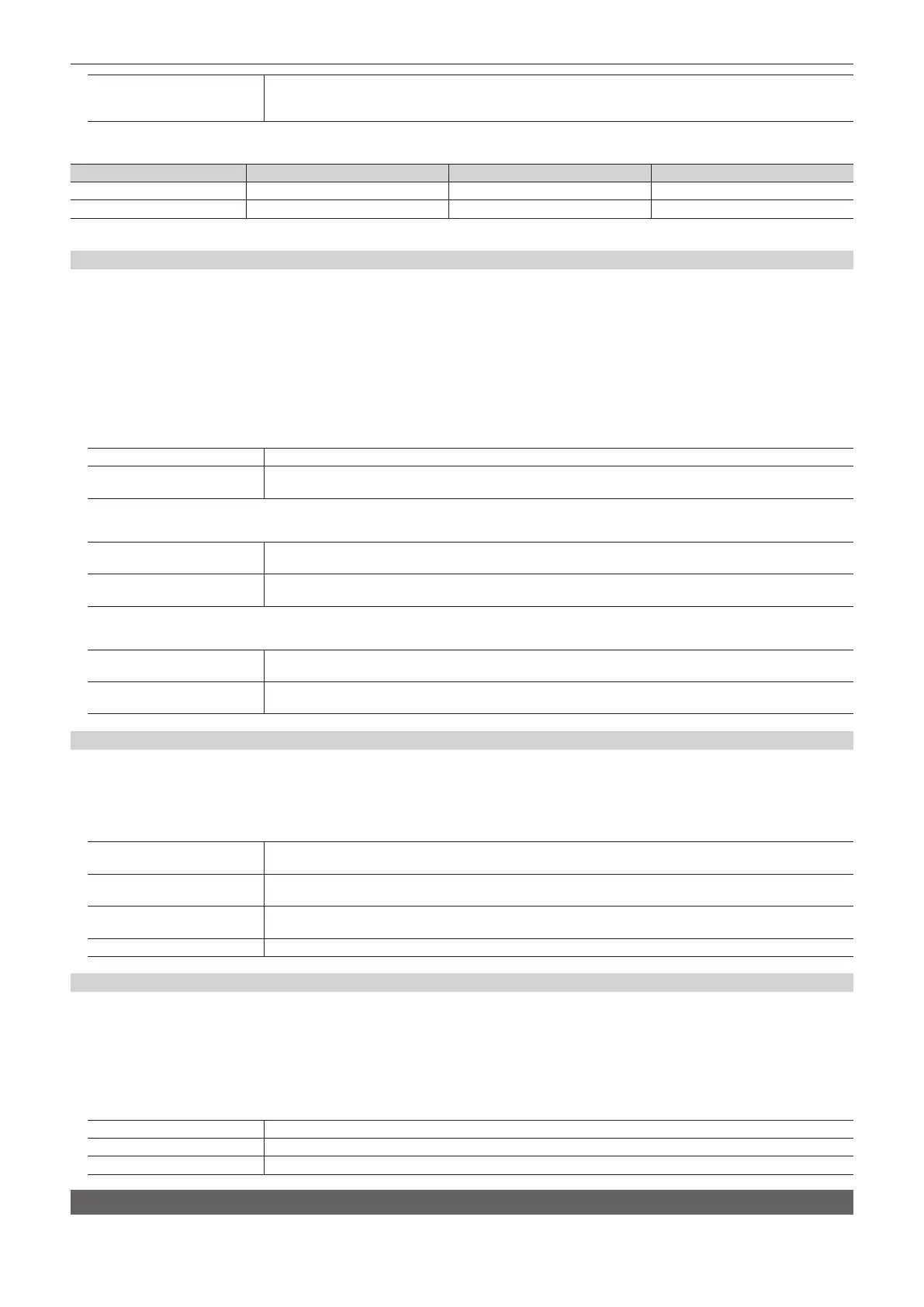
The video is delayed by one frame (1F).
f The delay difference during transition (when [SQ], [SL], or [3D] is selected in the wipe pattern) and after transition will
disappear.
r Setting the delay amount
Item After transition MIX/WIPE SQ/SL/3D/Flying Key*
[Minimum] No delay No delay 1F delay
[1F Fix] 1F delay 1F delay 1F delay
* The ying key is a [Key]‑only setting.
Setting the SDI signal ancillary
This setting enables a function that allows V ancillary data and embedded audio data of an SDI input signal to pass through.
f HD format: Ancillary data starting with line 9 is allowed to pass through.
f SD format: Ancillary data starting with line 12 is allowed to pass through.
When 1080/59.94i, 720/59.94p, 1080/50i, or 720/50p is selected as the system format of the unit, it is not possible to allow the ancillary data and
embedded audio data to pass through even if SD format signals (480/59.94i or 576/50i) have been input in the [Dot by Dot] mode or [U/C] mode.
For details, refer to “Setting the input mode” (page 106).
1
Select the <SYS> button → [SYSTEM] → [Video] tab.
2
Select an item in [AUX] in the [Ancillary] column.
[Off] The ancillary data and embedded audio data are not allowed to pass through on AUX1 to AUX16 outputs.
[On]
The ancillary data and embedded audio data of the SDI input sources selected by the AUX bus (AUX1 to AUX16) are
allowed to pass through.
3
Select an item in [PGM] in the [Ancillary] column.
[Off]
The ancillary data and embedded audio data are not allowed to pass through on ME1PGM, ME2PGM, DSKPGM1, and
DSKPGM2 outputs.
[On]
The ancillary data and embedded audio data of the SDI input sources selected by the PGM bus are allowed to pass
through.
4
Select an item in [PVW] in the [Ancillary] column.
[Off]
The ancillary data and embedded audio data are not allowed to pass through on ME1PVW, ME2PVW, DSKPVW1, and
DSKPVW2 outputs.
[On]
The ancillary data and embedded audio data of the SDI input sources selected by the PST bus are allowed to pass
through.
Setting the ancillary for the MultiView display
1
Select the <SYS> button → [SYSTEM] → [Video] tab.
2
Select an item in [MV1] to [MV4] in the [MV Ancillary] column.
f Select the bus that will superimpose ancillary data and embedded audio data on each MultiView display.
[ME1‑PGM]/[ME2‑PGM]
The ancillary data and embedded audio data of the SDI input sources selected by the [ME1-PGM]/[ME2-PGM] bus are
allowed to pass through.
[ME1‑PVW]/[ME2‑PVW]
The ancillary data and embedded audio data of the SDI input sources selected by the [ME1-PVW]/[ME2-PVW] bus are
allowed to pass through.
[DSK‑PGM]
The ancillary data and embedded audio data of the SDI input sources selected by the [ME1-PGM]/[ME2-PGM] bus prior
to DSK are allowed to pass through.
[Off] Not allowed to pass through.
Setting the crosspoint switching
The timing at which the crosspoints are to be switched can be set.
f This switching involves the operation of the crosspoint buttons and the <CUT> button.
1
Select the <SYS> button → [SYSTEM] → [Video] tab.
2
Select an item in [Timing] in the [XPT Switch] column.
f Select the timing of switching.
[Any] The crosspoints are switched in the nearest eld. This is for live applications.
[Field1] The crosspoints are switched in eld 1. This is for editing applications.
[Field2] The crosspoints are switched in eld 2. This is for editing applications.
Network settings
For details on network settings, refer to “Network settings” (page 42).





 To Next Page