– 34 –
Chapter 4 Preparations — Basic menu operations
4 Alphanumerics, symbols
Selects the alphanumerics or symbols you want to enter in the entry eld.
5 [Shift]
Switches the keyboard display. (Uppercase, lowercase)
6 [Space]
Enters a space in the entry eld.
7 [BS]
Erases the last character in the entry eld.
8 [Cancel]
Cancels the changes and closes the on-screen keyboard.
9 [OK]
Fixes the changes and closes the on-screen keyboard.
Color settings menu operations
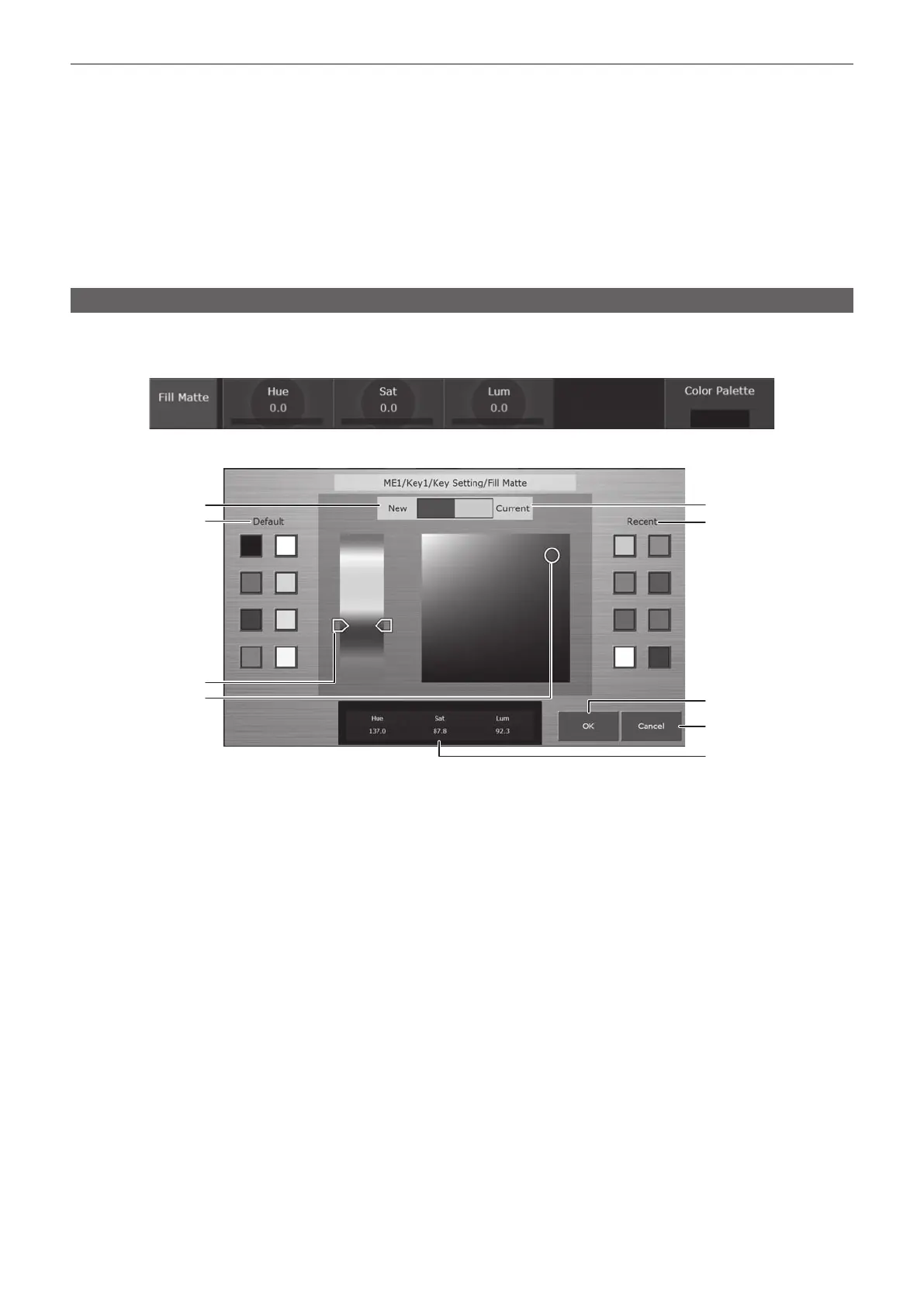
The various colors generated by the switcher can be set using the following two methods.
f Directly enter numeric values into each item for [Hue], [Sat], and [Lum]. (page 32)
f Select [Color Palette] in the same column as [Hue], [Sat], and [Lum], and use the color palette screen.
r Color palette screen
5
1
2
3
4
6
7
9
8
1 [New]
Displays the colors being changed on the color palette screen.
2 [Default]
Displays 8 default colors. The same colors are set when selected.
3 Hue Pad
Tap any color to set hue.
Vertical axis: Color tone (Hue)
4 Sat/Lum Pad
Tap any color to set saturation and luminance.
Horizontal axis: Saturation (Sat)
Vertical axis: Luminance (Lum)
5 [Current]
Displays the color set before the color palette screen is displayed.
6 [Recent]
Displays the recently set colors. The same colors are set when selected.
Just like the color palette screen for the other items, this cannot be resumed.
7 [OK]
Fixes the changes and closes the color palette screen.
8 [Cancel]
Cancels the changes and closes the color palette screen.
9 [Hue], [Sat], [Lum]
Displays the color being changed in numeric values.





 To Next Page