17-00001-C Page | 57
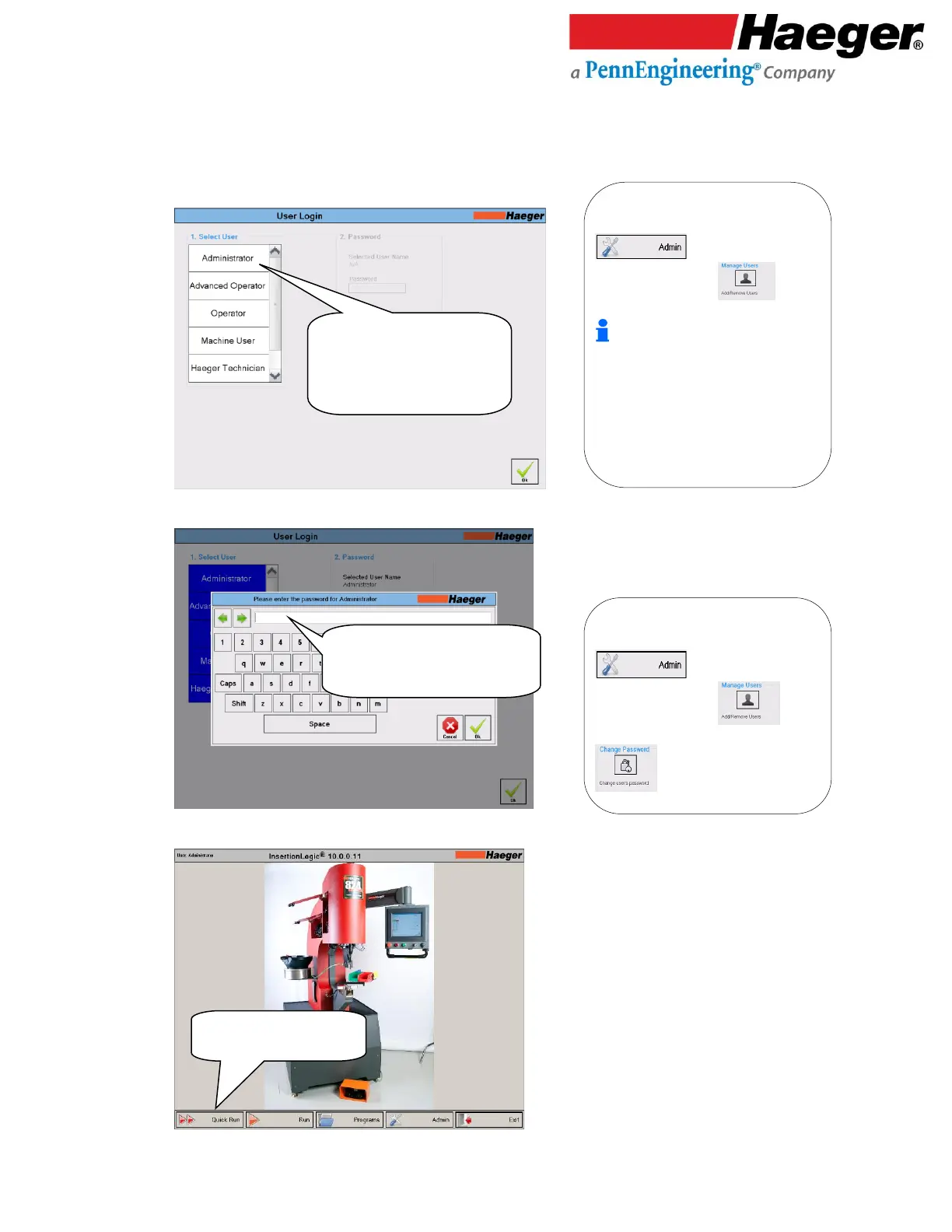
The InsertionLogic banner screen will appear on the computer, signifying that the computer is starting
up. Once the system environment is fully started, the Log In screen will be displayed.
4.
User Login
5.
Password
6.
• Select your access level
(for this example, we will
select Administrator)
• Then touch on OK
1. Select User: This screen allows you to
select from a list of users established in the
on the main screen then
touch on Manage Users to
add/reove a user.
The Administrator, Advanced Operator,
Operator, Machine User and Heager
Technician users come pre-set in the
InsertionLogic software and cannot be
deleted. It is recommended to use them as
a template for adding users. For a quick
reference on the differences between user
and access levels, see User level security
access, page 16 of this manual.
2. Password: User passwords are
established during User Setup in the
on the main screen then
touch on Manage Users .
To changing user’s password, touch on


 To Next Page