Home screen overview
The Home screen on the SendPro® C-Series machine provides the starting point for creating either a
trackable shipping label or printing postage on an envelope. The application drawer at the bottom of the
screen provides access to information about trackable labels you have already sent (History), trackable
label addresses (Address Book) and accounts you are using to track your postage spending (Cost
Accounts). To view the information tap on the appropriate icon.
To view all of the options in the application drawer, tap the double-headed arrow on the right side of the
application drawer. Other options include the ability to track a shipment (Tracking), visit the USPS postal
website, and order supplies.
Start creating a shipping label by tapping Trackable Labels. Print postage by tapping Envelope
Printing.
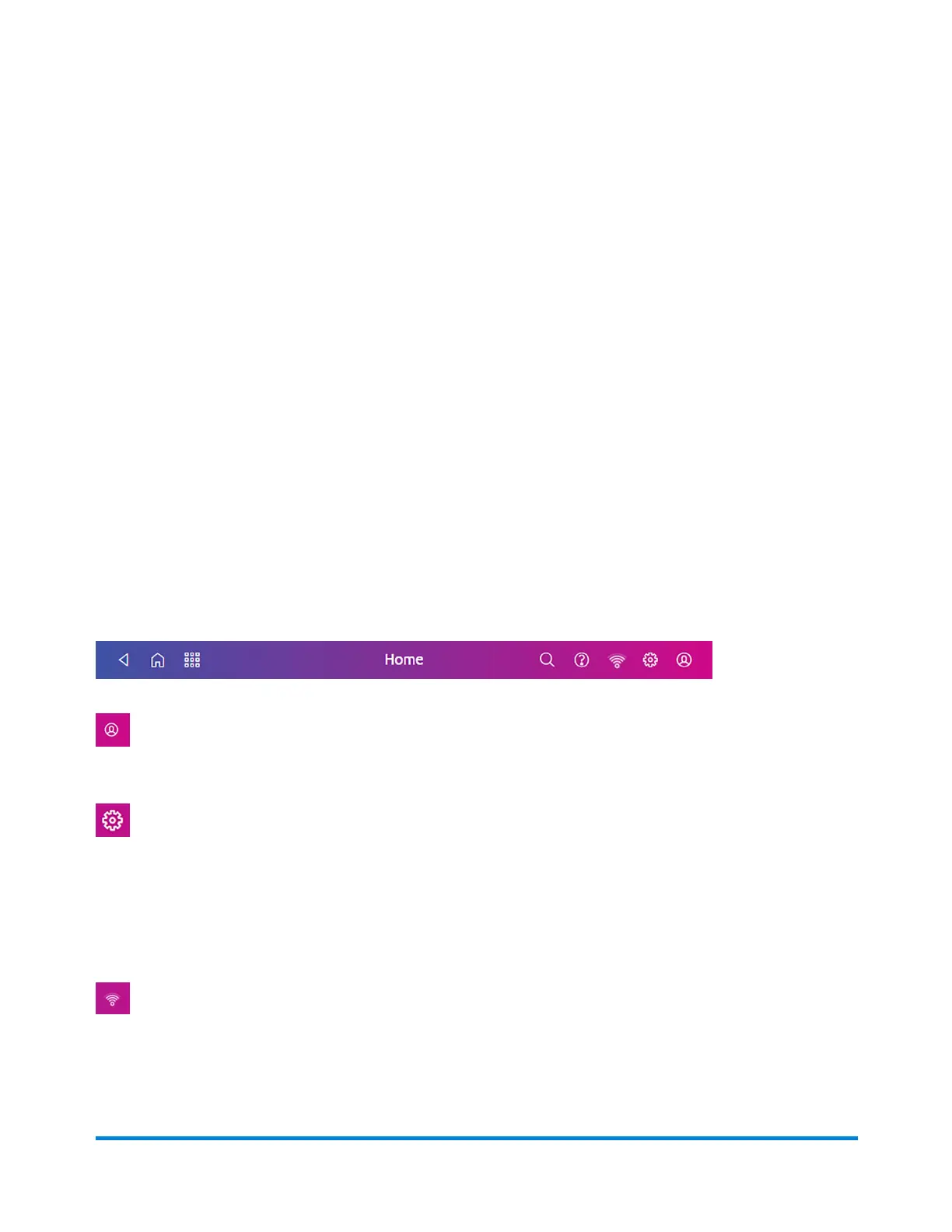
The global toolbar located at the top of the Home screen appears at the top of every screen within the
Trackable Labels and Envelope Printing applications.
This toolbar allows you to view and change settings and defaults values for your machine and the
Trackable Labels and Envelope Printing applications.
Profile - View your profile (name and email for Trackable Label account), log out, or lock your
SendPro C-Series device.
Settings - View or change your machine and application settings. For your machine, this includes
adjusting the screen brightness, setting sound notification levels, and viewing wireless or Ethernet
connection information. For the Envelope Printing this includes setting up automatic postage refills,
external scales and barcode scanners and performing maintenance on the mail postage printer. For the
Trackable Labels this includes managing your carrier accounts and setting up your shipping label printer
default values.
Network - View the current network type (wireless or Ethernet) and status and strength (for
wireless connection). Allows you to turn wireless connection on or off. The icon here represents a
wireless connection.
Getting Started Home Screen
Pitney Bowes Operator Guide June 2018 18












 To Next Page