List Of Messages
37
Troubleshooting Display Messages
WARNING
Always disconnect the AC power cord from the printer before doing a
maintenance procedure. Failure to remove power could result in injury
to you or damage to equipment. If you must apply power during
maintenance, you will be instructed to do so in the maintenance
procedure.
Three kinds of messages appear on the Liquid Crystal Display (LCD):
• Status messages
• Configuration menus and menu options
• Fault messages
Most fault messages are cleared from the LCD by correcting the fault
condition then pressing the CLEAR key.
Some fault messages can only be cleared by shutting down and restarting the
printer. These fault messages are indicated by an asterisk (*) appended to the
message.
If printer logic detects a fault condition, three things happen:
• The status indicator on the control panel flashes on and off.
• The audible alarm beeps if it is enabled. Press CLEAR to silence the
alarm.
• The control panel LCD displays a fault message.
List Of Messages
Find the message in the Message List below and follow the suggested
procedure. After correcting an error, press the CLEAR key to clear the
message and place the printer in the off-line state.
If an error is not cleared, the printer will try to print again but will display the
error message until the error is cleared.
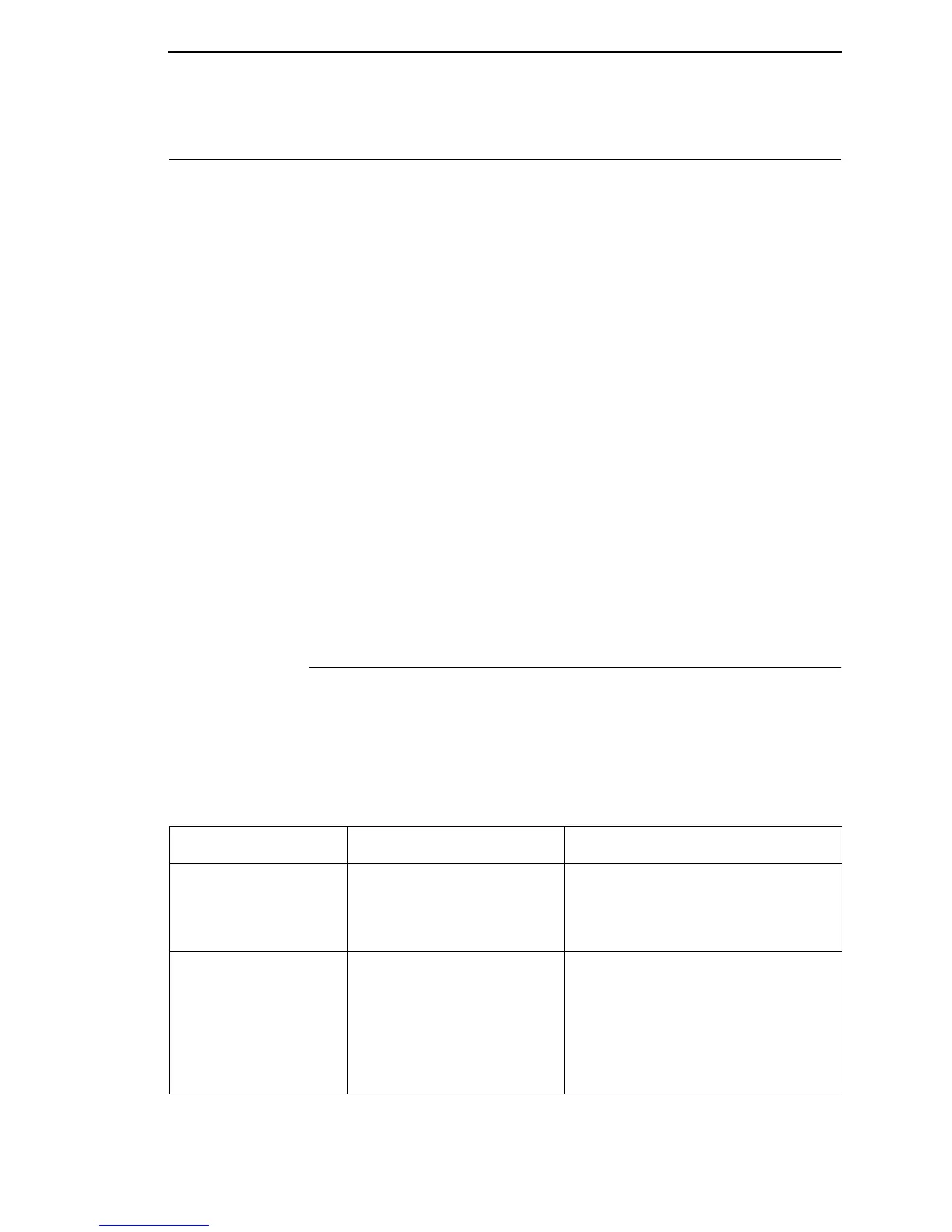
Table 2. Message List
Message Explanation Solution
06 HOST REQUEST
Status message: in CT
emulation, the host
computer or printer
controller requires attention.
Not a printer problem.
08 HOLD PRINT
TIMEOUT
Status message: in CT
emulation, the printer was
off-line more than 10
minutes and the
“Intervention Required”
parameter is set to “Send to
Host.”
Press ON LINE.










 To Next Page