Page 112 of 254
Part No. 96000001
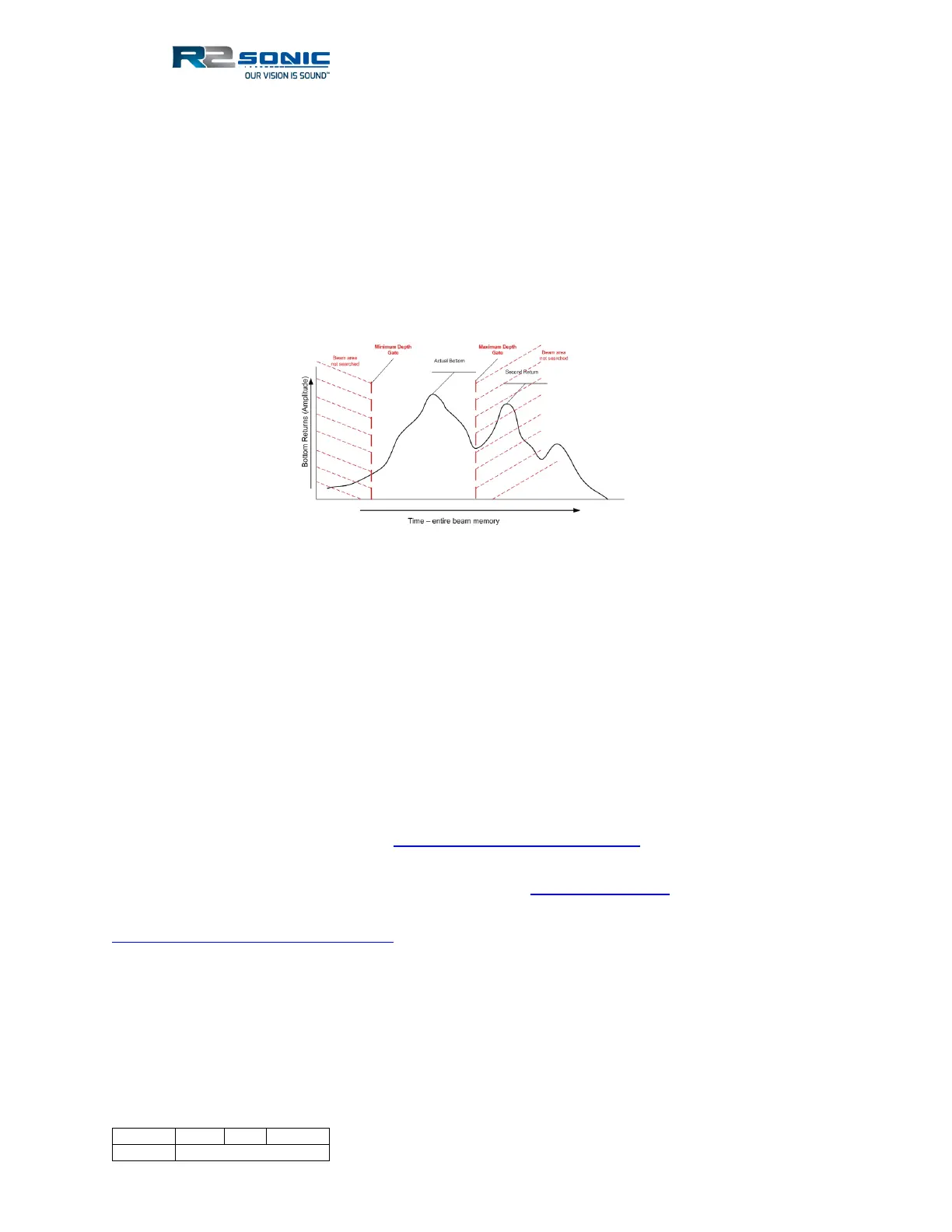
The main reason to use the Sonic MBES depth gates is to eliminate the interference of the bottom
detection process. Depending on the bottom composition, multiple returns can occur. There will be
a secondary and possibly a tertiary return that arises from the initial bottom returns being reflected
by the water surface and then back up again to the receiver. These second and third returns can be
strong enough to influence the bottom detection process. Using the Sonic MBES depth gate will
enable the Sonic MBES to search only a small area of the entire beam for the bottom detection.
Therefore, only the area around where the energy from the actual bottom returns are, will be
searched to derive the bottom detection. Although the user enters a depth for the gate setting, to
the Sonic MBES this is a time to start searching and a time to stop searching.
Figure 136: Graphical representation of depth gate
The above representation illustrates how the depth gate narrows down the bottom detection search
area (in time) to only the area where the true bottom is expected. If the Maximum Depth gate was
not in this location, the second return could be strong enough so as to influence the bottom
detection process.
Again, it must be borne in mind that if the depth gate is set such that true bottom detections are
‘gated out’; those data are lost entirely and cannot be recovered.
5.17 GUI Rec(ord)
This feature allows the user to record the entire GUI in x.264 format (extension is .mkv). Due to
licensing, R2Sonic cannot redistribute the required executables for this format, and it is left to the
customer to download ffmpeg.exe from http://ffmpeg.zeranoe.com/builds/. The ffmpeg.exe file
needs to be in the Sonic Control directory or in the Windows search path. To play back the recorded
videos, there are several free programs that work. MPC-HC https://mpc-hc.org/ is light-weight (16
MB), supports many formats, excellent scrubbing and launches videos quickly. VLC
http://www.videolan.org/vlc/index.html is also good but may take a long time to open a video.
5.18 Ruler
The ruler or measuring tool can be used to obtain range and bearing information, within the GUI, by
using the mouse cursor. Use Ctrl + Left Mouse Button (LMB), the cursor will change to a cross and
can be dragged to the target (once the range and bearing are initiated, the Ctrl button can be


 To Next Page