Application Examples
R&S
®
GP-E/GP-S
163User Manual v16.2.1 ─ 01
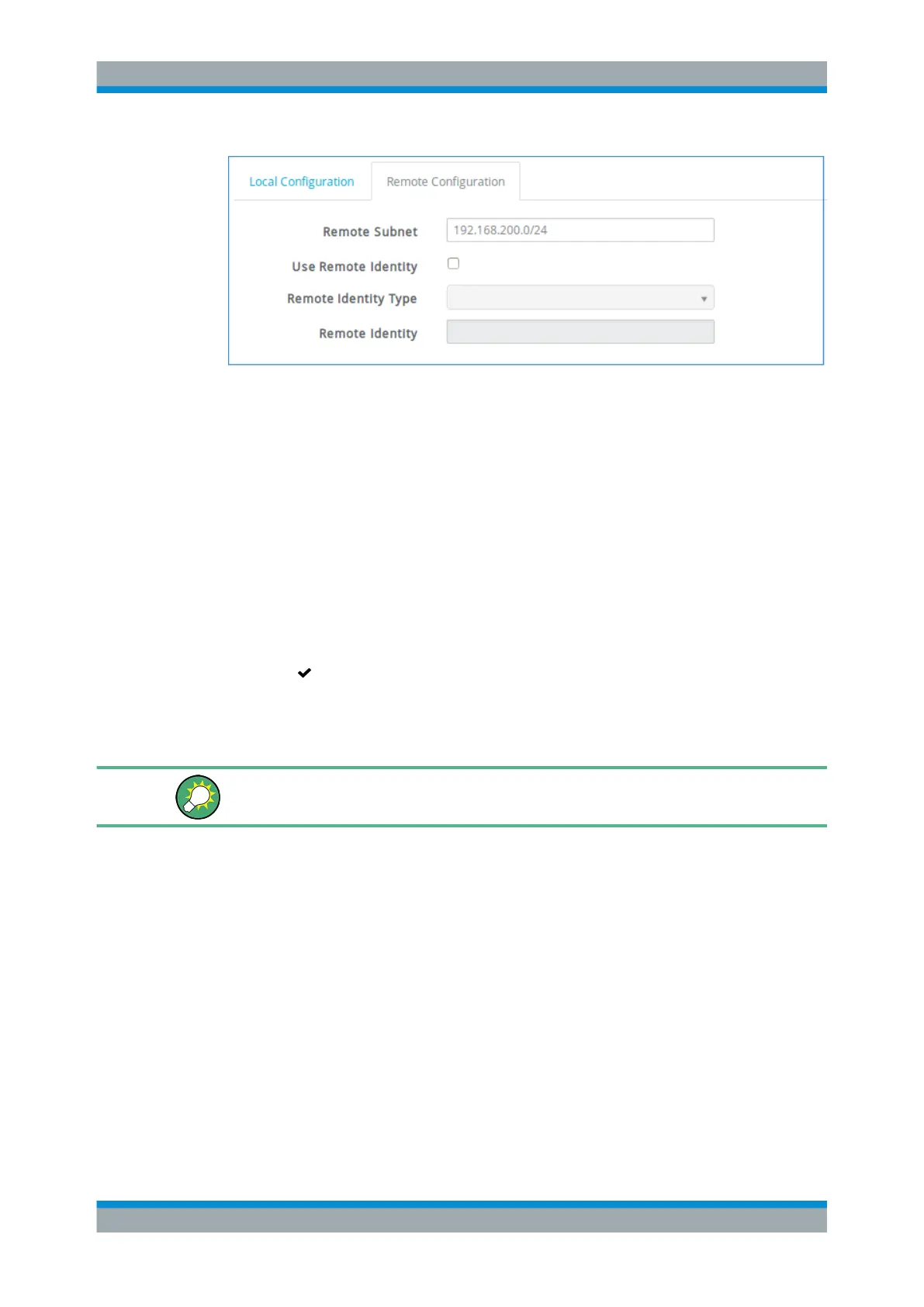
Figure 4-27: Sample Remote Configuration settings.
1. Specify the "Remote Subnet" for the new network object. Clients receive an IP
address from this subnet when they connect to gateprotect Firewall.
2. Enable "Use Remote Identity" if you set up more than one IPsec connection for the
same access zone. If enabled,
a) select a "Remote Identity Type" and
b) enter a "Remote Identity" depending on the type you have selected in the previ-
ous step.
3. Click "Create" to add the new VPN to the list of connections.
The new VPN setup appears in the list of available connections.
4.
Click "
Activate" in the toolbar at the top of the desktop to apply your configura-
tion changes.
gateprotect Firewall is now ready to respond to incoming VPN connection requests.
For sample client setup instructions, see the topics below.
Setting Up an iOS Client Using a Pre-Shared Key
Mobile devices running iOS (such as the Apple
®
iPhone
®
or iPad
®
) can be configured
to communicate securely with gateprotect Firewall via a VPN connection. The connec-
tion is authenticated using a pre-shared key.
Follow the steps below to set up a VPN connection to gateprotect Firewall on iOS 9.
1. Make sure that you have an active network connection (Wi-Fi or cellular data net-
work).
2. Go to "Settings > General > VPN".
3. Tap "Add VPN Configuration..." .
4. Tap "Type" and select IPsec.
VPN Setup Examples


 To Next Page