Application Examples
R&S
®
GP-E/GP-S
165User Manual v16.2.1 ─ 01
Setting Up an iOS Client Using Certificates
Mobile devices running iOS (such as the Apple
®
iPhone
®
or iPad
®
) can be configured
to communicate securely with gateprotect Firewall via a VPN connection. The connec-
tion is authenticated using certificates.
Creating VPN Certificates for iOS Clients
Digital certificates secure communication between the VPN gateway and the clients
that connect to it. Use the settings under "Cert. Management > Certificates" to create
the necessary certificates for your VPN connection.
If you establish an IPsec connection, there are two ways to secure your connection –
either by pre-shared key or by certificates. The following steps only need to be taken if
you choose certificates as authentication method.
Creating certificates
1. From the menu in the navigation pane, select "Cert. Management > Certificates" .
2.
Click the plus button
in the item list bar header to create a new VPN certificate
authority.
The system prompts you to select the service that the new certificate should be
used for.
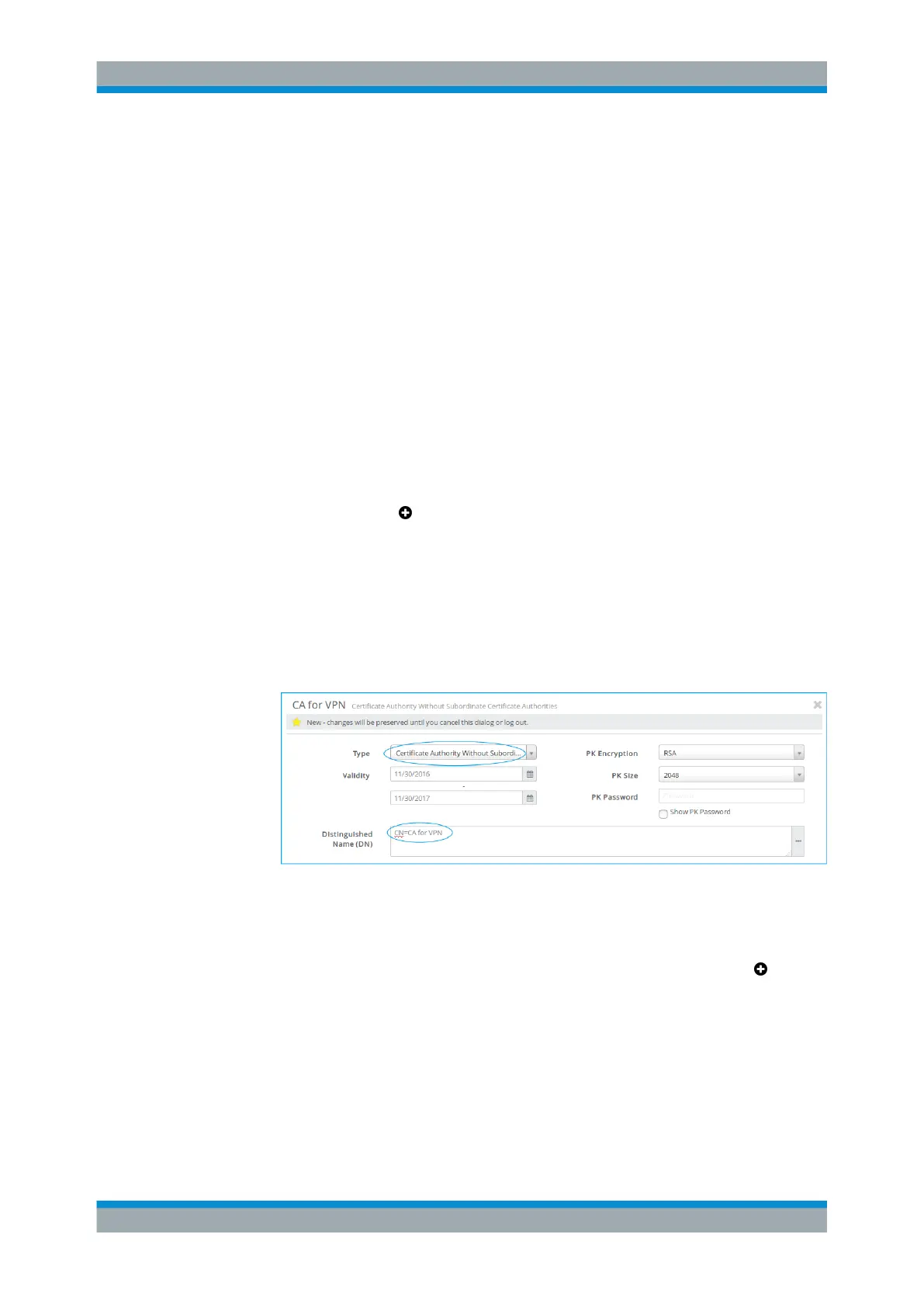
a) Under "Type" , select Certificate Authority Without Subordinate
Certificate Authorities which will be used to authorize the necessary
VPN certificate.
b) Adjust the information as necessary for your environment.
Figure 4-29: Sample CA certificate settings.
c) Click "Create" to add the new certificate authority to the list of available certifi-
cates.
3.
Create a certificate for the host and the client each. Click the plus button in the
item list bar header to create a new VPN certificate.
The system prompts you to select the service that the new certificate should be
used for.
4. Create the host certificate with the following settings:
a) Under "Type" , select Authentication and VPN.
b) Under "Signing CA" , select the CA created in step 2.
VPN Setup Examples



 To Next Page