Application Examples
R&S
®
GP-E/GP-S
168User Manual v16.2.1 ─ 01
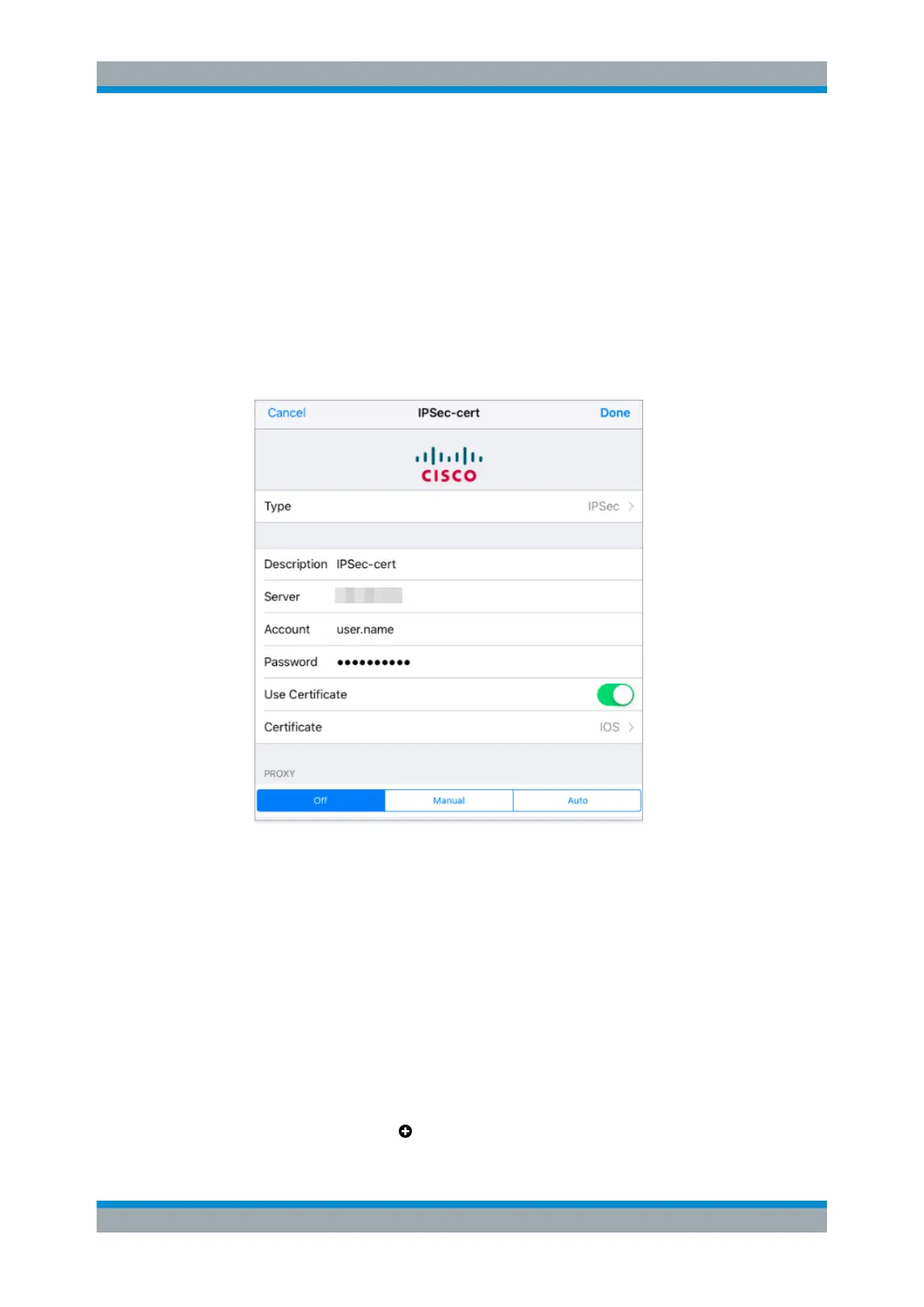
b) Enter the gateprotect Firewall WAN IP (used as distinguished name in the cer-
tificate) under "Server" .
c) Specify an authorized user name as "Account" .
The user name must be defined on gateprotect Firewall in the list of VPN users
under "Firewall > User Authentication" . See Chapter 3.4.1.8, "User Authentica-
tion", on page 47 for more information.
d) Enter the "Password" for the user name entered above.
e) Enable "Use Certificate" .
f) Tap "Certificate" and select the client certificate imported earlier.
g) Return to the settings screen.
h) Set "PROXY" to Off.
Figure 4-32: Sample iOS 9 VPN setup with certificates.
8. Tap "Done" to add the new settings to the list of VPN configurations.
9. Tap the new configuration in the list.
10. Tap the switch behind "Status" to establish the VPN connection.
Setting Up Android Clients for IPsec
To set up an IPsec client-to-site connection for Google Android
TM
clients, you need to
allow ICMP. Otherwise, large encrypted packages that require fragmentation will not
arrive at the client.
1. Navigate to "Network > Firewall Rules" .
2.
Click the plus button
to set up a firewall rule.
VPN Setup Examples



 To Next Page