66 •
3. DATA CONNECTION
3.1 Setting up LAN connection (stationary operation)
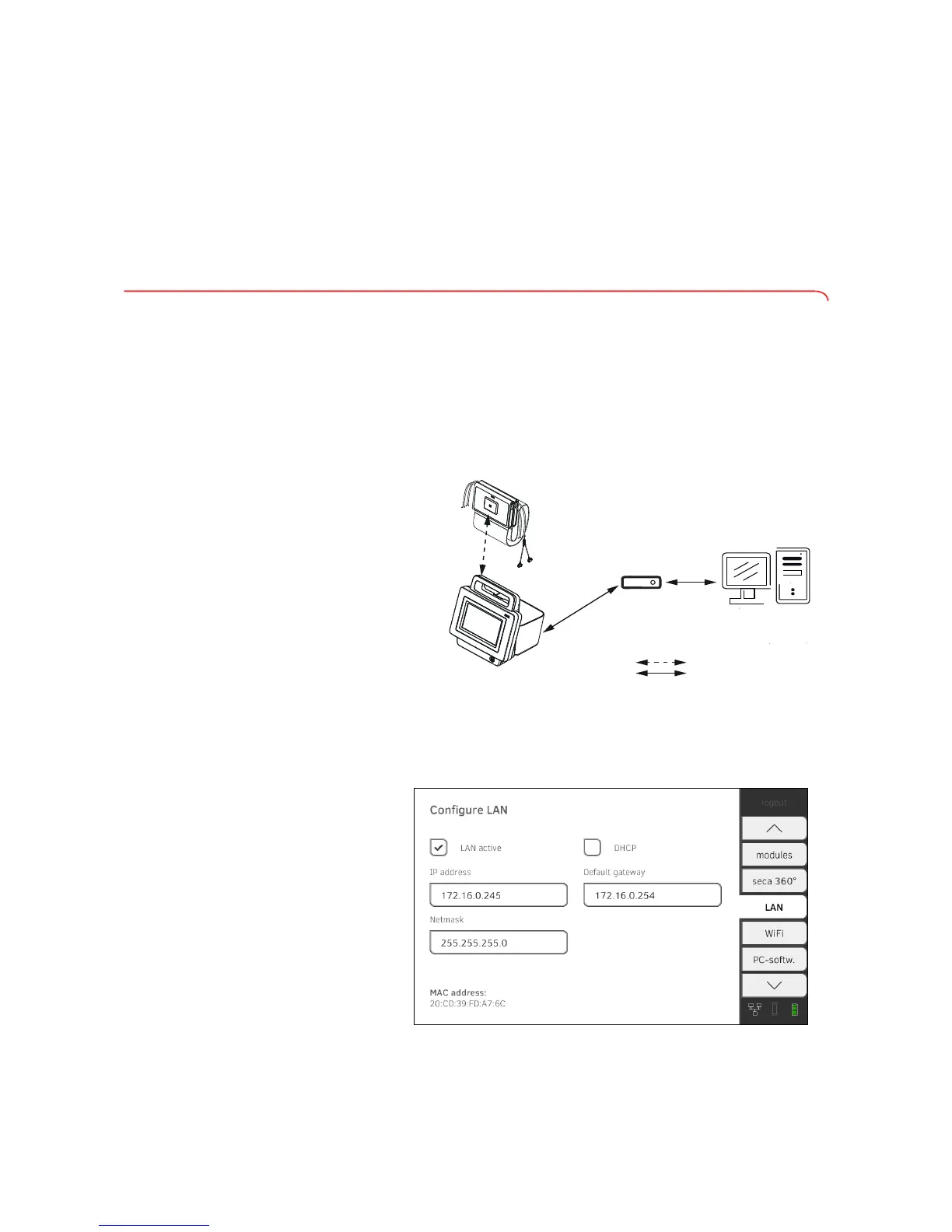
Introduction If the device is to be used on a stationary basis, e.g. in a treatment room in
your practice, you can integrate the monitor in your LAN using a network
cable and set up a connection to the
seca 115 PC software.
The monitor and the PC software communicate via the LAN connection. The
monitor and the measuring mat communicate with one another via a direct
WiFi connection (WiFi direct). It is not possible for the measuring mat and the
PC software to communicate directly.
Setting up LAN connection 1. Press the LAN tab.
2. Make the applicable setting for your network.
► To set up connection on automated basis: press the
DHCP button
► To set up connection manually, continue at Step 3.
➔ Setting up LAN connection (stationary operation)
➔ Setting up WiFi connection (mobile operation)
➔ Setting up a connection to the seca analytics 115 PC software
➔ Setting up the seca 360° wireless network
➔ Introduction
➔ Setting up LAN connection
➔ Checking direct WiFi connection to measuring mat
➔ Deactivating/activating LAN
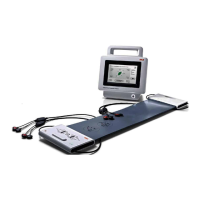
seca 115
Server/Stand-Alone-PC
seca 525
Monitor
seca 525
Measuring mat
LAN-Router
WiFi-Direct: Monitor/Measuring mat
LAN: seca 525/seca 115


 To Next Page