30 •
4. Search for the desired seca patient file in the list:
a) Press input field
b) Enter patient name or patient ID using the keypad
c) Confirm your entry by pressing the button
A hit list is displayed.
5. Press the desired entry.
The selected seca patient file appears in the Patient information dialog
field.
6. Press the confirm button.
The seca patient file is opened.
7. Enter the basic parameters ➔ Entering basic parameters.
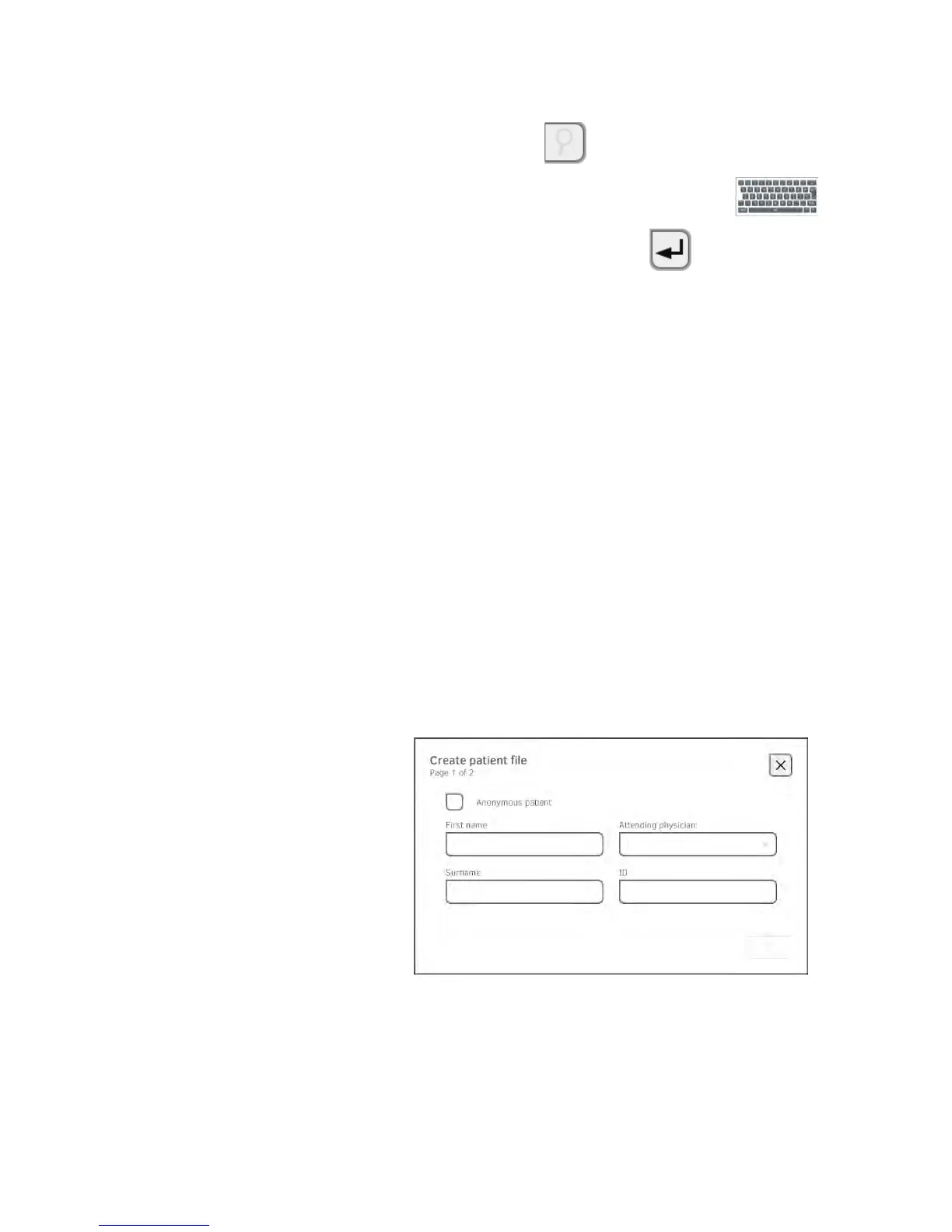
Creating a seca patient file ATTENTION!
Inconsistent measured results
If you create seca patient files several times, this can lead to incorrect
assignment of measured results and falsify the evaluation.
► If there is no seca patient file on the device for the current patient,
check whether there is already a seca patient file in the
seca 115 PC
software.
► If there is a seca patient file in the
seca 115 PC software for the cur-
rent patient, ask your administrator to synchronize the data of the
device and the PC software.
► Only create a new seca patient file directly on the device if you are
sure that there is no seca patient file for the current patient in the
seca 115 PC software.
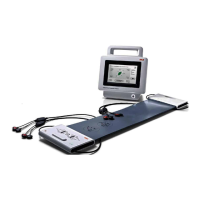
1. Ensure that the measuring mat is correctly suspended in the storage
compartment of the monitor ➔ Suspending measuring mat in storage
compartment.
2. Press the patient tab.
3. Press the create file button.


 To Next Page