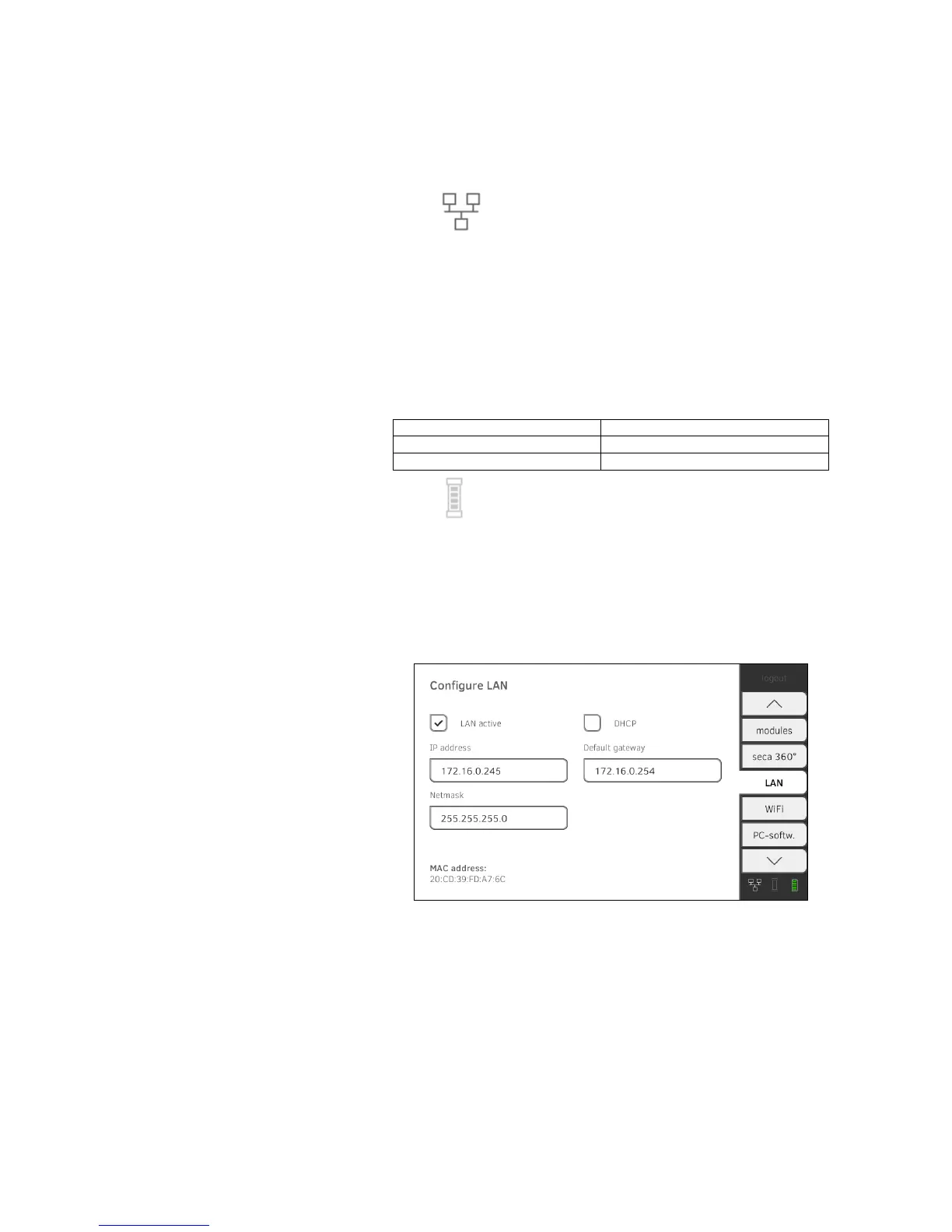
3. Make the relevant settings for your network.
► Enter IP address
► Enter netmask
► Enter default gateway
The symbol is displayed on the monitor.
The LAN connection is set up.
NOTE:
Settings you make in this tab are active directly. You do not need to
save or confirm them.
Checking direct WiFi connection to
measuring mat
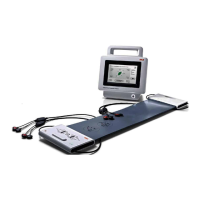
1. Ensure that the measuring mat is correctly suspended in the storage
compartment of the monitor.
2. Press the
WiFi tab.
3. Ensure that the following settings are in place:
The symbol is displayed on the monitor.
The direct connection between the monitor and the measuring mat is set
up.
NOTE:
Settings you make in this tab are active directly. You do not need to
save or confirm them.
Deactivating/activating LAN 1. Press the LAN tab.
2. Press the LAN active checkbox.
The LAN function is deactivated.
The connection data are retained.
3. To reactivate the LAN function, press the
LAN active checkbox again.
Function Setting
WiFi activated
WiFi Direct activated


 To Next Page