A second function of the “clr” soft-key, accessed by holding FUNC while pressing F1, will de-activate
aux steps only .
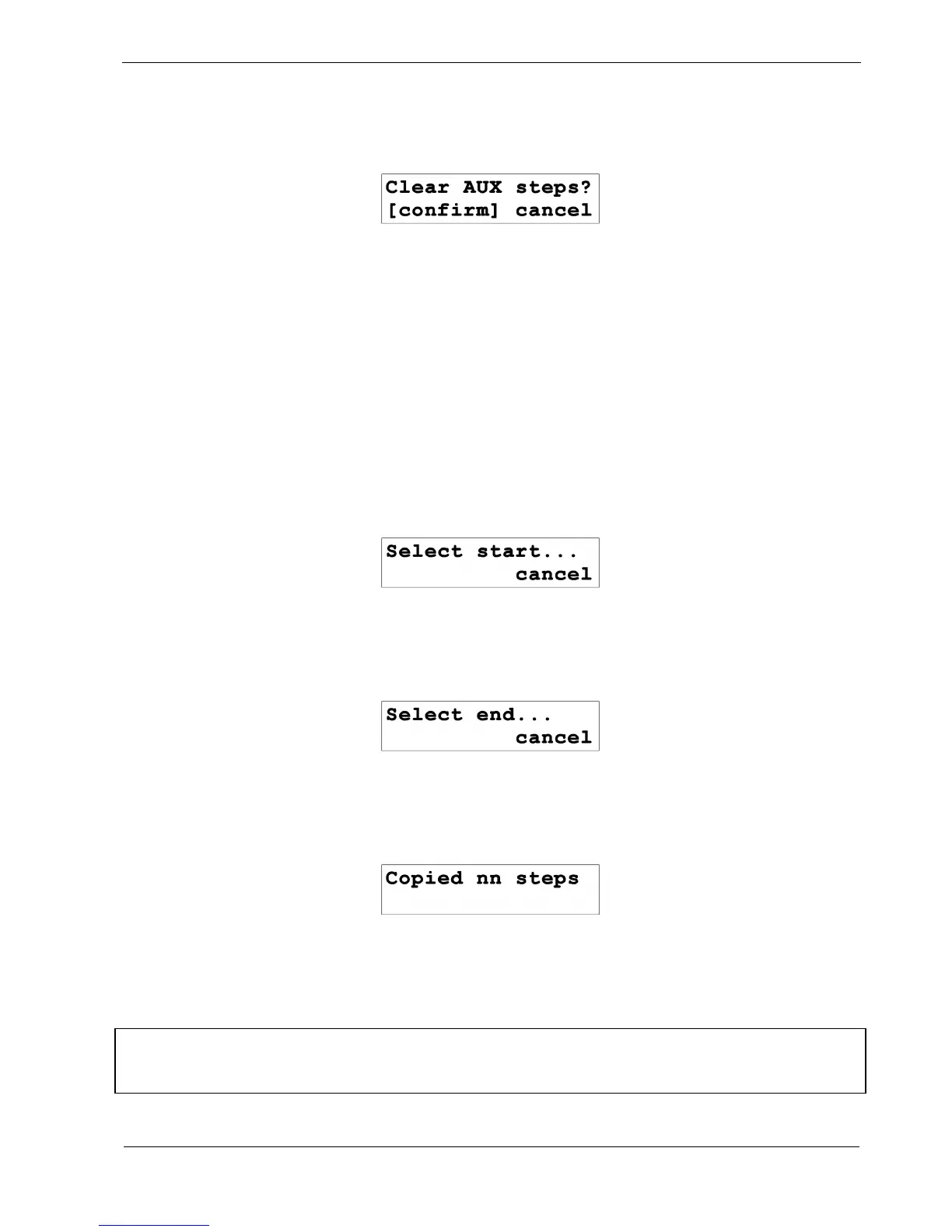
The display will show:
You must again press F1 and F2 together to confirm this operation.
F2 / F3 – Copy & Paste
Copy and paste allow you to copy a number of steps in a pattern to another position within the
pattern, or to copy some or all of one pattern to another.
How To Copy
• press the “copy ” soft-key, F2, to start the copy process. The display will show:
• select the first step to be copied using the step keys, or press F3 to cancel
Once the first step is selected, the display will show:
• select the last step to be copied using the step keys, or press F3 to cancel
When the last step has been selected, the display will briefly show:
…where “nn” is the number of steps copied to the buffer.
The step LEDs for the steps copied will also briefly turn flashing amber before returning to the normal
display of step status.
*TIP Note that you can select a lower numbered last step to be copied than the first step. This will
copy the steps from the pattern to the copy buffer in reverse order – so you can reverse small sections
of the pattern.



 To Next Page