How To Paste
You can paste the copied data anywhere in the same pattern.
Or you can exit pattern edit, edit a different pattern on the same or different track, and paste the data
into the other pattern.
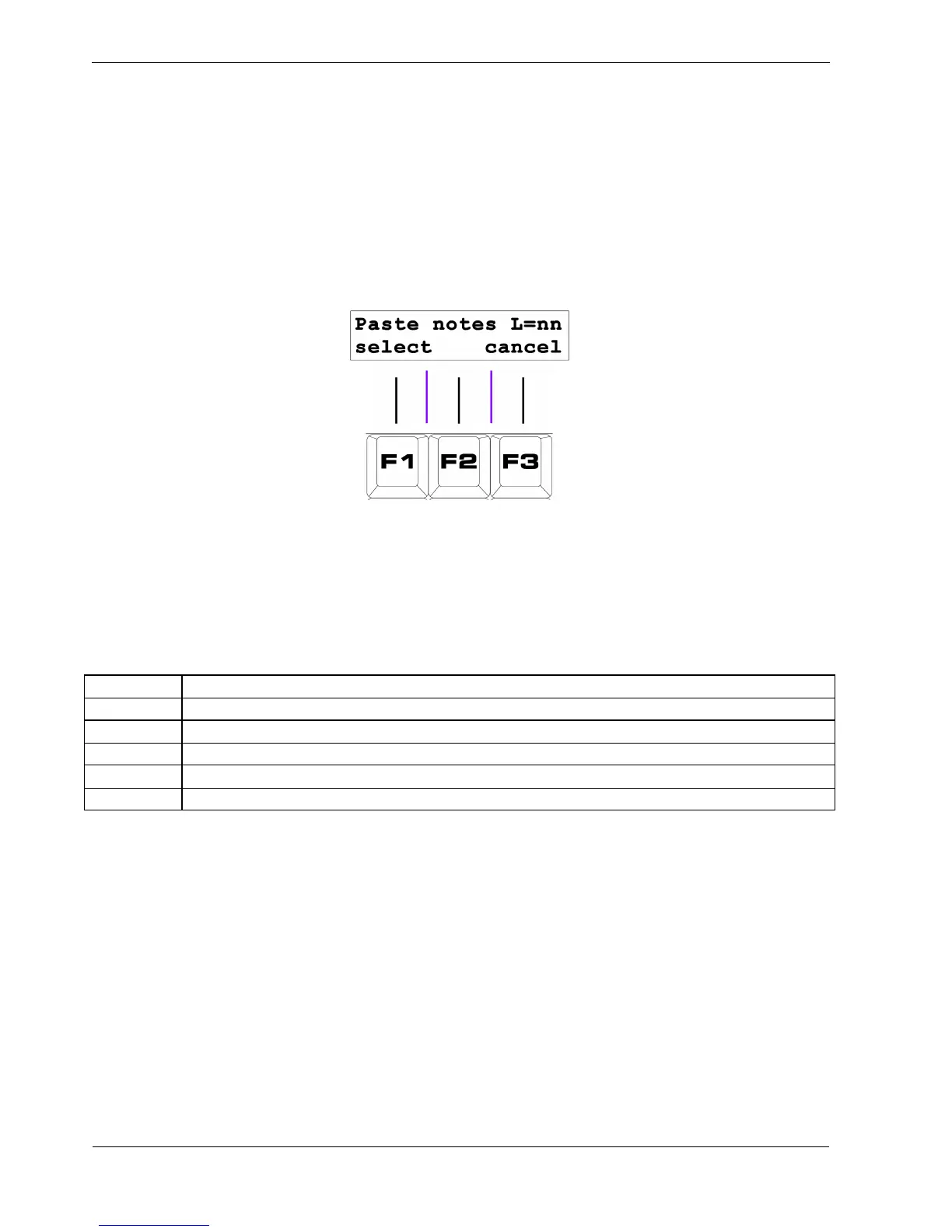
• press the “paste” soft-key, F3, to bring up the paste page.
The display will show:
This display tells us two important things.
“L=nn” is the number of steps that were stored in the copy buffer by the last copy performed.
“Paste notes” shows the current paste filter setting.
The paste filter settings are listed in this table:
Filter Data Pasted
notes
note, velocity, length , delay, gate, tie, skip and Xd rows
auxes
aux A, B, C and D, numeric and status rows
both
all pattern rows
auxcf
only the aux assignments for the pattern
all
all of the above
• press the “select” soft-key, F1, to select a different paste filter if required
• press a step key to paste the copied data, starting from that step
Pasted data will wrap round to the start of the pattern if more steps are in the copy buffer than the
number from the first paste step to step 16 of the pattern.
Newly pasted steps are shown briefly in flashing amber .
If you are pasting only the aux and accumulator config (auxcf), the step number pressed doesn't matter
since the settings are global to the whole pattern - but you do need to press a step key to do the paste.



 To Next Page