GB SGM Technology for lighting
User’s Manual 1.00 Pi
lot 3000
- 64 -
It is important to use the Locate command because it allows to save all that is in a scene during
the programming and then get a precise execution of the Cues in phase of Playback.
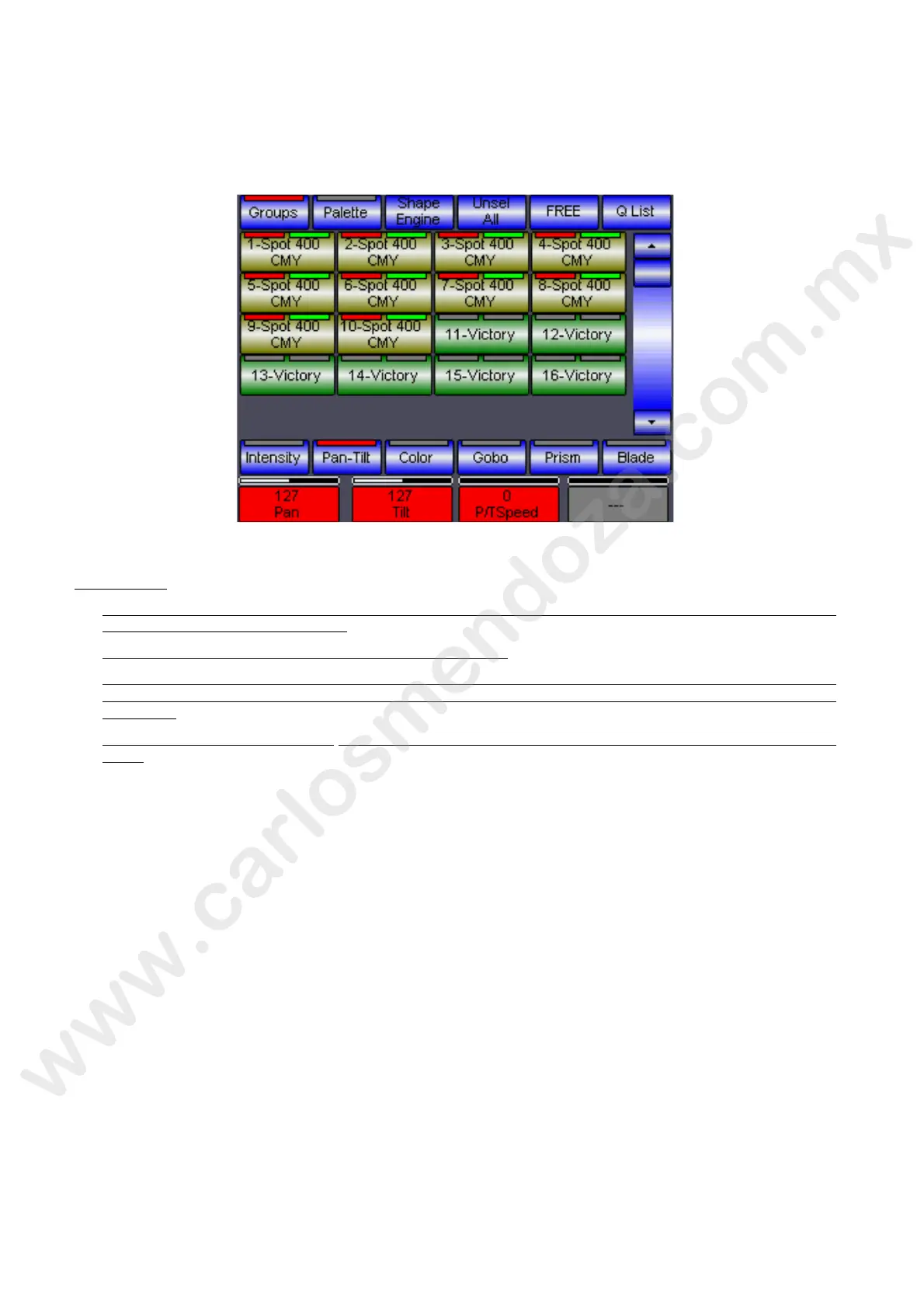
The below picture shows the touch panel after the Locate command.
The screen indicates:
The selection
Which fixtures contains Attributes The green LEDs on th Fixtures key indicate that there are values
assigned to the fixtures Attributes.
How many Attributes have been assigned to ever fixt re
The green LED indicates that the fixture holds alu s for All its Attributes (as it is a status imposed by
Locate command). The Cyan LED indicates th t a value has been assigned only to a part of the fixture
Attributes.
Value of the Attributes assigned.
The field of the control area becomes Red when a value is assigned to
them.
The Attributes with a value are dicated by the red field on the lower side of the touch panel. To scroll and
visualize all of them, simply press the Palette keys, located above the red fields, Intensity, Pan Tilt, Color,
Gobo, Prism, Blade. The Pale te key selection allows having the control on the Attributes of the selection
through the four below wh els. Here below we will see how to modify the Attributes through the wheels in
order or realize the scene desired once imposed the Locate status.


 To Next Page