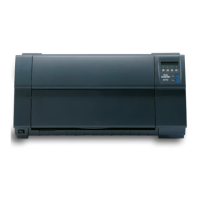
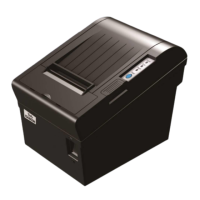
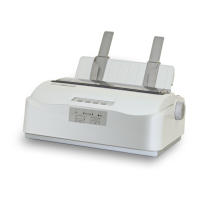
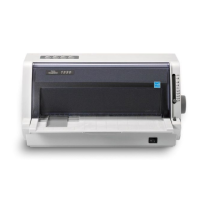
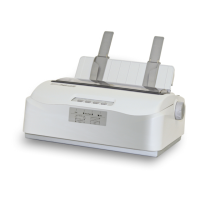
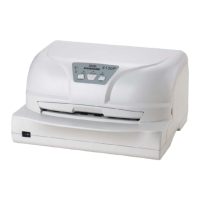
Tally Dascom 2600 2610
75
6.3.2 Firmware Update
To load new firmware, proceed as following:
1. For LED panel, in DOS operation system via parallel interface:
1) Connect the printer to PC with parallel cable.
2) Hold 【Online】+【Tear】 while powering on the printer to enter Firmware Update mode,
until LED”Online” and LED”Paper Out” turn on and other LEDs turn off.
3) Go to DOS prompt window, type in “copy /b +<file name>+ lpt1”, and press enter to start.
During download, all the LED blinks alternatively.
4) The printer resets after download is finished, LED “Power/Error”,LED”Online” ,
LED”Speed” and LED”Paper Out” turn on and LED”Tractor” turns off.
2. For LCD panel, in DOS operation system via parallel interface:
1) Connect the printer to PC with parallel cable.
2) Hold key1 + key 4+ 【Online】while powering on the printer to enter Firmware Update
mode, until “BOOT PARALLEL” is displayed.
3) Go to DOS prompt window, type in “copy /b +<file name>+ lpt1”, and press enter to start.
During download, “DownLoad FirmW” is displayed. After the progress bar is loaded,
“ProgFlash…” will be displayed.
4) The printer resets after download is finished.
Please refer to the user guide for how to update firmware by WebPanel.


 To Next Page